65
Example 2
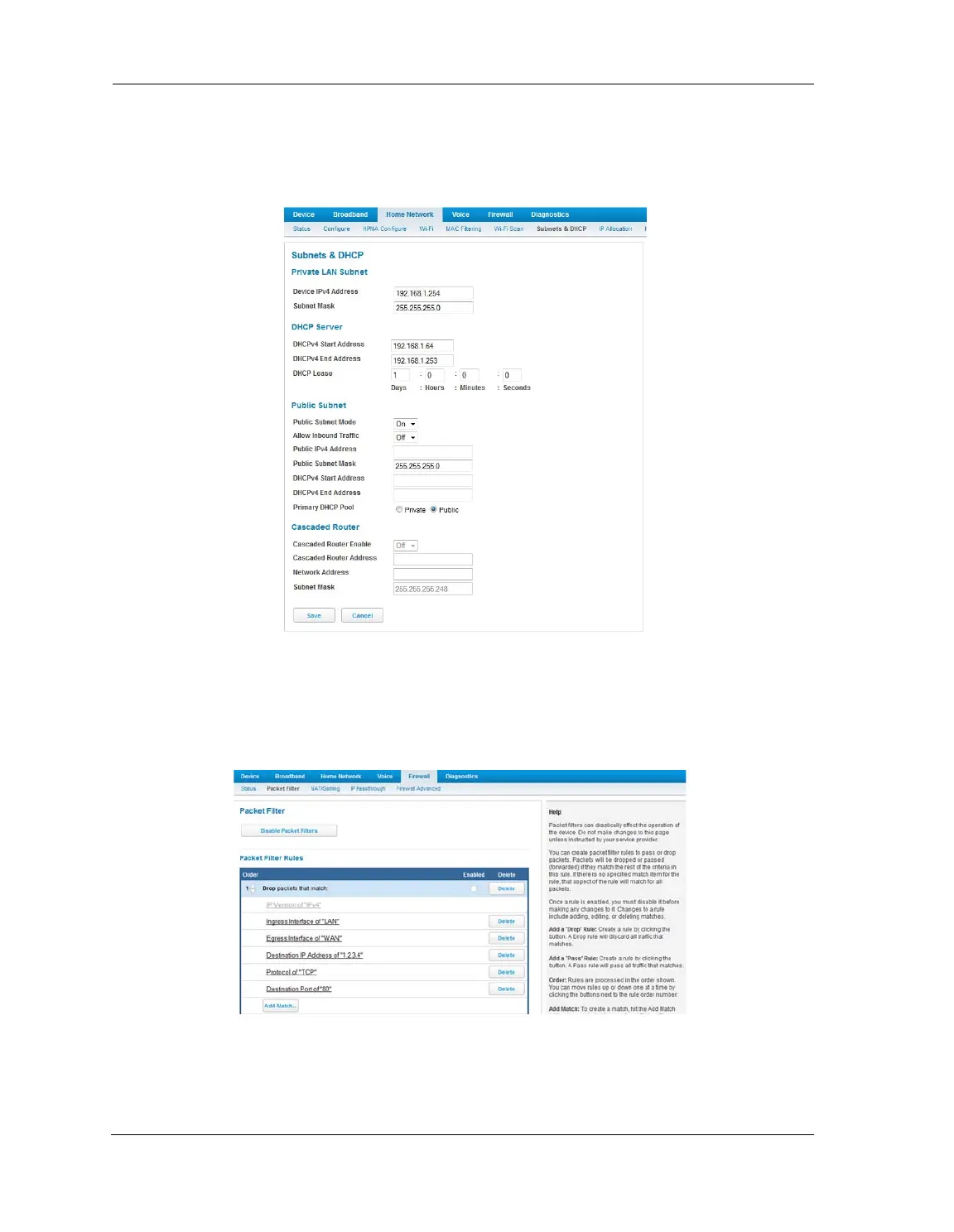
The following example uses the GUI to detail how to create a public subnet.
1. Select Home Network -> Subnets & DHCP from the Web management GUI.
2. Select On from the Public Subnet Enable drop-down menu.
3. Enter all applicable public subnet IP address information and select Save at the bottom of the view.
4. Select Firewall -> Packet Filter to create a packet filter that will allow specific traffic to flow to a public LAN
client.
5. Scroll to the bottom of the screen and select Add a Pass Rule. This rule will allow traffic to flow through the
public subnet based on the match criteria that will be set up next.
The new rule will be at the bottom of the Packet Rules list (as shown below).



 To Next Page