Exit Remote mode –
Select Restore Layout to enable a particular window to apply the prior to switching to
fullscreen view’s multi-display layout when using any of the below methods to return to
Host operation mode from Remote operation mode:
“Pause/Break” hotkey or “control + option (Alt) + shift + P”, or
Double-click the mouse scroll button.
Select Remain fullscreen to remain in fullscreen display when return to Host operation
mode from Remote operation mode.
View mode –
Select Fill up screen to enable the image display on a particular window to fill up screen
when using any of the below methods to switch to fullscreen view:
“Ctrl – # (1 to 5) – # (1 to 4)” hotkeys, or
Click icon (top-right corner of windows and only available for HDMI OUT 1)
Select None to keep the aspect ratio of the image.
Allows user to instantly:
Apply the adjusted layout to the respective output.
Reload detects the latest layout from the output card again.
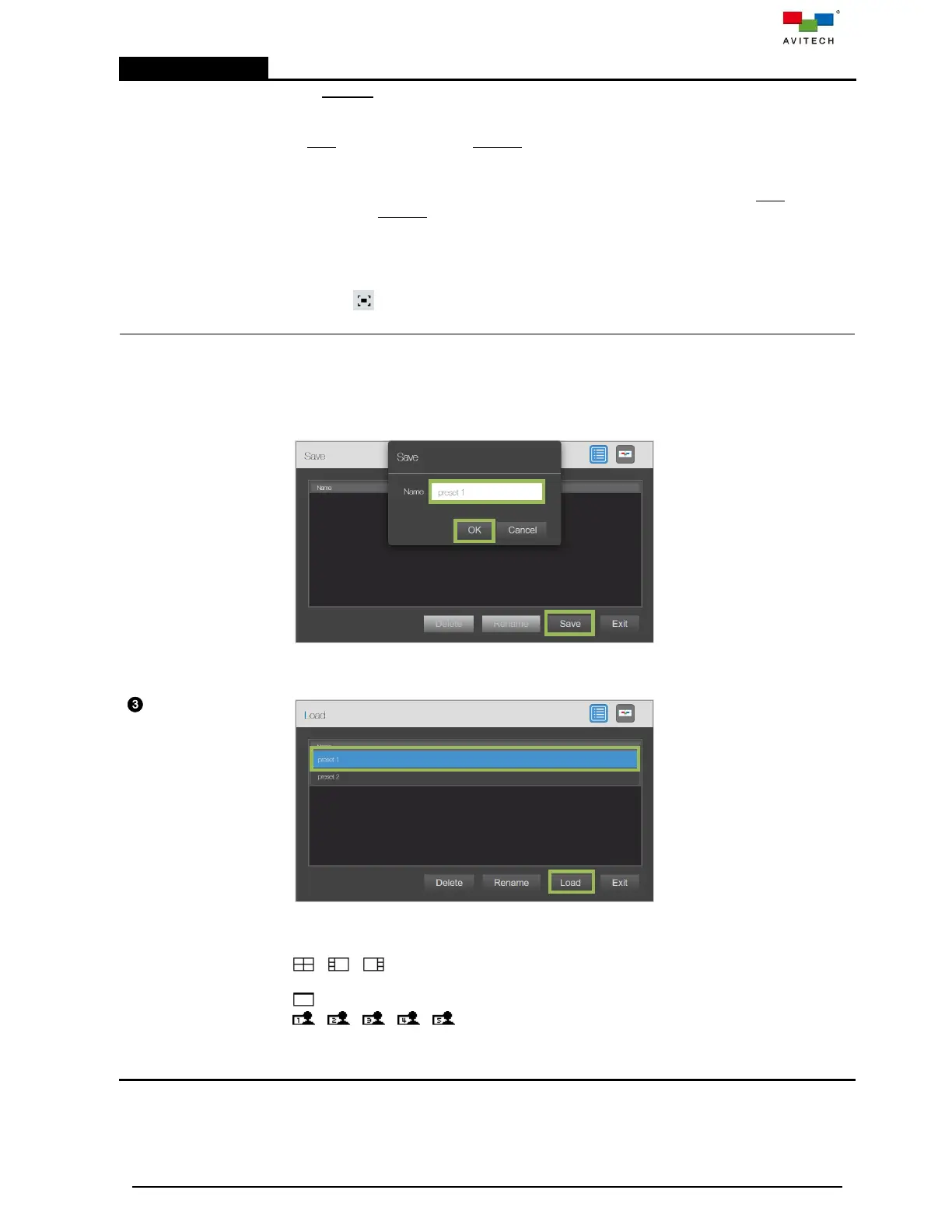
Save allows you to save user-defined presets to files for recall later.
In the top bar, click Save, the Save window will appear. Click Save, designate the filename
for the preset and then click OK.
Load allows you to load a user-defined preset.
In the top bar, click Load, the Load window will appear. Select the filename and then click
Load.
Latest allows you to quickly load the latest saved layout after rebooting the Sequoia 4K60.
Click the triangle on the right part of icon, a pull-down menu will appear and you click Save
to store the present layout as the latest.
/ / Factory default layout allows you to select one of the factory-default
layouts by clicking the corresponding icon.
Fullscreen icon allows you to set any of the multiview layout windows to fullscreen.
/ / / / User-icon layouts. On any one of the user-icon, click the
triangle on the right part of icon, a pull-down menu will appear and you can click Save to
store the present layout (only save the four windows’ size and position but not includes
OSD) as a user-defined preset.



 To Next Page