5: Show Proles • 94
©2008 Axia Audio — Rev. 3.0
Group Start Screen
There may be times when you’d like to have a single
keypress activate multiple faders for convenience’ sake:
interview shows with multiple guests, election coverage
comprising multiple incoming remote lines, in-studio
performances. Element’s Group Start function lets you
designate one or more faders as Master Faders, and one
or more as Slave Faders; when a Master is turned On or
Off, the Slaves turn On and Off as well.
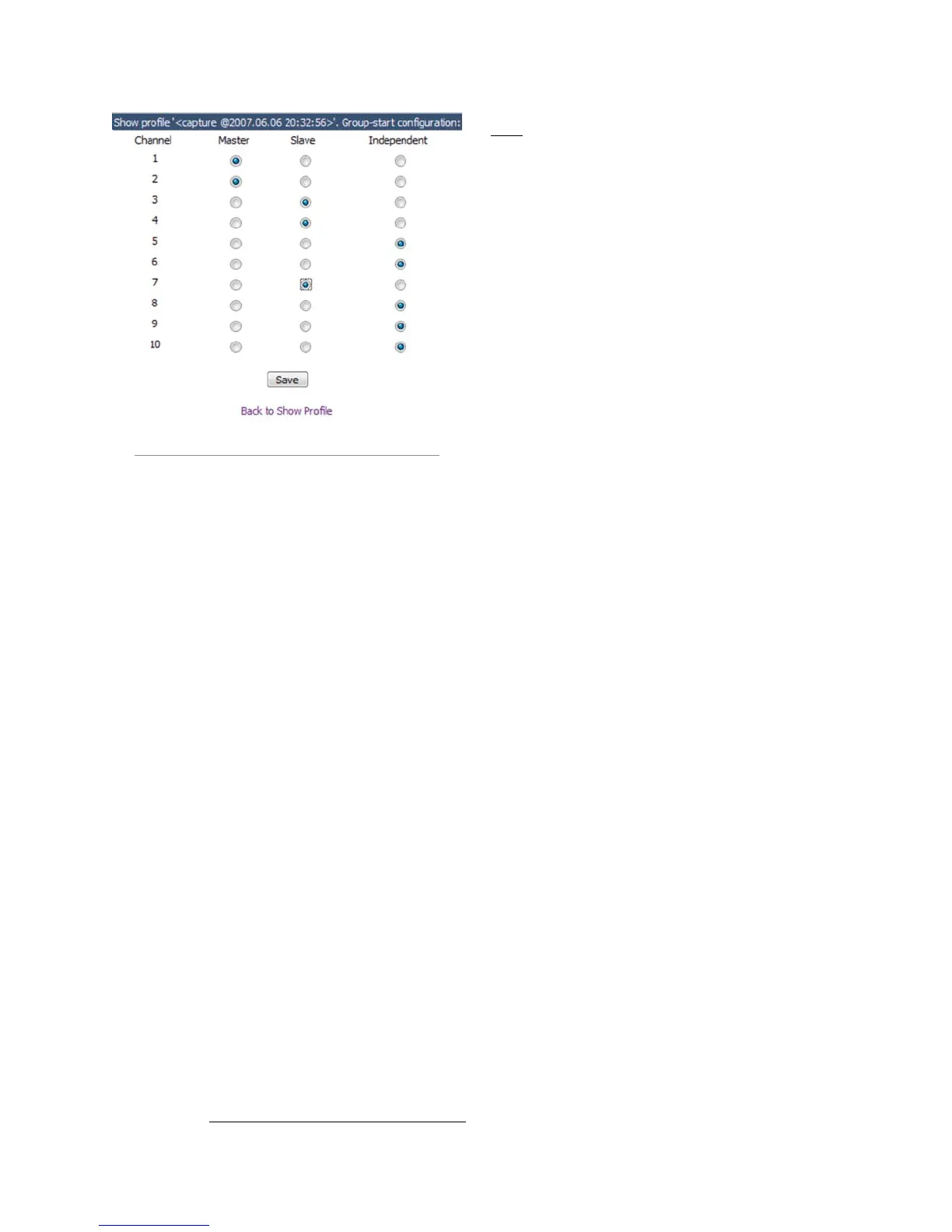
Figure 5-4 illustrates how a Group Start map might
look. The grid allows you to designate each fader on
your console as either Master, Slave or Independent
(normal operation). Note that you may have multiple
Master faders; activating any of them causes all of the
Slave channels to activate as well.
Note that making a change in this screen also chang-
es the value of the Group Start setting in the fader’s
Channel Options screen (described previously in this
chapter), and vice-versa.
Phone Screen
The Phone screen is used when you’re setting up a
Telos TWOx12, Series 2101 or Nx12 talkshow system
for use with Element. The options in the screen are de-
tailed fully in Appendix D: Working With Phone Hy-
brids; please refer to that chapter for details on setup. If
you do not have a Phone Module installed, this screen
will be empty.
Save and Exit:
Save Changes button applies any changes made to
the Auxiliary Send Description and returns you to
the Show Profile Settings menu.
Back to Show Prole link takes you back to Show
Profile Settings without saving changes.
What’s Next
Chapter 6 explores the use of Element’s powerful
Virtual Mixer capabilities, which allow you to create
custom mixes of networked sources and use them like
you would a single audio source. Grab a cold one and
let’s dive in. q
•
•
Figure 5-4: The Group Start assignment map



 To Next Page