4: Element Operations • 67
©2008 Axia Audio — Rev. 3.0
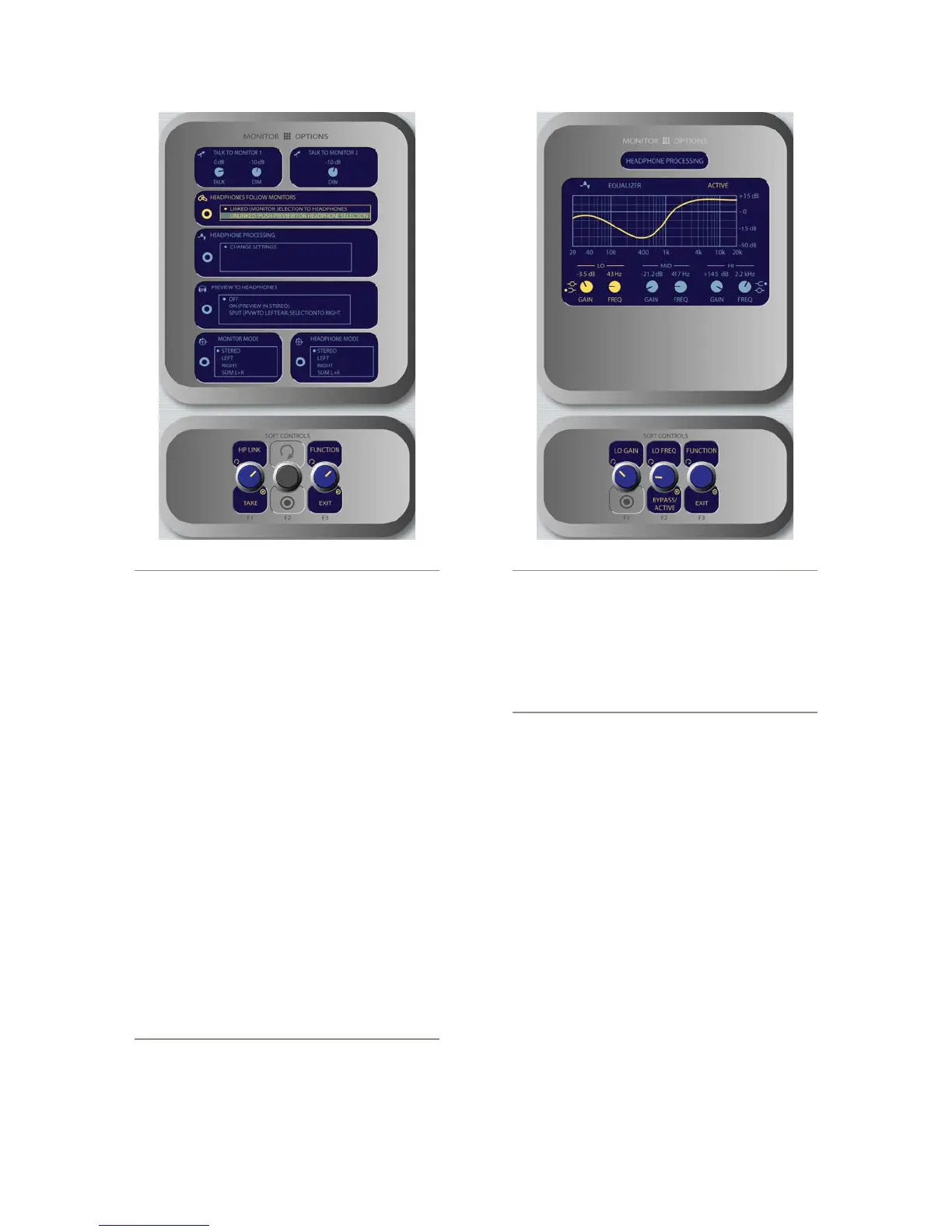
When the Talk to Monitor 1 Talk and Dim or
Talk to Monitor 2 Dim control is highlighted,
rotating the TALK LEV SoftKnob adjusts the lev-
els of the Monitor 1 Talk To and Dim levels and
the Monitor 2 Dim level.
When the Headphones Follow Monitors box
is highlighted, rotating the HP LINK/Take
chooses whether the headphone source will fol-
low the Monitor 1 source selection. Push the
knob to Take your selection.
Linked means that Headphone and Monitor
1 selections will mirror each other; making a
selecton from one bank of keys on the Moni-
tor Module will automatically choose the
same source on the other bank.
Unlinked allows Monitor 1 and Headphone
sources to be selected independently of each
other.
The strongest link: You’ve noticed that there
are no Direct Selection Keys for the headphone
source on the Monitor + 2-Fader Module. By de-
fault, CR Headphones and Monitor 1 sources are
linked - the phones will play whatever source is
»
»
*
*
assigned to the monitor speakers. So how can
the operator select a headphone source if s/he
choosees to Unlink the headphones?
When Unlinked is chosen in the Headphones
Follow Monitors box, the Preview knob doubles
as the headphone source selector. When the
operator pushes the Preview knob, the Head-
phone Source menu is displayed. Voila!
When the Headphone Processing box is highlig-
ted, pressing the HP Proc/Take knob selects
Change Settings onscreen and takes the operator
to the H/P Process screen shown in Figure 4-29.
When the
EQ
screen is displayed, a graphical rep-
resentation of the equalization curve is displayed
as the controls are adjusted. The screen also in-
dicates the amount of cut/boost applied, and the
center frequency of each band.
Rotate the Function/Exit SoftKnob to high-
light the Lo, Mid or Hi band knobs shown
onscreen. Notice that the left and center Soft-
Knob labels change to display Lo Gain/Lo
Freq, Mid Gain/Mid Freq and Hi Gain/Hi
Freq as you rotate the Function knob.
The leftmost SoftKnob is the
Gain
control;
rotate to adjust the amount of
gain or cut ap-
»
*
*
Figure 4-28: Monitor Options menu screen #1. Figure 4-29: Headphone EQ menu screen.



 To Next Page