8: StudioEngine Controls • 116
©2008 Axia Audio — Rev. 3.0
server on which you wish the logs to be stored.
Syslog Severity Level Filter: This menu choice
allows you to set the level at which the Syslog begins
storing system events.
Emergency: Generates Syslog only if the sys-
tem is completely unable to operate.
Alert: Syslog contains only messages notifying
you that immediate attention is needed for the
system to remain operative.
Critical: Syslog contains only messages about
critical system errors.
Warning: Syslog contains only messages about
errors that could cause the system to become un-
stable.
Notice: System is operating normally, but Sys-
log contains messages about unusual events that
you should know about.
Informational: Logs all informational messag-
es. This includes all routine events.
Debug: Captures all system activity for diagnos-
tic use.
After making changes, click the Apply button to
save them.
Application Interface Options Section
Console Type: Tells the StudioEngine whether it is
interfacing with an Element or SmartSurface console.
Only needed for Element consoles running software
earlier than v2.0; Element v2.X and above automati-
cally selects the correct setting upon boot.
Controlling V-Mixer from Element: Enable or
Disable the ability to control VMix from the Ele-
ment.
Save V-Mixer settings to cong: Click the Save
•
»
»
»
»
»
»
»
•
•
•
button to save VMix settings in the StudioEngine’s
config file.
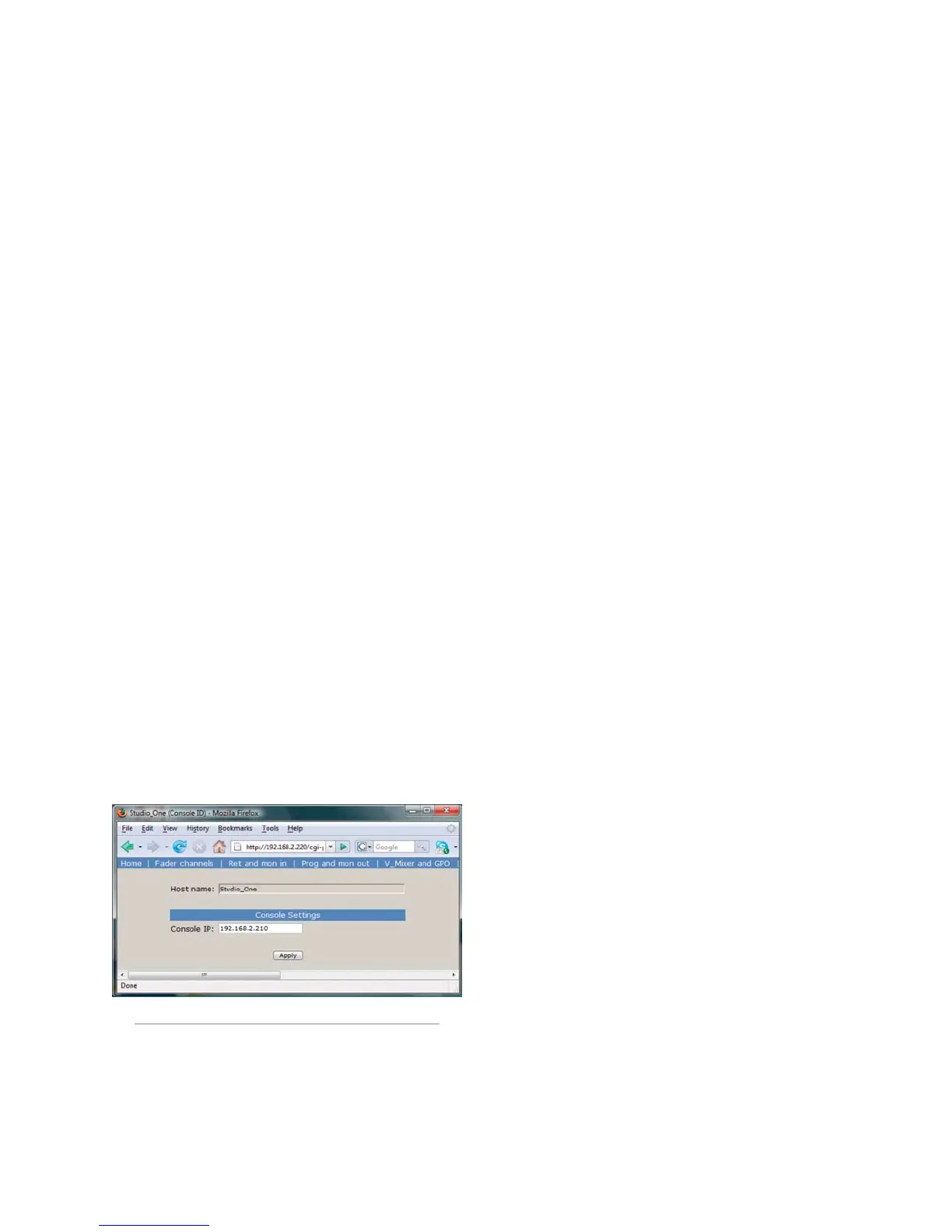
Console ID Menu
This screen is used during setup to specify the
IP address of the console that will interface with this
StudioEngine. Simply enter the IP address of the console
and click Apply.
System Menu
This screen contains several software utilities and in-
formation fields pertaining to your StudioEngine.
The System Status section of the page pro-
vides information about the physical state of the
StudioEngine.
System Status and Network Status inform
you as to the health of the StudioEngine and its
connection to the Axia network.
CPU Usage indicates how hard the Engine is
working.
Link Speed tells you the type of link with which
the Engine is connected to the local network
switch.
Network Usage In and Out show how much
bandwidth is being consumed on the Engine-to-
switch link.
Temperature monitors the temperature of the
StudioEngine CPU. If the temperature exceeds
operating limits, a warning will appear on the
Engine’s front-panel display.
Fan 1 and Fan 2 Speed: Monitors the fan speeds
of the Engine’s two internal cooling fans.
The Conguration Management section lets you
make backups of and restore your Engine settings.
Use the Browse, Backup and Restore buttons to
accomplish these actions. Use the Reset Cfg button
to reset all of your StudioEngine’s settings to an “as-
shipped” state. This command will completely erase
any choices you have made and reset your Engine to
the way it came from the factory, so use with cau-
tion!
The Command To Engine section lets you Re-
•
»
»
»
»
»
»
•
•
Fig. 8-5: Console ID screen



 To Next Page