4: Element Operations • 43
©2008 Axia Audio — Rev. 3.0
signs that channel to the Preview bus; pressing it again
removes the channel from Preview. To enable an op-
erator to quickly listen to various sources, the Preview
function is interlocked: pressing Preview on any chan-
nel will remove any other channel from Preview
mode.
If you want to preview multiple channels,
pressing and holding any Preview key disables
the interlock; other sources can be added to the
Preview mix by pressing them. Conversely, chan-
nels can be removed from a multiple Preview se-
lection by pressing and holding any lit Preview
key and deselecting the individual channels you
wish to remove from Preview. A momentary press
of any lit Preview key will remove all channels
from Preview.
The interlock option for Preview can be dis-
abled in any Show Profile’s Monitor section so
that users can gang preview sources without the
need to press and hold the preview button.
The audio from the Preview bus feeds any
speakers dedicated to Preview, and can also be
routed to the operator’s headphones if desired.
Preview speakers will be muted whenever the
board operator’s microphone is ON, or is assigned
to the Preview or Record buses.
New Feature: If an operator presses Talk on
a fader to which a Phone source is assigned
and, while holding it, presses the Preview
button, both will latch on, makeing it easy to
have a hands-free off-line chat using the CR
Mic. Pushing either one clears both.
Fader
The fader controls the volume of the input
source. There are two modes for the fader: fader-
start and fader-normal:
When the channel is used in fader-start mode,
pushing the fader all the way to the bottom of its
travel turns the module off, and sends appropriate
logic commands to source equipment. Moving the
•
1.
fader up turns the channel on and sends logic com-
mands. In fader-start mode, the On and Off keys
act more as indicators of channel status; the On key
will not turn the channel on if the fader is at the bot-
tom of its travel.
In fader-normal mode, on/off status and
start/stop commands follow the channel ON/
OFF buttons independent of fader position.
For information on how to switch between
fader-start and fader-normal modes, see the
Monitor Module Controls section later in this
chapter.
On and Off Keys
When the channel is in fader-normal mode
the On key ( u ) turns the channel on and the Off
key ( n ) turns it off. The channel On and Off
functions also provide logic (start and stop pulses,
monitor muting, etc.) appropriate to the selected
source.
If a control-room mic is assigned to a fader,
the CR monitors and Preview speakers will mute
when that fader is turned on. and when sources
are Previewed. If a fader is hosting a microphone
source, pressing the On button when the fader is
already on mutes the channel, providing a “cough”
function, until the button is released.
New Feature: In fader-start mode, holding
the Off button while moving the fader up
disables the usual GPIO start command. The
On button may be later used to issue the
command.
4-Phone Module Channel Controls
You can assign any type of source to any El-
ement fader module. But some fader modules
include special keys that provide extra functions
for certain types of sources. The 4-Phone Fader
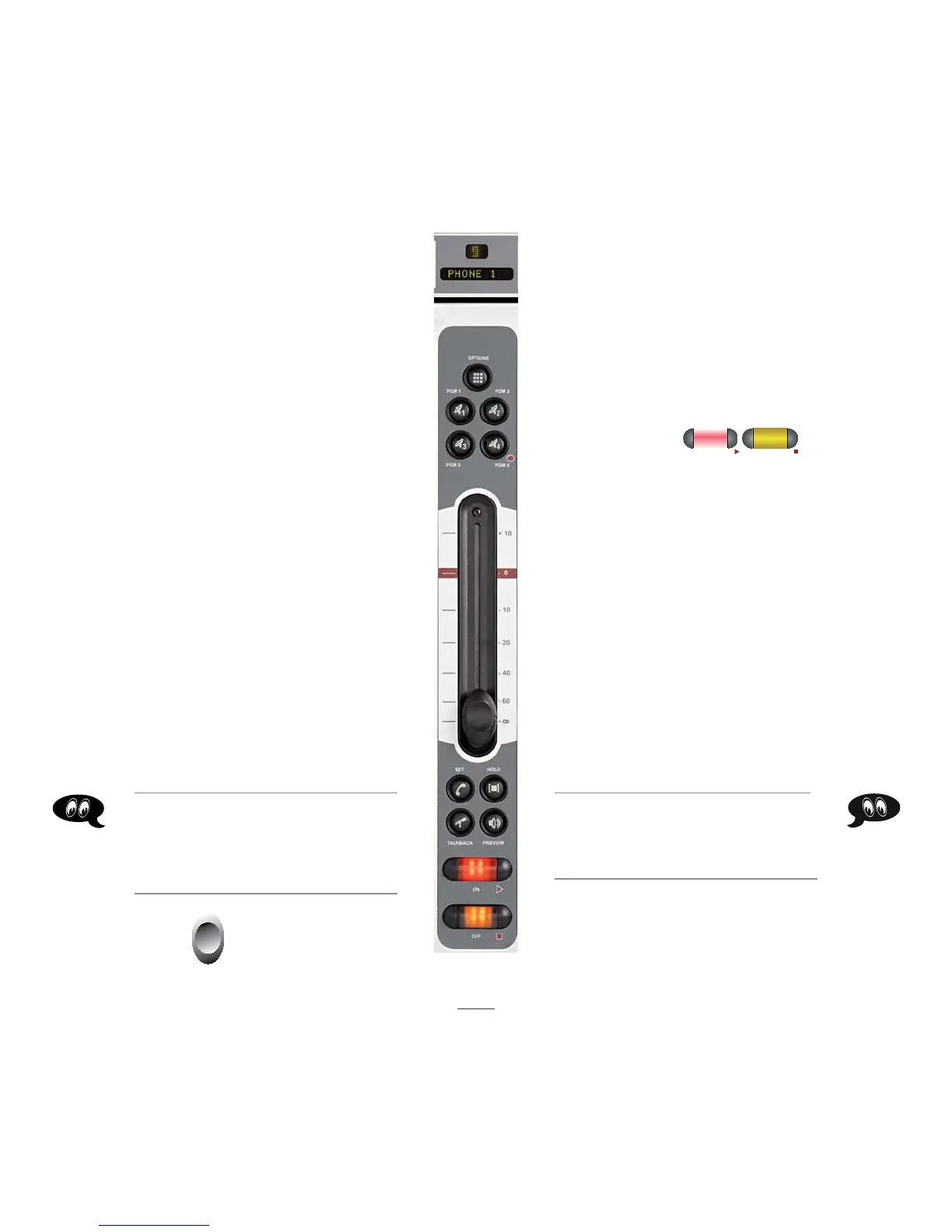
Module (Figure 4-2) is one of these modules. If a normal
line source is assigned to a Phone Fader, the fader and
its controls operate exactly like a standard 4-Fader Mod-
ule (described in the previous section). But whan a Telos
2.
•
Figure 4-2:
Phone Module
Fader Channel



 To Next Page