4: Element Operations • 60
©2008 Axia Audio — Rev. 3.0
Channel Options Controls
These controls allow the operator to custom-
ize the behaviour of individual faders. The op-
erator first presses the Options key atop the fader
s/he wishes to modify; the Channel Options box is dis-
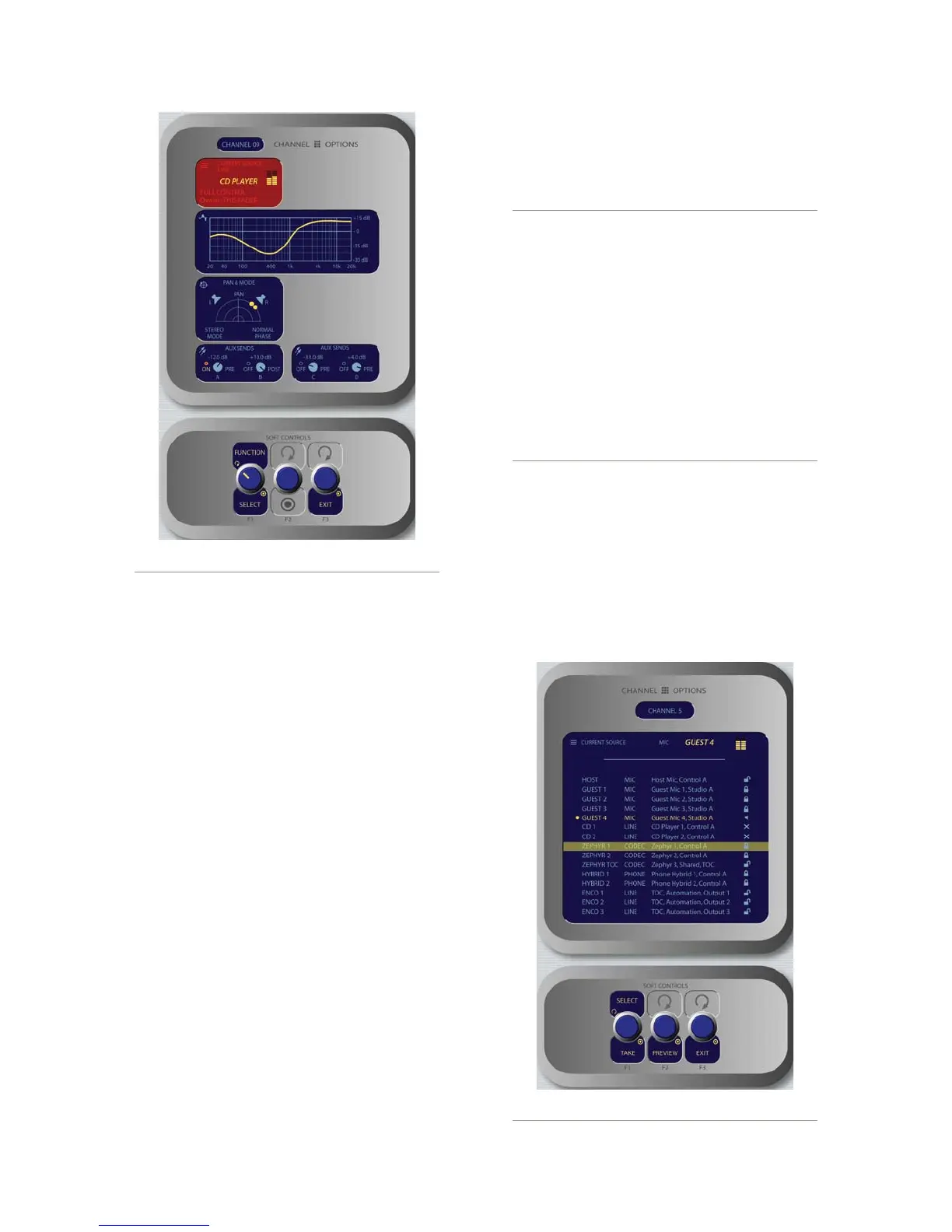
played on Element’s screen (Figure 4-21), and the Soft-
Knobs become active.
Placing a channel in Options mode lets you change
inputs, apply EQ, change pan position, invert phase, set
Aux Send and Aux Return levels, and adjust mix-minus
settings for that channel. The Options displays (Figure
4-6) give detailed channel information. Both the Ele-
ment channel number (the physical fader position, from
left to right) and the source assigned to that channel are
displayed for confirmation.
Figure 4-21 shows the Channel Options screen that’s
displayed when any fader’s Options key is pressed, with
the functions of the SoftKnobs shown below:
Rotating the Function/Select knob selects the
options you can modify, highlighting the current
function in red. Pressing this knob allows you
to modify the selected item; i.e., pressing when
the Source box is highlighted (as in Figure 4-21)
»
takes you to the Source Selection screen.
Pressing the Exit knob returns you to Element’s
main display screen.
Channel Jumping: If any fader is in Options
mode, you can “quick jump” to set options for oth-
er fader channels by pressing the Options key at
the top of their channel strips.
For example, if you need to change the Source
on several channels, select the rst channel us-
ing its Options key, and then choose the Chan-
nel Options Source box. The Source Selection
list will appear on-screen. Once the source re-
assignment is made, simply press the Options
key on the next channel you want to assign a
new source to; the Source screen will remain
active, and you’re now adjusting settings for the
new channel. The channel number is displayed
onscreen as conrmation.
Source Selection Controls
Pressing Select when the Source box is highlight-
ed displays the Source Selection menu, which displays
the currently selected source alongside a list of available
sources operators may select using the SoftKnobs. They
can also preview a source before selecting it.
»
•
Figure 4-21: Channel Options Screen
Figure 4-22: Source menu screen.



 To Next Page