6: Virtual Mixer • 100
©2008 Axia Audio — Rev. 3.0
Manipulating Streams With VMODE
New in Element 2.x, VMODE is an extension of the
VMIX functionality. Its controls are found exclusively
on the StudioEngine’s V-Mixer & V-Mode HTTP page,
and are not duplicated or accessible from the Element
web pages.
What does VMODE do?
As you know, audio processing in the modern world
requires DSP. The StudioEngine provides the DSP for
Axia IP-Audio networks.
You’ve probably noticed that nearly all audio within
an Axia network travels in stereo. Audio Node inputs
(with the exception of Mic Nodes) are stereo, and so are
Engine default sources. Most of the time, this is just what
you need. But in some cases, an application surfaces that
requires only one channel of an audio stream, or a mono
sum. Until now, there was no easy way to make this hap-
pen.
Vmode is a new addition to the Element toolbox that
addresses this requirement; its job is to help strip, sum,
or compile a custom audio stream from available streams
in the network.
VMODE Controls
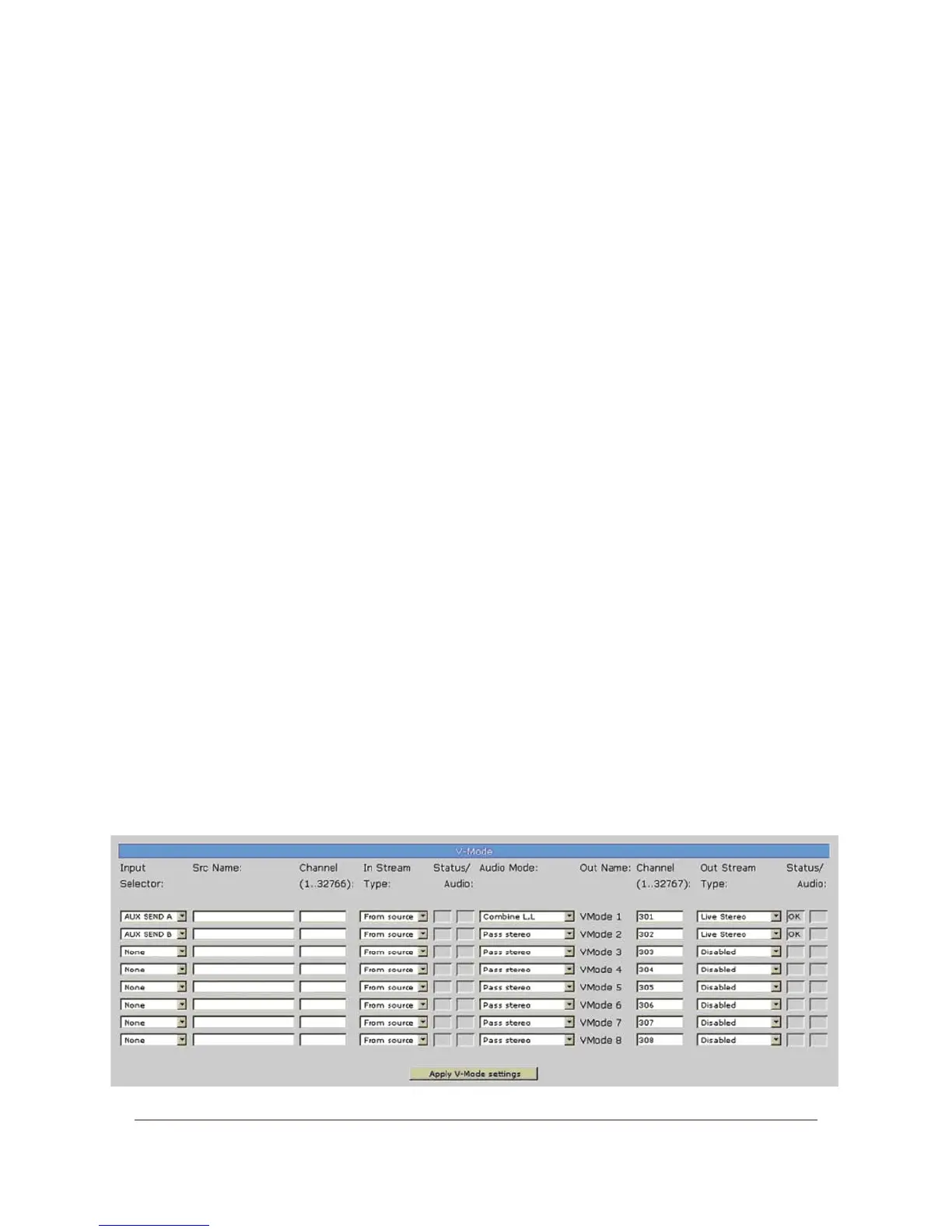
VMode, as shown in Figure 6-4, has the capacity for
up to eight separate stream-manipulation operations. The
controls are as follows:
Input Selector contains a drop down menu that
allows you to select from a range of sources for
each VMODE input. You may choose from PGM-
1/2/3/4, the Record bus, Phone bus, Aux Send
A/B/C/D, VMIX SUB 1/2/3/4/5/6/7/8, and
VMIX MAIN. You can also choose External, which
then allows you to select any network source by en-
tering its channel number.
Src Name and Channel are active when the Input
Selector described above is set to External. You
may type any conveniet title in the Src Name box
to identify the source; the
Channel column is where
you would enter the channel number of the source
you want to perform a VMODE operation upon.
Stream Type follows the conventions found else-
where in this manual.
Select From Source if you’re using a normal
source generated by studio equipment connected
to the Axia network.
Select To Source if you plan to use the specified
stream as a backfeed (mix-minus) to a phone,
codec or IFB channel.
Surround is only used if the console is in Sur-
round (5.1+2) mixing mode.
Status and Audio indicate the health of each par-
ticular channel.
•
•
•
»
»
»
•
FIgure 6-4: Engine VMODE section



 To Next Page