4: Element Operations • 59
©2008 Axia Audio — Rev. 3.0
discussed in Chapter 1.
Reset Key:
Pressing this key resets Element’s Count Up Timer
to zero.
Freeze Key:
Pressing Freeze holds
the on-screen Timer display
so you may take note of it;
the timer continues to count
while the display is frozen,
and a second press of the
Freeze again displays the
running elapsed time coun-
ter.
Start/Stop Key:
If the Count Up Timer
is not running, pressing this
starts the count. If the timer
is running, pressing this key
stops the countdown and re-
tains the last displayed timer
interval.
Record Mode Section
Element’s Record Mode
is a special “one-touch”
mode which can be set to au-
tomatically start a designat-
ed record device so that tal-
ent can record a phone call
or remote interview with a
single button-press. Record
Mode can be enabled or dis-
abled for each Show Prole
(see Chapter 5, “Show Pro-
files”, for details).
Engage Key:
Press this key to put Element into Record Mode.
Pressing this button activates a pre-determined record-
ing device. Pressing the key a second time deactivates
Record Mode and stops the recorder.
•
•
•
•
“Magic Key” Sequences for Standard Monitor Module
The list of “Magic Key” sequences for the Standard
Monitor Module are:
IP Address Book: Press and hold the Fader Op-
tions key for 5 seconds.
Clock & Timer Settings:
Press and hold the Timer
Options key for 5 seconds.
Capture Mode: Press and
hold the Help key for 5 sec-
onds.
Test Mode: Press and hold
the Help and Right Arrow
keys for 5 seconds.
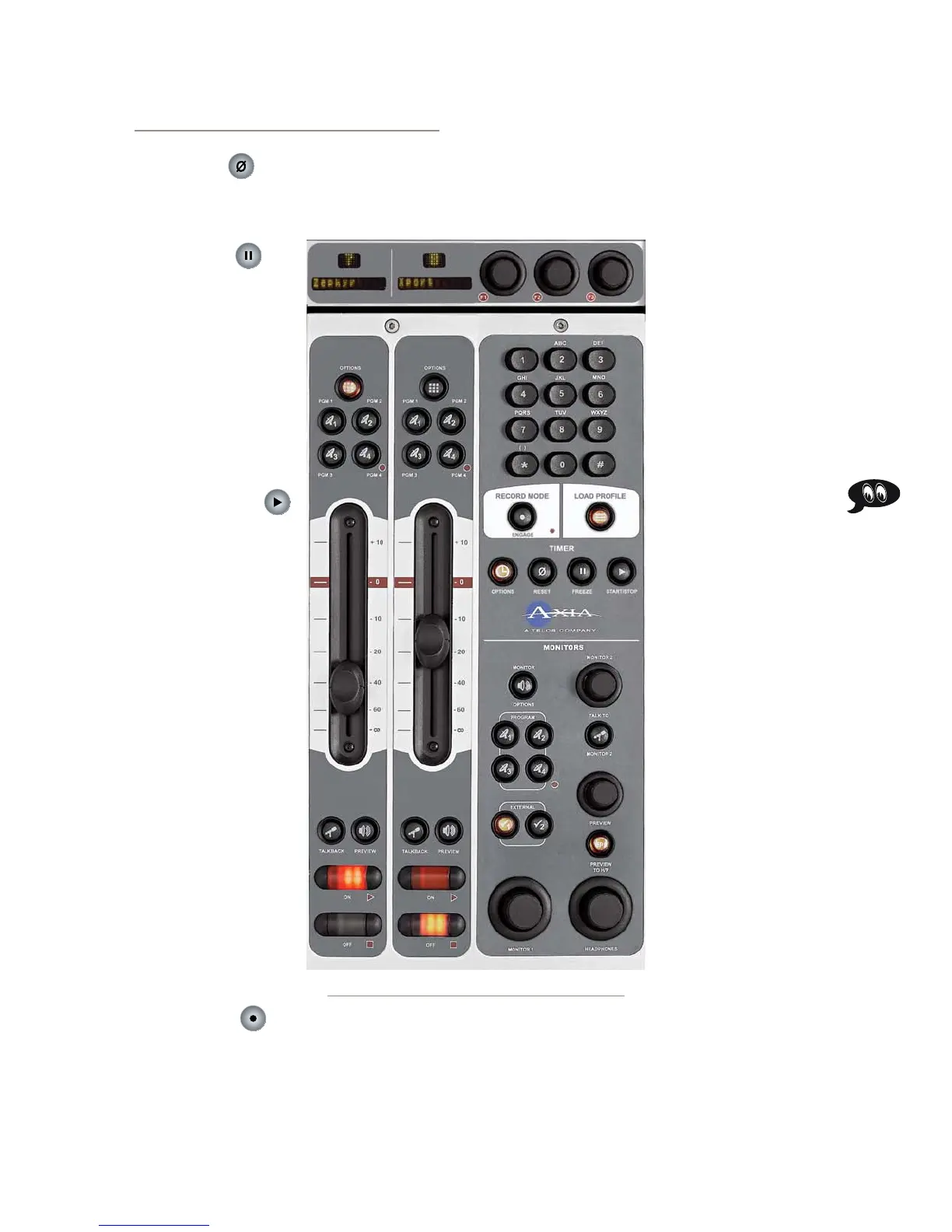
Monitor + 2-Fader
Module Controls
The Monitor + 2-Fader
Module (Figure 4-20) al-
lows users to customize their
console design, adding two
full-fuction faders at the cost
of some direct-access con-
trol keys in the Monitor sec-
tion. No flexibility has been
sacrificed, however; all the
functions provided by the
Standard Monitor Module
are present, but are accessed
differently. Controls for all
of Element’s options and
features are accessed via on-
screen menus with the aid of
SoftKnobs; constantly-used
controls like headphone and
monitor selection and vol-
ume, plus command keys
for the on-screen timers and
a numeric keypad for convenient dialing of telephone
systems and codecs are included. Since there are less
physical controls present on the Monitor + 2-Fader Mod-
ule than on the Standard Monitor Module, changes are
accomplished using the module’s SoftKnobs.
•
•
•
•
Figure 4-20:Monitor + 2-Fader Module + SoftKnobs



 To Next Page