7: Advanced Element Controls • 108
©2008 Axia Audio — Rev. 3.0
simplify NTP access by entering the server’s
name, tmc.edu instead of 128.249.1.1. Or,
if you set up a DNS server in-house, you could
give real names to your StudioEngines and Phone
systems, then use those names instead of IP ad-
dresses in Element configuration pages.
Web Access Password: By default, the username
is set to user and the password is blank. If you want
to add a password, type it in and click Change. Note
that passwords will not display here once changed,
so be sure to make a note of it.
Software Update is where you upload new Element
operating software.
Base File System Upgrade: Most Element
software updates do not include a Base File up-
date, but if one is required, click this link to up-
load and apply the new code.
Software Versions shows you the software
packages currently stored on your Element’s flash
memory card. The blue radio button is displayed
next to the active software image.
Set Current Image: When you want to change
the active software package, click on the radio
button next to the image you wish to activate, and
click this button. A reboot is necessary to load
the new software choice.
Delete Current Image: Click the radio button
next to software you wish to delete and click this
button. Note that you cannot delete the active
software image.
Good Housekeeping: It’s best not to keep too
many old software images around. They clutter
up Element’s ash memory, leaving less space
for Show Proles, syslogs, and other important
data. We recommend that you keep only one
previous software package stored in Element.
Upload New Image: From time to time, Axia
makes new software packages available for
download from www.AxiaAudio.com. Use the
Browse and Upload Image buttons to install
new software, as described in the Technical Bul-
letin that accompanies each software release.
Reboot shuts down Element and restarts it.
(Remember that mixing takes place in the
•
•
»
»
»
»
»
»
StudioEngine, so this can be done even while
you are on the air. Interruptions of your program
stream, if any, will last less than 1 second.) A re-
boot is required after changing active software.
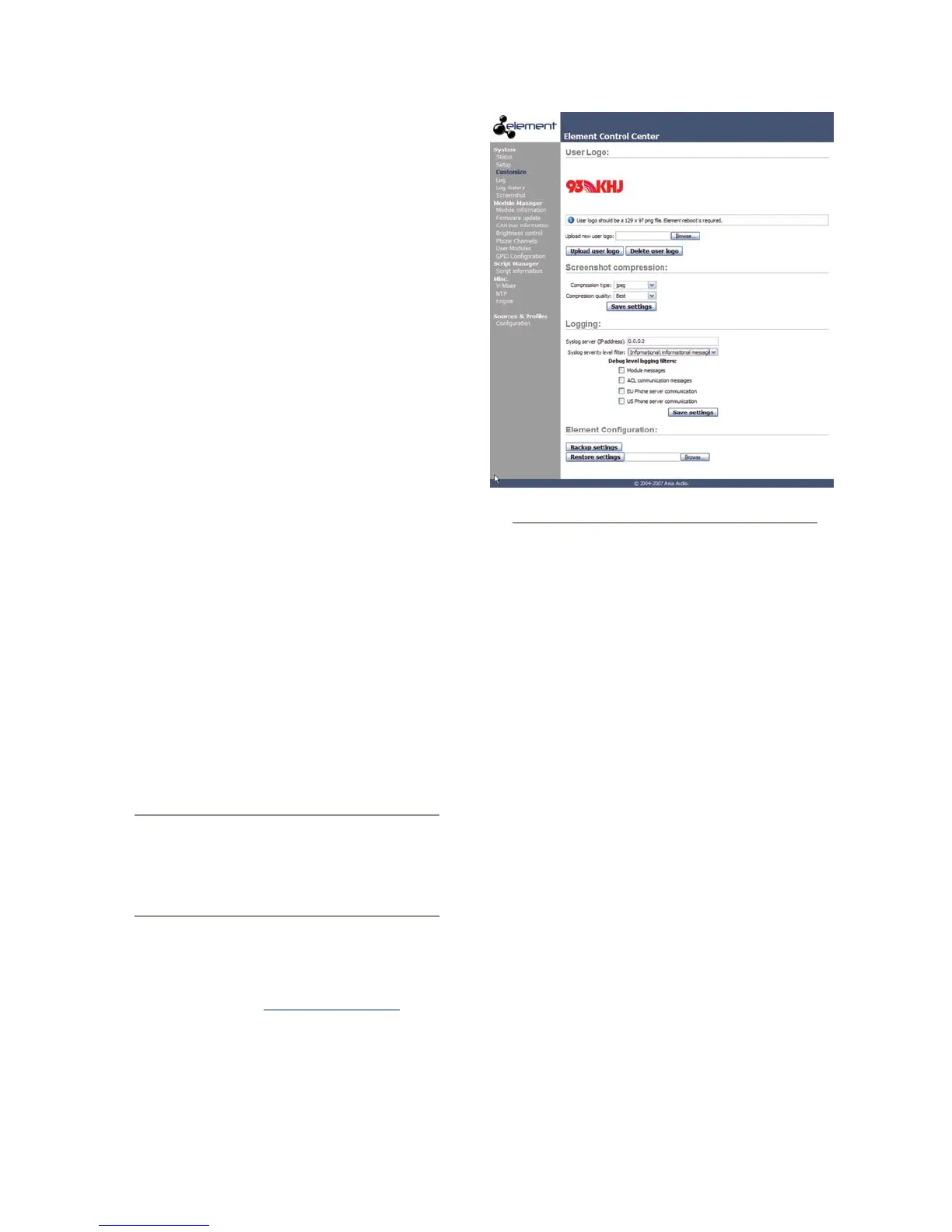
The Customize Menu
User Logo: This utility allows you to place your
station’s logo on the Element operator display. To
do so, create a PNG file in Photoshop or any similar
image editor. This file must measure exactly 129 x
97 pixels. Use the Browse and Upload User Logo
buttons to install your logo file. Upon reboot, this
logo will appear on the Operator’s display. To delete
a displayed logo, click the Delete User Logo button
and reboot.
Screenshot Compression: You can save a shot of
the Operator’s display for documentation, trouble-
shooting or training purposes. You may choose to
save your screenshot in JPEG or PNG format, with
three levels of compression quality using the Com-
pression Type and Compression Quality drop-
down boxes. Click Save Settings when you are
done.
Logging: New in v2.0 Element software, you can
now save detailed syslogs. These options let you
•
•
•
Fig. 7-3: Customize screen



 To Next Page