8: StudioEngine Controls • 115
©2008 Axia Audio — Rev. 3.0
Standard Stereo is for low-priority, non-realtime
audio. Standard streams have higher latency, but of-
fer the best compatiblity for systems with older PCs.
Surround should be chosen if you are going to be
mixing in 5.1 audio.
Disabled turns off outputs you don’t intend to use.
CR Dynamics Headphone Processing: Element
contains special audio processing presets by Omnia
that you can apply to the Control Room Headphone
channel. This is provided so that you can simulate
the “air sound” provided by an on-air processor, so
that your jocks can have real-time Program moni-
toring that sounds like “air” without having to set
up a separate processor chain. Presets are provided
for several formats, as well as reduced-bit rate audio
streams. To apply, choose one from the dropdown
box and choose Apply.
That “Radio” Sound: Over the years, talent
has become used to listening to themselves
off-air during raps, hearing their voices with
dynamics processing applied, and relying on
the levelling effects of processing to “ride the
compressor” when the mic is open.
In the age of HD Radio and 8-second delay, mon-
itoring off the air signal is sadly no longer pos-
sible. But monitoring the Program bus leaves
most talent feeling that something’s missing
from their headphones.
To help combat this, Element offers customiz-
able headphone EQ and built-in headphone dy-
namics processing by Omnia. When this feature
is used, Talent can monitor Program audio with
no delay and still hear the comfortable “air”
sound they’re used to without the hassle and
expense of outboard processors dedicated to
the headphone channel.
The VMIX & VMODE Menu
This menu allows you to view settings and make ad-
justments to the Element Virtual Mixer system. Please
see Chapter 6, Virtual Mixer, for details on this page.
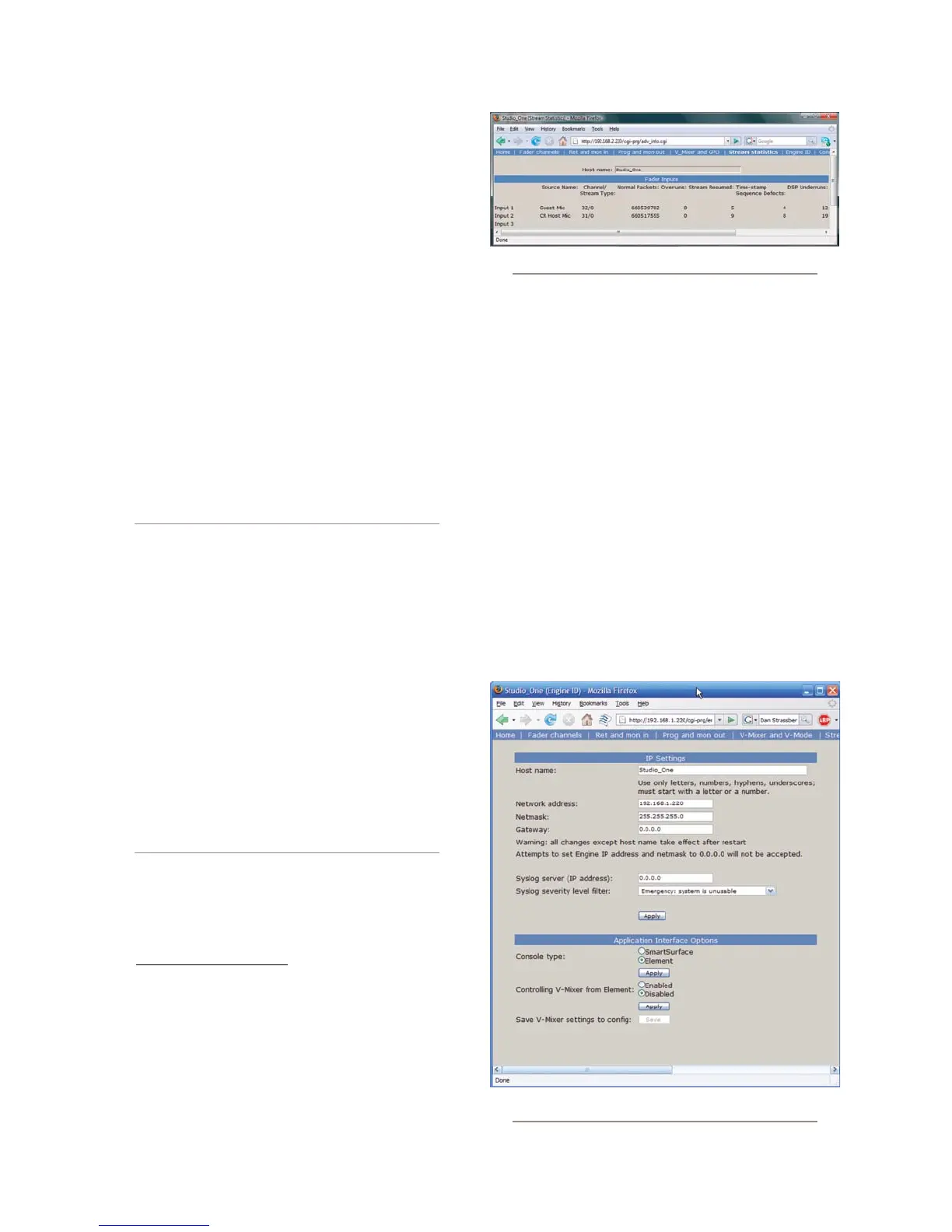
Stream Statistics Menu
This screen provides information about all active au-
dio streams in and out of the StudioEngine. This is useful
primarily for diagnostics and contains no settings that
can be modified.
•
•
•
•
The Engine ID Menu
IP Settings Section
Host Name: Enter a unique name for this particular
StudioEngine. This name is displayed on various in-
formation and diagnostic screens.
Network Address: This field contains the IP ad-
dress you’ve assigned for this StudioEngine.
Netmask: The submask for your IP-Audio Net-
work.
Gateway: If your Axia network has a network gate-
way to allow outside access, enter its IP address
here.
Syslog Server (IP Address): Your StudioEngine
can generate detailed logs of system activity. If you
choose to keep syslogs, enter the IP address of the
•
•
•
•
•
Fig. 7-14: Stream Statistics menu
Fig. 7-15: Engine ID menu



 To Next Page