8: StudioEngine Controls • 113
©2008 Axia Audio — Rev. 3.0
Chapter 8:
StudioEngine Controls
In this chapter, we’ll look in-depth at all of the con-
trols and options found in the StudioEngine web pages.
StudioEngine Configuration Screens
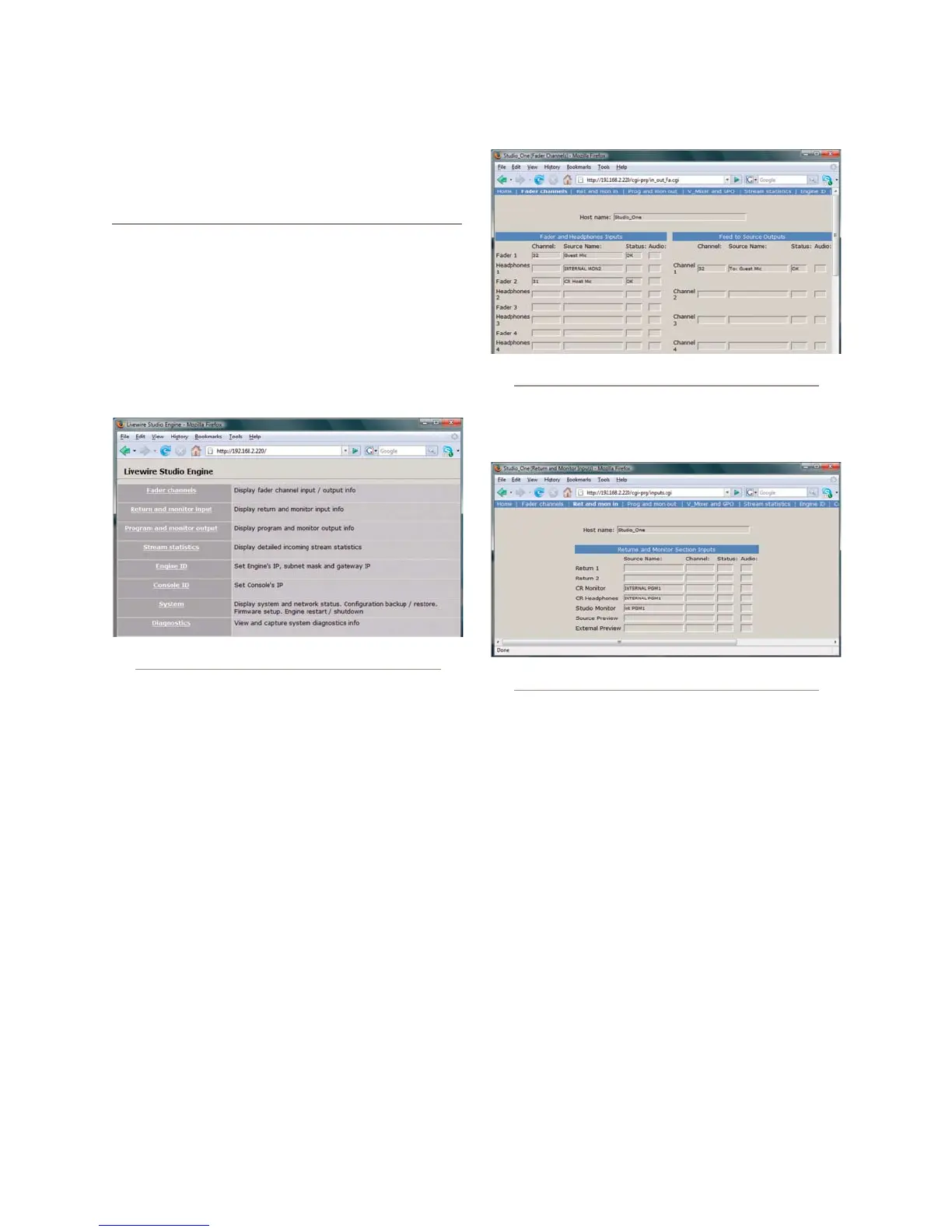
The Main Menu
This is the “jumping-off” point for all of the
StudioEngine settings pages, the page you’ll see after
entering your StudioEngine’s IP address into your Web
browser. Upon making any menu choice, you’ll be asked
for a password. The default factory login is user; leave
the password field empty.
Some of the menu items presented here – such as
Fader Channels and Stream Statistics – are purely
informational in nature. Others – Engine ID, System
– contain options and settings that are used for setup of
your StudioEngine.
The Fader Channels Menu
Settings shown here are not adjustable. Useful for
remote assistance or diagnostics, this page can tell you
what sources are loaded to each fader of the Engine’s
associated control surface, along with the headphone
monitor source and backfeed (mix-minus), if any, is be-
ing fed to each loaded source.
The Return & Monitor Inputs Menu
Another informational screen, choosing this menu
option shows you what audio sources are currently as-
signed to your console’s:
Auxiliary returns,
Control Room monitor and heaphone channels,
Studio Monitor channel,
Source Preview (Cue) channel,
External Preview channel.
The “Host Name” field at the top of the page shows
the name you’ve defined for this Engine for confirmation
should you be viewing the page remotely.
•
•
•
•
•
Fig. 8-1: StudioEngine Main menu
Fig. 8-2: Fader Channels screen
Fig. 8-3: Return & Monitor Inputs menu



 To Next Page