4: Element Operations • 46
©2008 Axia Audio — Rev. 3.0
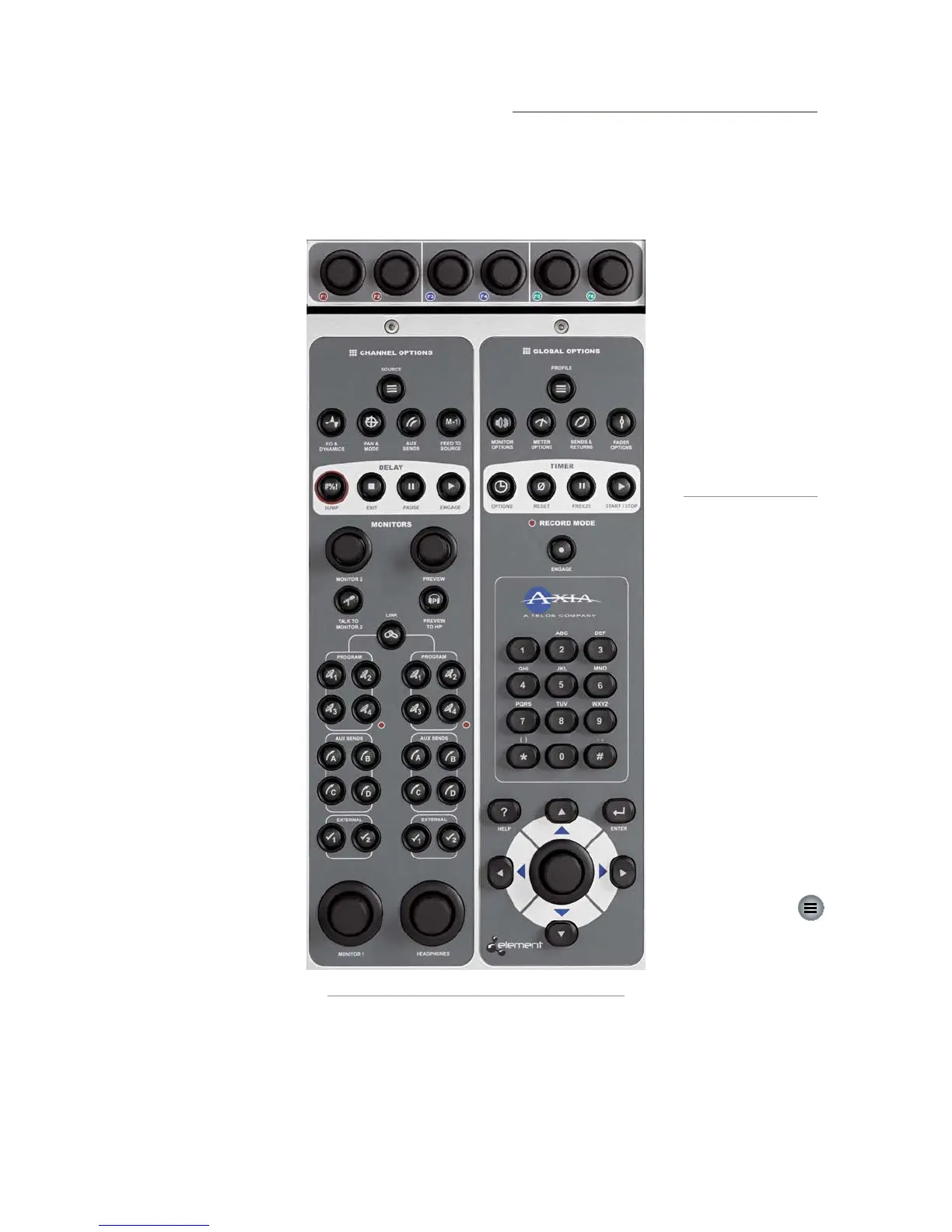
Standard Monitor Module Controls
The standard Monitor Module (Figure 4-5) contains
direct-access controls for all of Element’s options and
features. Constantly-used controls like headphone and
monitor selection and vol-
ume, plus command keys
for the on-screen timers,
controls for an external pro-
fanity delay unit, and a nu-
meric keypad for convenient
dialing of telephone systems
and codecs are included.
Nav Keys & Control Knob
Located at the bottom
right of the module is a
Control Knob surrounded
by a set of navigation keys
(Up, Down, Right and
Left), an Enter key (8
),
and a Help key (?). These
controls augment the Soft-
Knobs and provide another
way to navigate Element
option screens.
Operators can use the
directional keys to navigate
through on-screen lists, and
the Enter key to “take” a se-
lection. The Control Knob
can also be used to scroll
through on-screen lists.
Channel Options Section
These keys allow
the operator to custom-
ize the behaviour of indi-
vidual faders. The opera-
tor first presses the Options key atop the fader
s/he wishes to modify; the Channel Options box is dis-
played on Element’s screen (Figure 4-6), and the Chan-
nel Options keys then become active.
Channel Jumping: If any fader is in Options
mode, you can “quick jump” to set options for oth-
er fader channels by pressing the Options key at
the top of their channel strips.
For example, if you need to change the Source
on several channels, select the rst channel us-
ing its Options key, and
then choose the Chan-
nel Options Source
key. The Source Selec-
tion list will appear on-
screen. Once the source
reassignment is made,
simply press the Op-
tions key on the next
channel you want to as-
sign a new source to; the
Source screen will re-
main active, and you’re
now adjusting settings
for the new channel.
The channel number is
displayed onscreen as
conrmation.
Placing a channel in Op-
tions mode lets you change
inputs, apply EQ, change
pan position, invert phase,
set Aux Send and Aux Re-
turn levels, and adjust mix-
minus settings for that chan-
nel. The Options displays
(Figure 4-6) give detailed
channel information. Both
the Element channel num-
ber (the physical fader posi-
tion, from left to right) and
the source assigned to that
channel are displayed for
confirmation.
Source Key
Pressing Source dis-
plays the Source Selection
menu. The Source Selection
screen displays the current-
ly selected source alongside a list of available sources
Operators may select using the SoftKnobs or Nav Keys.
They can also preview a source before selecting it.
•
Figure 4-5:Standard Monitor Module + SoftKnobs



 To Next Page