Working With Phone Hybrids • 153
©2008 Axia Audio — Rev. 3.0
can be used to dial outbound calls. It is automatically
assigned to the last line that was selected. You’ll see
the number as it is being entered on the main Element
screen. After the number is complete, press the Enter
button to start the connection.
Caller ID is displayed for incoming calls. The icon
in the overbridge near the source text name changes to
show the line status.
The first time you press the Off button, the channel
audio is switched off. The second time you press the Off
button, the call will be dropped.
Pressing the module’s Hold button puts the call on
hold. (The Set button on 4-Phone Module channels is
not used with the Telos Two, and pressing it has no ef-
fect.)
Telos One and Delta Hybrids
These hybrids can be controlled using Element’s
hardware GPIO ports. Either normal 4-Fader Modules
or 4-Phone Fader Modules may be used with these hy-
brids, although there is no benefit from the latter as the
Hold and Set buttons have no function.
First, let’s set up GPIO connections. (Please refer to
the GPIO section of this manual, or the Axia GPIO Node
Manual, for pinout diagrams.)
Connect the GPIO START Pulse output to the hy-
brid’s “Line Take” pin, and the GPIO STOP Pulse
output to the hybrid’s “Line Drop” pin. This will
cause the On and Off buttons on athe fader to which
the hybrid is assigned to operate the hybrid remotely.
Here’s a cable diagram:
Element-to-Telos ONE cable:
Function Element
DB-15M
Hybrid
DB-9M
Common 7 6
On 11 1
Off 12 7
1.
Element-to-Telos Delta cable:
Function Element
DB-15M
Hybrid
DB-15M
Common 7 6
On 11 1
Off 12 7
Connect the hybrid inputs and outputs to an Audio
node.
Using the Node’s Source configuration web page, en-
ter a text name and channel number for each input. It
might be convenient to include the telephone number
as part of the text name. Configure for “Fast Stream”
audio mode.
Using the Node’s Destination configuration web
page, select the same channel number for each out-
put as was used for the corresponding input. Select
“To source” for the Type. This is how Element’s au-
tomatic backfeed/mix-minus knows where the back-
feed should be sent. Configure for “Fast Stream”
audio mode.
Open the Element Sources & Profiles Configuration
web page. Choose Source Profiles, then Create New
Source Profile. In your new source profile, choose
the Primary Source that you entered in the audio
node’s setup page. Give it an Element source name
and select “Phone” for source type.
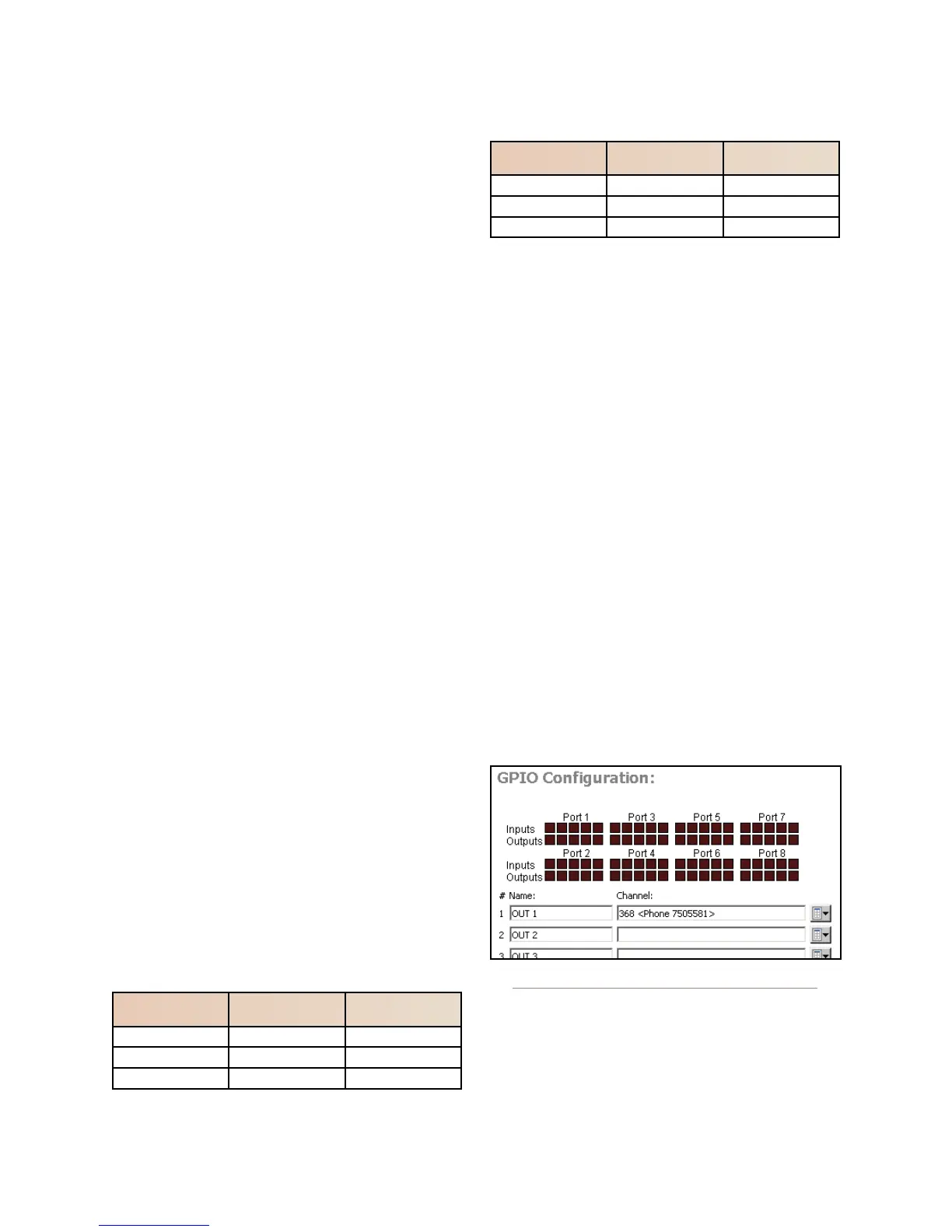
Open Element’s Module Manager/GPIO Configura-
tion web page. You will see the following:
Figure D-8: GPIO setup
For the physical GPIO you will be connecting to
the hybrid, enter or select from the drop-down box the
Livewire source channel for the hybrid. Note the Livewire
channel number and name are keys to the GPIO as well
as to audio signals. Element will generate the appropri-
2.
3.
4.
5.
6.



 To Next Page