4: Element Operations • 66
©2008 Axia Audio — Rev. 3.0
Off sends no audio to the Aux Send bus.
Pressing the Function/Exit SoftKnob
returns
you to the Channel Options screen.
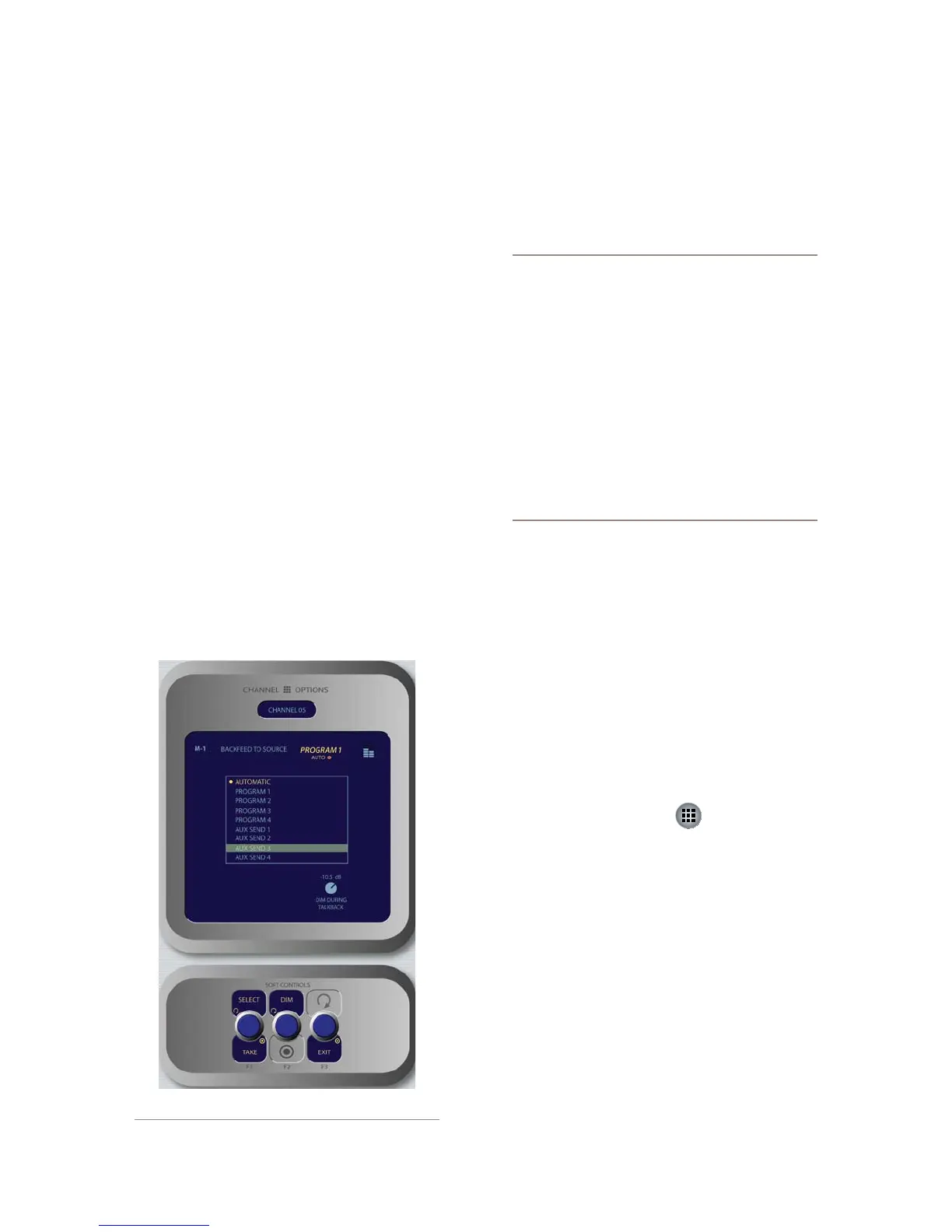
Feed To Source Controls
If the assigned source (i.e., a codec or phone hybrid)
has an associated backfeed or mix-minus, Pressing the
Select SoftKnob when the Feed To Source box is
highlighted takes the operator to the Feed To Source
control screen. This selection is normally pre-set when a
Source Profile is constructed (see Chapter Two, “Config-
uring Inputs,” for information on Source Profiles), but
can be modified on-the-fly.
The Select/Take knob, when rotated, scrolls
through the list of available audio sources that
can supply backfeed or mix-minus. Press to Take
the highlighted source. Your choices are as fol-
lows:
Auto backfeeds audio from the Phone bus
when the channel is Off, and audio from the
Program-1 bus when the channel is On, with
mix-minus if needed.
Phone backfeeds audio from the Phone bus,
with mix-minus if needed.
›
»
•
»
*
*
Program 1 - Program 4 backfeeds audio
from the selected Program bus, with mix-mi-
nus if needed.
Aux Send 1 - Aux Send 4 backfeeds audio
from the selected Auxiliary bus, with mix-
minus if needed.
About the PHONE and PROGRAM 4 buses:
Element’s Program 4 mix bus is a special multi-
purpose bus that does several things at once to
make life easier for the operator.
Any source assigned to Program 4 also be fed
to the PHONE bus and sent to callers when the
channel is OFF and AUTO is selected as the
Feed To Source Mode. PHONE is an internal bus
which does not feed a separate output; instead,
it picks up the Program 4 audio pre-fader and
pre-On/Off and backfeeds them to an PHONE
sources.
Sources assigned to Program 4 are also sent to
the RECORD bus, a special xed-level output
that can be used to feed recording devices.
Rotating the Dim knob allows the operator to
adjust, in dB, the amount by which the studio
monitors are dimmed when this fader channel’s
Talkback key is pressed.
Pressing the Exit SoftKnob
returns you to the
Channel Options screen.
Monitor Section
This controls in this section provide direct operator
access to monitor selection and volume controls.
Monitor Options Key
This key lets the operator access many options re-
lating to Monitor and Headphone behavior. There are
two different Monitor Options screen; the first is shown
when the key is initially pressed, and a second is display
when the key is pressed another time.
The first Monitor Options screen is shown in Fig-
ure 4-28:
Rotating the Function/Exit SoftKnob high-
lights the different control boxes onscreen, mak-
ing the highlighted control active. Labels on the
other SoftKnobs change depending on context.
*
*
»
»
•
»
Figure 4-27: Feed to Source menu screen.



 To Next Page