4: Element Operations • 65
©2008 Axia Audio — Rev. 3.0
the Source Prole and adjustments cannot be
made. In Figure 4-10, the padlock appears just
below the soundeld representation, above the
Mode indicator. The onscreen Mode SoftKnob
is also “grayed out” to show that this function
is unavailable.
Operators cannot “unlock” locked functions;
if you wish to make locked functions available,
simply modify the source prole to allow them
and when the source is reloaded to the console,
the padlock will have disappeared.
Rotating the Function/Exit knob selects be-
tween Pan, Mode and Phase controls. The
active control is highlighted onscreen, and the
labels of the SoftKnobs change depending on
which function is active.
When the Pan/Balance mode is active, ro-
tating the SoftKnob adjusts the the Pan set-
ting for mono sources and the Balance setting
for stereo sources. Push the knob to Take
your new settings.
When the Mode mode is active, rotating the
SoftKnob lets the board op switch source au-
dio between Stereo (discrete left/right), Left
(left source channel fed to L/R input), Right
(right source channel fed to L/R input) and
Sum (left and right source channels summed
to mono and fed to L/R input). Push to Take
the new setting.
When the Phase mode is active:
If the selected source is stereo, rotating this
control lets the board op compensate for out-
of-phase audio sources. Normal is used for
in-phase sources; Inv Left inverts the phase
of the left input channel only, Inv Right in-
verts the phase of the right input channel only,
and Invert Both reverses phase of both ste-
reo channels. Press to Take the new setting.
If the selected source is in mono, the choices
are Normal and Invert only. Press to Take
the new setting.
Pressing the Function/Exit SoftKnob
returns
you to the Channel Options screen.
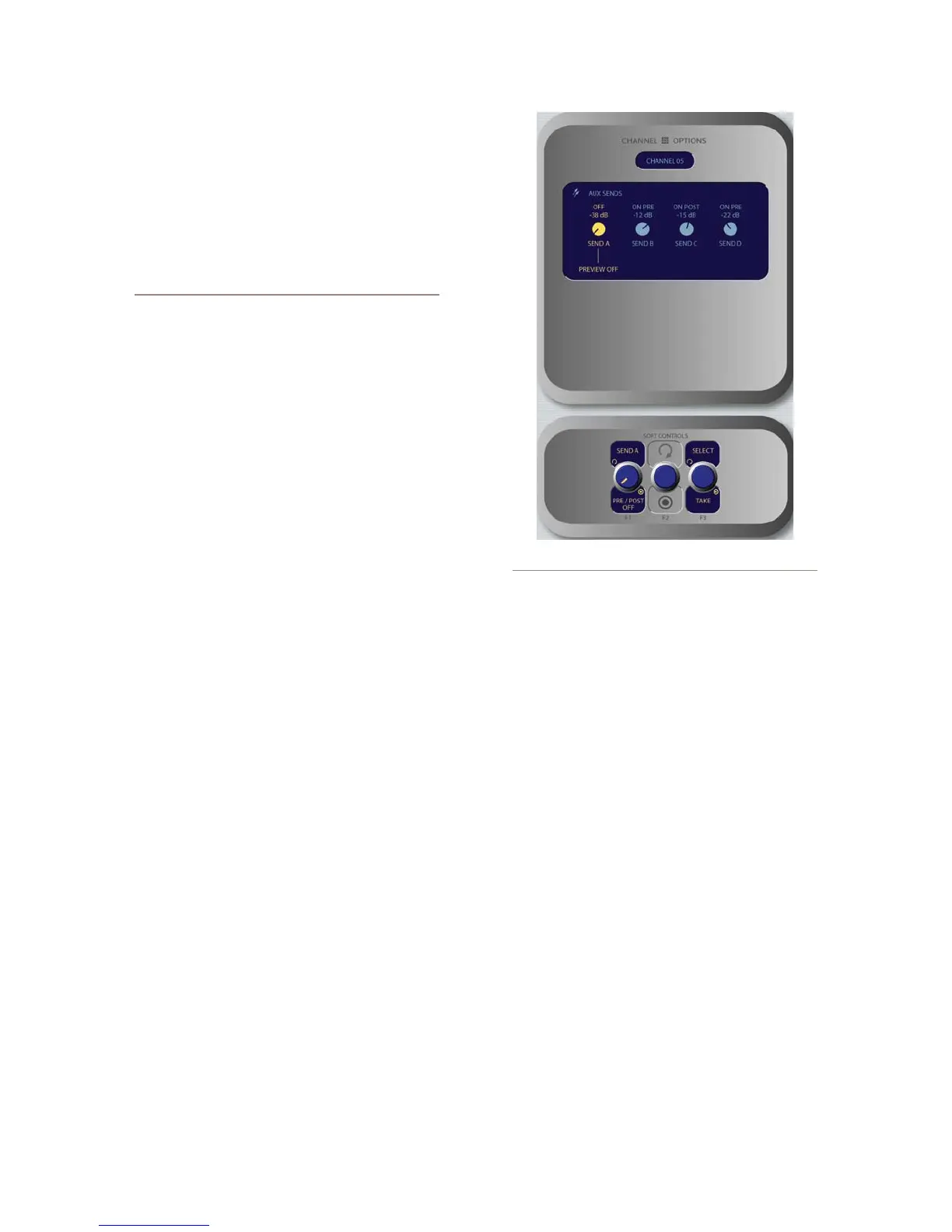
Aux Sends Controls
Element has four stereo Aux buses that can be used
as utility buses for mixing, for constructing custom
»
*
*
»
*
*
»
•
IFB mixes, or as effects buses for production. Pressing
the Select SoftKnob when the Aux Sends boxes are
highlighted takes the operator to the Aux Sends control
screen.
Rotating the Select/Exit knob selects between
Aux Send A, B, C & D. The active control is
highlighted onscreen, and the labels of the Soft-
Knobs change depending on which Send is ac-
tive.
Send A/B/C/D / Pre/Post Fader:
Rotate this knob to adjust the level of the
audio you’ll be sending to the selected Aux
Send bus.
Pushing the Knob to toggle the activity state
of the selected Send. The state is indicated in
the onscreen display above.
On Pre sends the source assigned to the
fader to the selected Aux Send bus prior
to having its gain adjusted by the fader
(fixed level).
On Post sends the source assigned to the
fader to the selected Aux Send bus after
having its gain adjusted by the fader (vari-
able level).
»
»
*
*
›
›
Figure 4-26: Aux Sends menu screen.



 To Next Page