4: Element Operations • 55
©2008 Axia Audio — Rev. 3.0
these settings.
Rotate the HP LINK knob to choose whether
the headphone source will follow the Monitor
1 source selection. Push the knob to Take your
selection.
Linked means that Headphone and Monitor
1 selections will mirror each other; making a
selecton from one bank of keys on the Moni-
tor Module will automatically choose the
same source on the other bank.
Unlinked allows Monitor 1 and Headphone
sources to be selected independently of each
other.
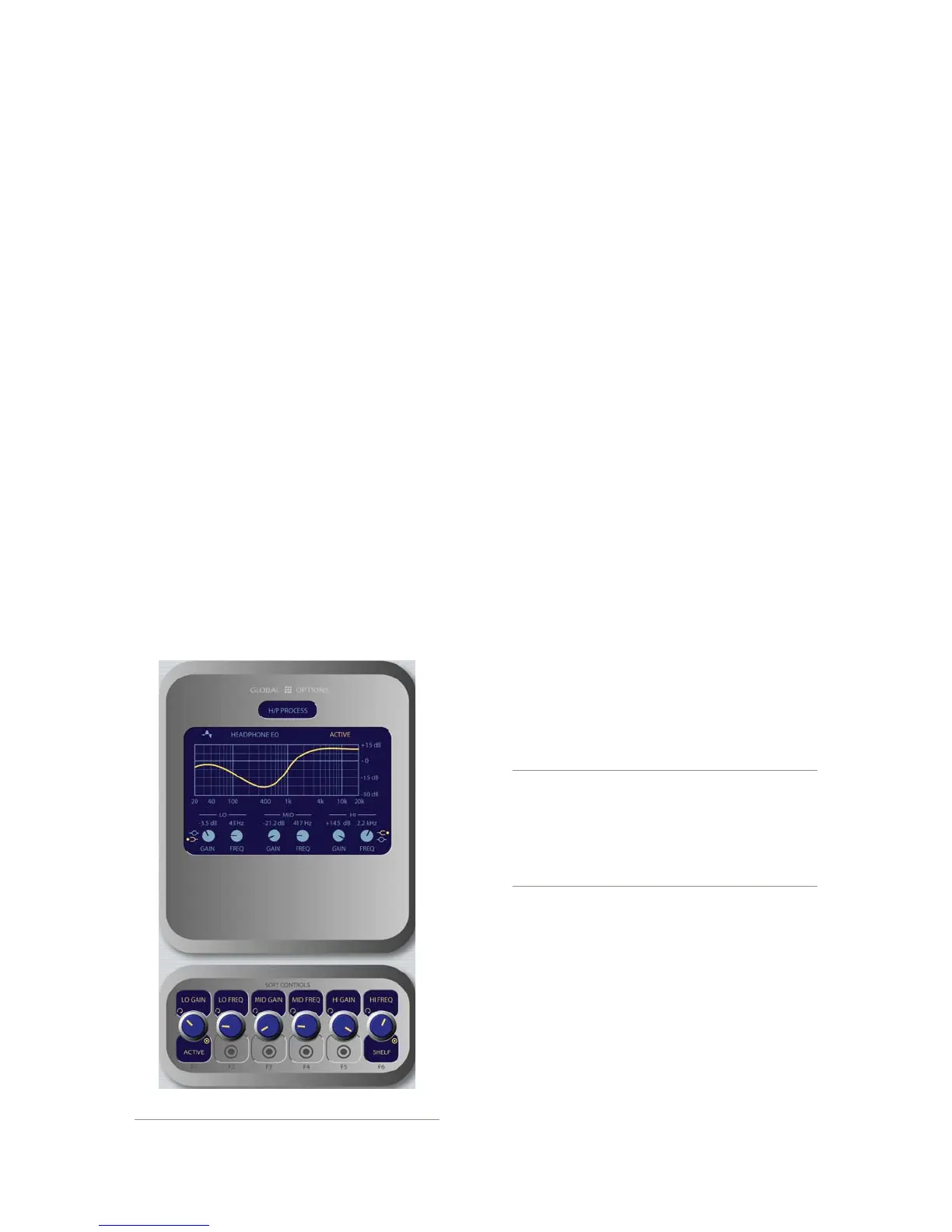
The H/P PROC knob allows the board op to turn
Headphone Processing on and off, define how it
operates if active, and change Headphone Process-
ing settings. Pushing the HP Proc knob selects
Change Settings onscreen and takes the operator
to the H/P Process screen shown in Figure 4-15.
In this screen, the operator is presented with
a graphical representation of the EQ curve ap-
plied to the headphone channel. Talent can then
»
*
*
»
apply three-band parametric equalization to his
or her headphone channel, and select headphone
dynamics processing. The screen indicates the
amount of cut/boost applied, and the center fre-
quency of each band as well as a list of Omnia
processing presets.
Lo Gain/Bypass/Active: Rotating this Soft-
Knob adjusts the amount of gain or cut applied
to the low EQ band. Pressing this knob toggles
EQ between Active and Bypass. Note that the
EQ mode for this band automatically changes
to Peak mode when boost is applied, and Shelf
mode when cut is applied.
Rotating the Lo Freq knob adjusts the center
frequency of the low EQ band (20 - 320 Hz).
Rotating the Mid Gain and Mid Freq Soft-
Knobs adjust gain and center frequencies of
the midrange EQ band (125 Hz - 2 kHz).
The Hi Gain knob adjusts the boost/cut of the
high frequency band (1.25 kHz - 20 kHz).
Hi Freq/Shelf/Peak: Rotating this Soft-
Knob adjusts the center frequency of the high
EQ band (1 kHz - 16 kHz). Pushing this knob
toggles the high-band EQ method between
Peak and Shelf modes.
Press the Monitor Options key to return to
the previous menu.
Note: High, Mid and Low band adjustments
provide up to 25 dB of cut and 15 dB of boost.
Element EQ features SmartQ™ automatic band-
width system that varies the Q of the selected
parametric band to provide the most pleasing
EQ effect. For details on SmartQ, please refer
to Page 44 of this manual.
The H/P PREV knob controls whether audio
from the Preview bus can be fed to the board
op’s headphones, and if so, in what manner. Note
that operators can also press the Preview to
HP key on Element’s Monitor Module to toggle
through these settings. Rotating this knob selects
from the following options:
Off: The operator will not hear Preview au-
dio in the headphone channel.
On: audio from the Preview channel over-
»
*
*
*
*
*
»
*
*
Figure 4-15: H/P Process settings.



 To Next Page