4: Element Operations • 54
©2008 Axia Audio — Rev. 3.0
a new Show Prole to ready Element for
the next show; the Show Prole he’s load-
ing has a CD player assigned to Channel
10. Obviously, there’s a conict.
Instead of blindly changing the channel source
and interrupting audio that’s on-the-air, Element
queues the new source. When the board op is
nished with the satellite feed, he turns the
channel Off and the CD player automatically
loads.
Along with selecting a new Show Prole to load,
users can reload the currently active profile, resetting
the board to a “nominal” state if they wish to return
to their normal configuration after making on-the-fly
changes.
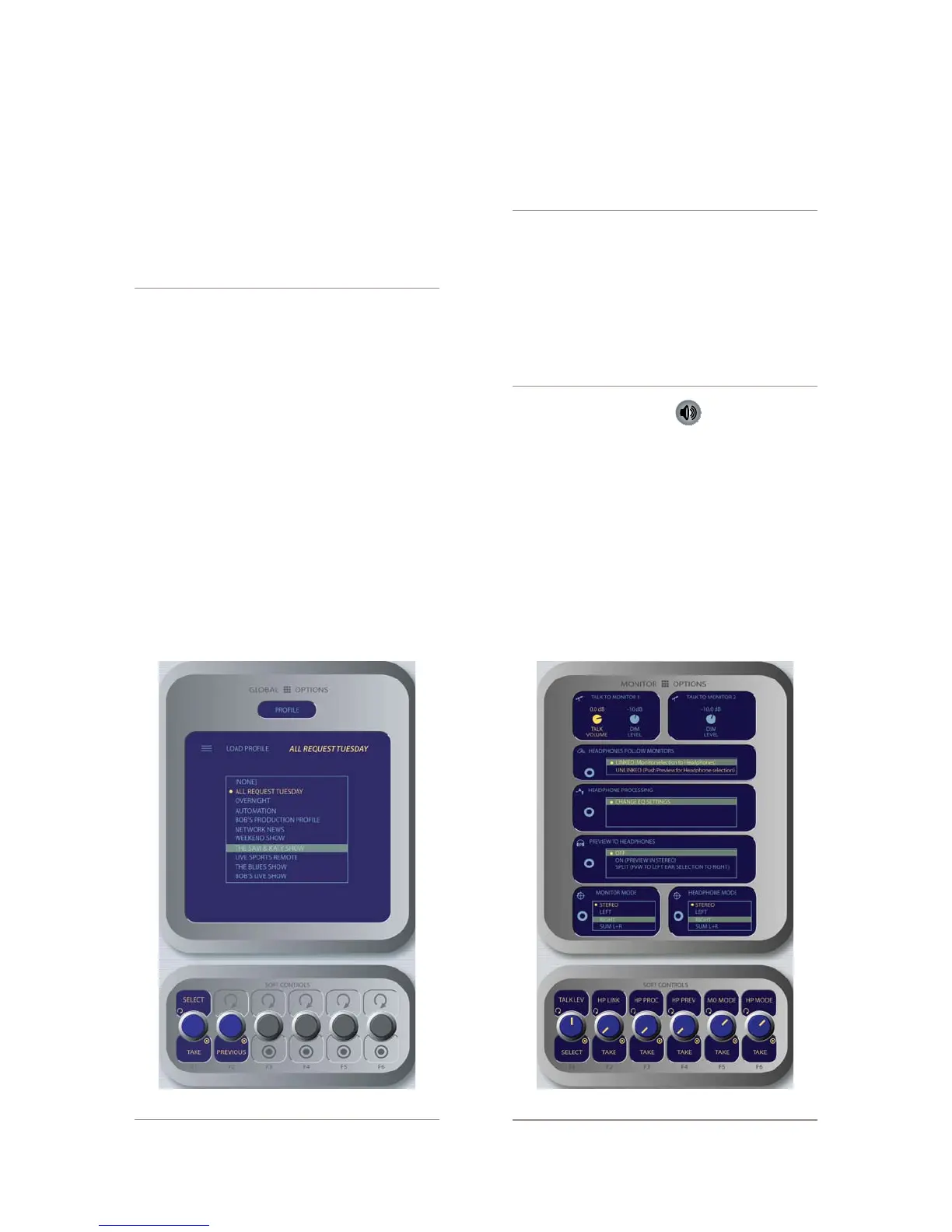
Select / Take: Rotate this knob to scroll through
the on-screen list of available Show Profiles. Push
the knob to “take” the new Show Profile.
Previous: When you load a new Show Profile,
Element remembers the previously loaded Pro-
file until you exit the Show Profile screen. The
Previous command functions as a “speed key,”
highlighting the previously assigned source in
»
»
the source list and allowing the operator to re-
turn to it should they change their mind. Press
to “take.”
DON’T PANIC! Element is full of options intend-
ed to make life on-air easier and more intuitive
for today’s talent. However, it’s possible for tal-
ent not yet familiar with the way Element works
to “get lost” in the option settings.
Pressing and holding the Prole key for ve
seconds instantly clears changes made to the
current Show Prole, resetting the Show Pro-
le’s default settings. All is well, and your jock
once again knows where his towel is.
Monitor Options Key
Pressing this key reveals all sorts of neat options re-
lating to Monitor and Headphone behavior. The Monitor
Options screen is shown in Figure 4-14.
Pushing the TALK LEV SoftKnob selects be-
tween adjusting the levels of the Monitor 1 Talk
To and Dim levels and the Monitor 2 Dim level.
The active function is highlighted in yellow on
the screen. Turn the knob to adjust the values of
•
»
Figure 4-14: Monitor Options menu screen.
Figure 4-13: Show Prole selection screen.



 To Next Page