1: Setup & Connections • 7
©2008 Axia Audio — Rev. 3.0
Subnet Mask: Enter your network’s subnet
mask value here, usually 255.255.255.0
Gateway IP Address: To enable remote admin-
stration of your Livewire network, you’ll need a
network gateway. If you have one installed, enter
its IP Address value here.
Engine IP Address: Each Axia control surface
controls a unique Studio Engine. Enter the IP of
the controlled Engine here.
1st NTP Server IP Address: Element supports
NTP (Network Time Protocol) timekeeping to
synchronize time-of-day clocks across your fa-
cility. If you have an NTP server, enter its IP Ad-
dress here.
2nd NTP Server IP Address: Element v2.x
software supports redundant NTP servers. Enter
the IP Address of your backup server here.
Web Page User Password: You can password-
protect your Element’s webserver connection by
entering a numeric password here.
Note: If you set a password for HTTP access,
you will not see your password displayed in this
eld upon re-entering the IP Address book. This
is a security feature intended to prevent “over-
the-shoulder” password theft.
Rotating the Action knob choosees between the fol-
lowing options:
Save stores the changes you’ve made to the IP
Address Book.
Undo reverses any changes you’ve made if you
haven’t yet saved them.
Reboot immediately reboots the Element.
Press the Exit knob to leave the IP Address Book.
Note: After making changes to any Element IP
address settings, you must reboot the console.
Use the “REBOOT” soft key to begin an immediate
reboot sequence.
Remember, you can even reboot Element while
on-the-air, since the audio mixing is not done in
the console but in the Studio Engine; your audio
will continue to play without interruption.
»
»
»
»
»
»
•
»
»
»
•
Clock Conguration
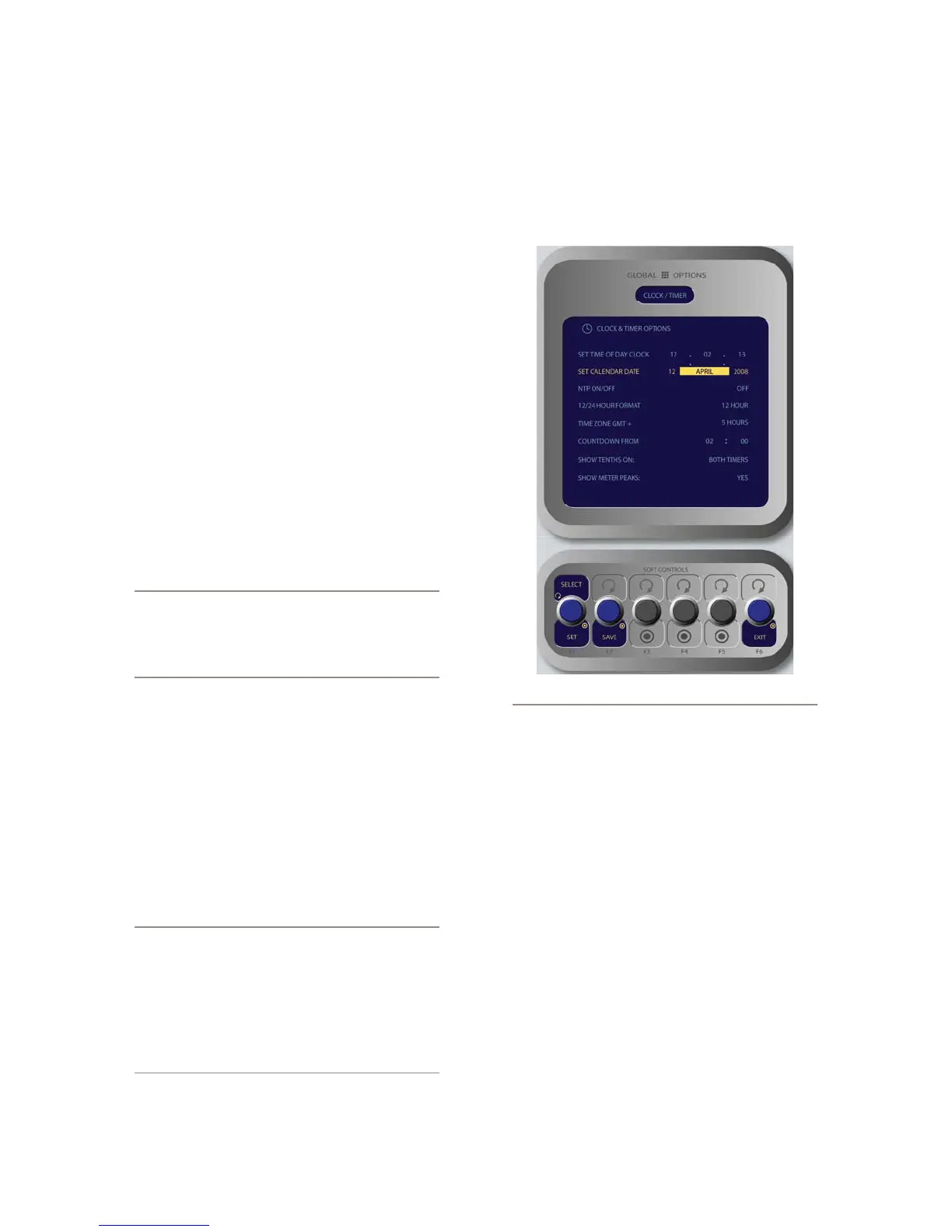
Locate the Timer section of the Monitor Module;
press and hold the key marked Options to enter the
Clock & Timer Options screen (Figure 1-13).
Figure 1-13: Clock & Timer Options menu screen.
Rotate the Select/Set SoftKnob to scroll through
the list of available options. To select an option to
modify, push this knob. Rotate the knob to change an
option’s value, and push the knob when you’re done
to move to other fields. Available options include:
Set Time Of Day Clock: If you do not have an
NTP (Network Time Protocol) server configured
as part of your Livewire IP-Audio network, use
this option to set the correct time for Element’s
on-screen clock.
Set Calendar Date: Choose this option to set
Element’s on-screen calendar.
NTP On/Off: If you have an NTP server tied to
your IP-Audio network, set this option On. If you
do not, or if your NTP server is supplying incor-
rect time data, turn this option Off to keep time
with Element’s internal clock.
12/24-Hour Format: This option switches the
•
»
»
»
»



 To Next Page