2: Conguring Inputs • 18
©2008 Axia Audio — Rev. 3.0
sides of the audio source and sends the summed
signal to the recorder’s left channel.
Summed-Mono to Right: Same as above, but
sends summed audio to the recorder’s right chan-
nel.
That’s the last option. Click on the Save Changes
button at the bottom of the page.
Congratulations — you’ve just created your first
Source Profile! You can now bring up your new source
on any Element fader.
Adding Backfeeds and GPIO
to a Source Prole
Since making a mix-minus and mapping contact clo-
sures is often done at the same time a new Source Profile
is constructed, let’s briefly recap those procedures. (De-
tailed setup and operation instructions for your GPIO
Nodes and Audio Nodes are found in their respective
User Manuals.)
Let’s say you’ve connected a hybrid to your Ana-
log Node, named it “Hybrid”, and assigned it a channel
number of 77. You’ve constructed a Source Profile for it,
and you now want to give it a mix-minus backfeed and
set up a GPIO contact closure for the “take” and “drop”
functions. Here’s how:
Make sure that, in your hybrid’s Source Profile, the
Source Type option is set to “Phone” and the Feed
to Source Mode is set to “Auto”. Also set the Back-
feed Enabled/Disabled option to “Enabled”.
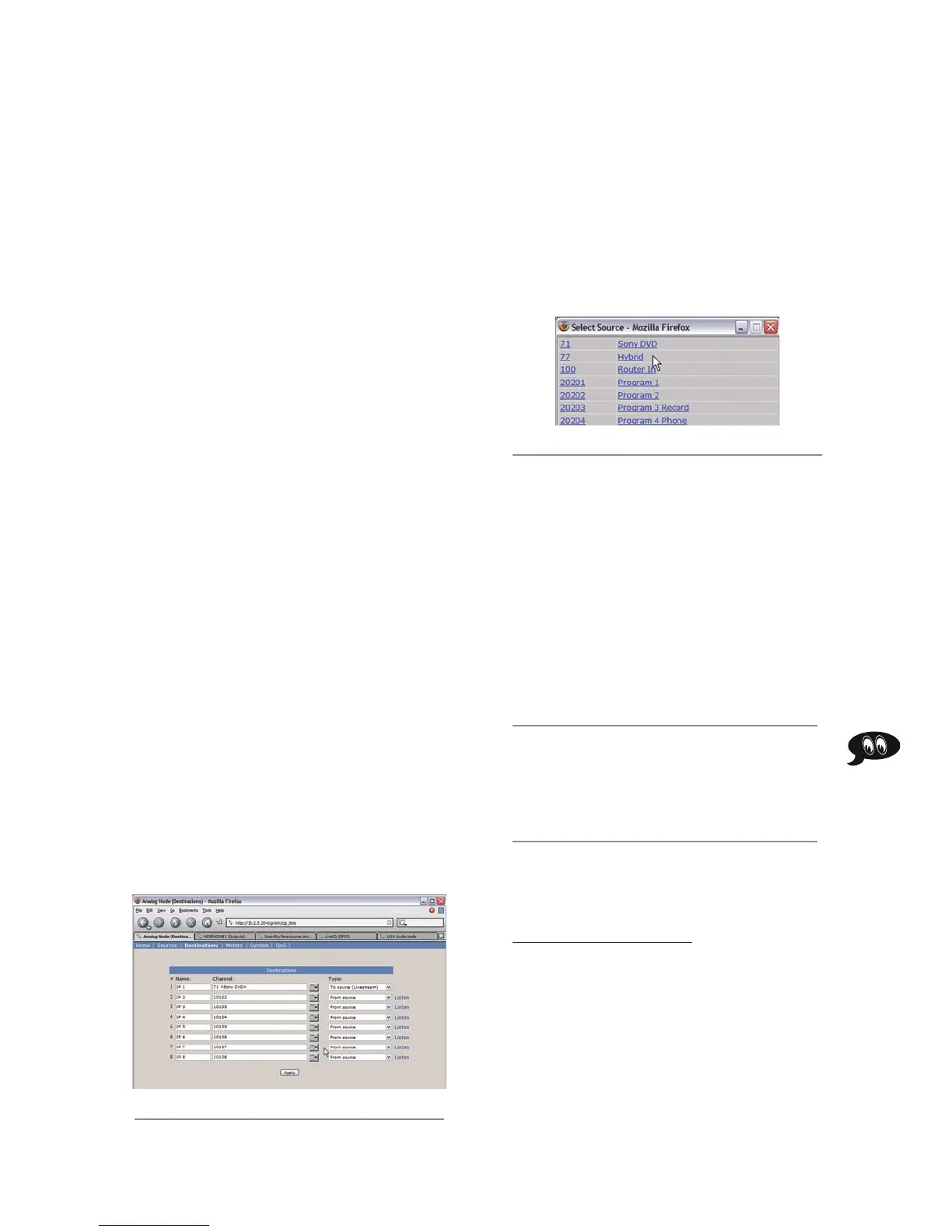
Figure 2-3: Analog Node Destinations screen
»
1.
Use your Web browser to connect with the Audio
Node you’ll be sending your backfeed to. Choose
Destinations from the main menu to enter the
Destinations screen (Figure 2-3); we’ll set up our-
mix-minus for output #7.
Just to the right of each Channel name box , you’ll
see a “list” icon. Click on the list icon for output #7.
A list of available sources will pop up (Figure 2-4).
Notice that the names and channel numbers of the
sources are both displayed for easy identification.
We’ll choose Hybrid from the list; the list window
closes and you’re returned to the Destinations
screen. The line for output #7 now displays the chan-
nel number and name of the source.
Now comes the step that makes this output a mix-
minus. Each Destination entry line has a drop box
at the end; click on the drop-down and choose To
source.
Automagic: If the hybrid source is loaded to an
Engine and the engine is generating a mix minus
source already, the list box will show TWO iden-
tical channels for the source — but one will have
a description of “TO:” in front of it. Selecting
this source automatically selects TO SOURCE in
the TYPE box.
For a detailed description of these options and
how they operate, please refer to the 8x8 Analog
Node / 8x8 AES Node User’s Manual available at
www.AxiaAudio.com/manuals/ .
Click Apply.
Now point your browser back to your Element Control
Center page and choose GPIO Configuration from
the menu sidebar. (You may also use a GPIO Node
other than the Power Supply/GPIO that shipped with
your Element, just point your browser to that node’s
IP address instead.)
2.
3.
4.
5.
6.
Figure 2-4: Picking a source from the list box



 To Next Page