7: Advanced Element Controls • 110
©2008 Axia Audio — Rev. 3.0
The Firmware Version field displays the fader firm-
ware version that’s loaded on each module.
At the bottom of the page, you’ll see a lot of informa-
tion pertaining to the health of the Element’s CANBus
communication network. This is for diagnostic purposes
only.
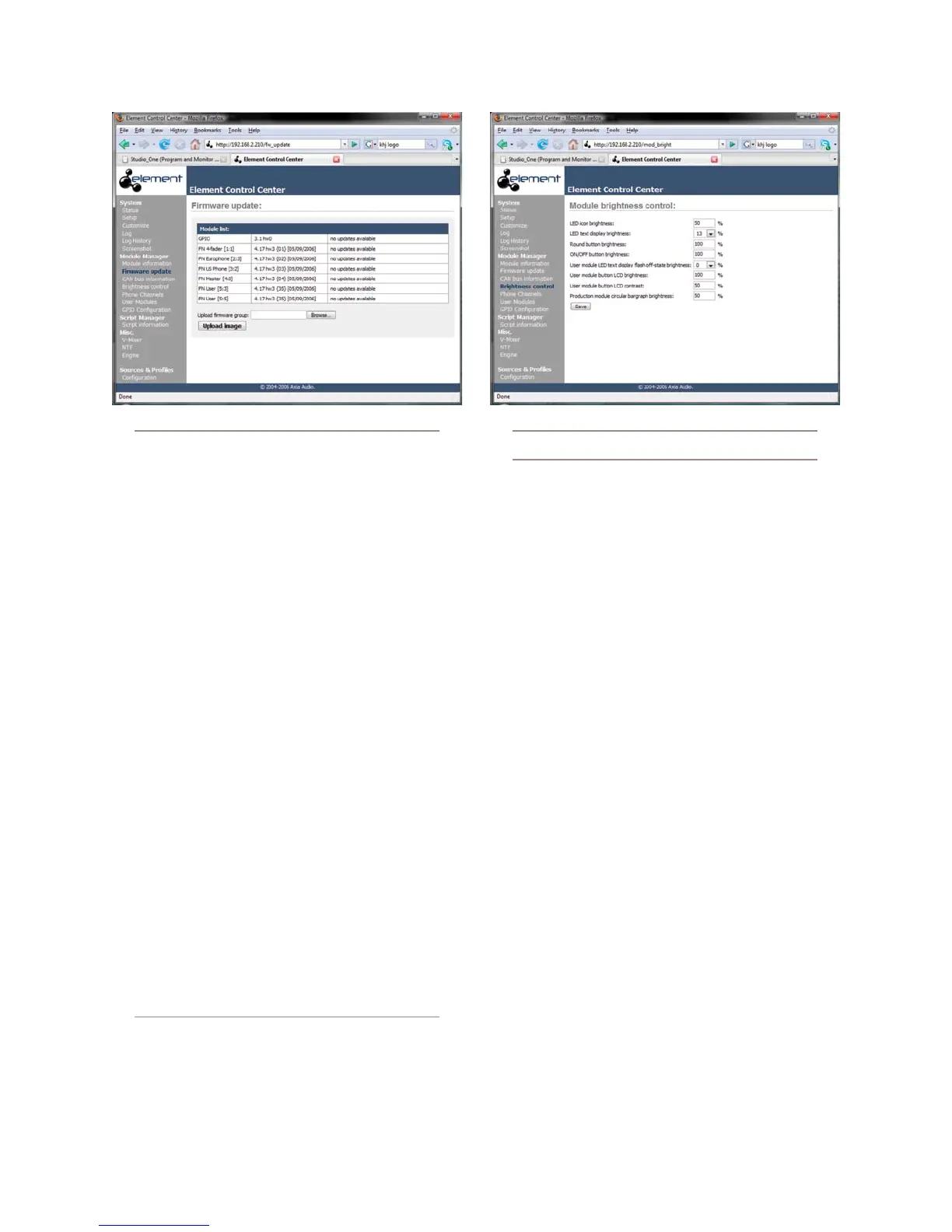
The Firmware Update Menu
From time to time, new module firmware may be-
come available from Axia. You may confirm the current
Module Firmware versions installed in your Element and
install new firmware by choosing this menu item.
To update Module Firmware, use the Browse and
Upload Image buttons to install the module firmware
package obtained from Axia Support. Once a new soft-
ware image has been uploaded, the Firmware Update
screen will change to notify you which modules have
new firmware available.
Each module must be updated individually. To up-
date a module, simply click on its Update link.
Note that updating a module takes it ofine
during the update process. While audio playing
through the module’s faders will continue un-
interrupted, keep in mind that while updating
(usually about 10-15 seconds) you will not be
able to adjust gain or turn faders on or off on the
•
module being updated.
CAN Bus Information Manu
This screen shows statistics about CANBus commu-
nications between Element’s CPU and control surface.
Brightness Control Menu
This menu offers several useful options for fine-tun-
ing your Element’s various LED and LCD displays to
your studio’s ambient lighting. All values are expressed
in percent.
LED Icon Brightness lets you adjust the luminance
of the Status Symbols / fader numbers on the Ele-
ment overbridge (the little windows just above the
source identifiers).
LED Text Display Brightness does the same for
the alphanumic displays that indicate what source is
loaded to each fader channel.
Round Button Brightness adjusts the luminance
of the interior LEDs that illuminate Element’s Op-
tions, PGM 1-4, Monitor, Headphone and other
selection keys.
ON / OFF Button Brightness: You can probably
figure this one out on your own :^)
User Module LED Text Display Flash Off-State
Brightness: If you have any SmartSwitch modules
or accessory panels installed, you can use this set-
•
•
•
•
•
Fig. 7-6: Module Update screen Fig. 7-7: Brightness Control screen



 To Next Page