5: Show Proles • 86
©2008 Axia Audio — Rev. 3.0
under the “Sources & Profiles” heading on the sidebar
menu. This is where you’ll come whenever you need to
capture, construct or administer a Show Profile.
Under ths Show Profiles list, you’ll then find four op-
tions:
Default Show Prole. This is the “starter” pro-
file that comes with Element. If you wish, you
can overwrite this with your preferred default
options; otherwise, consider it as “return to zero”
configuration option, for use in returning Ele-
ment to a “blank slate” condition.
New Show Prole. Choose this option when
you want to construct an entire
Show Profile completely from
scratch.
Capture Show Prole. Takes
a “snapshot” of the current board
state and saves it for recall. This is
the option we’ll use in just a mo-
ment.
You’ve already set up your Element, so
now you can just “capture” your settings
for further use. Choose Capture Show
Prole from the menu. You’ll be prompt-
ed to give your new profile a unique name;
after you do, it’ll be added to the list of
available profiles. Voila! You’ve just cre-
ated and saved a Show Profile, which can
now be recalled for use whenever you
wish.
However, there may be a few more options you’d like
to tweak — options not accessible from Element itself.
Let’s go a little deeper into Show Profiles to find out
exactly what’s available to you.
Suggestion: As part of Element training, show
your talent how to use the Channel Options and
Monitor Options menus (discussed in Chapter
Four) to assign sources and set monitor options.
Then, let them set up the board exactly the way
they want it, then use the Capture command to
save their work. This way, talent gets the satis-
faction of personalizing their own Element con-
guration — and saves you the work!
»
»
»
Show Profile Options
Although the ability to create Show Profiles using
Element’s “capture” function is powerful, there are
more options available exclusively via the Element Web
interface.
In the last section, we showed you how to capture the
current configuration of your Element, easily creating a
Show Profile, which was immediately added to the Show
Profiles list.
Now, click on that newly created profile. It’s prob-
ably named something like “Capture 2004-
2-12 0:800” — the date and time the cap-
ture was made.
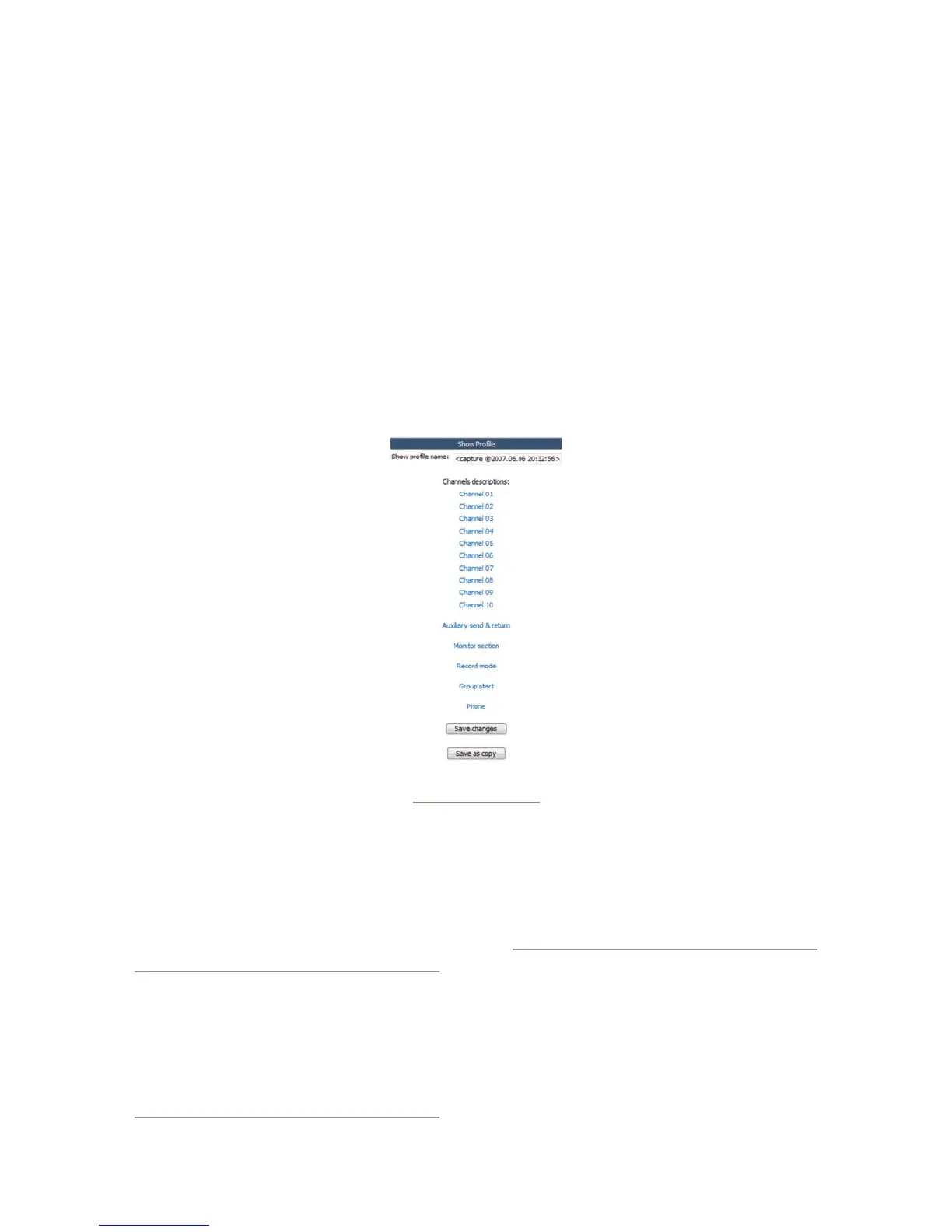
You’ll see the menu shown in Figure
5-1. Notice that there is an entry for each
of your Element’s faders, as well as a link
for Auxiliary Send & Return, Monitor
Section, Record Mode, Group Start
and Phone.
The Channel Description Screen
Click on any of the Channel links to
examine the settings for a fader. Many
of the options will seem familiar to you;
you’ve seen them before, during Source
Profile setup.
Let’s look at these options one-by-one; notice as we
go that the fields match the choices you made for this
channel, using Element’s Options menus, prior to cap-
turing the Show Profile.
Note: in addition to “active” options – choic-
es that are actively made to Element settings
when loading a new Show Prole – there is
also a “passive” option for many items: Retain
Source Setting. Choosing Retain allows the
setting for this option to “cascade” from the
Source Prole attached to the source loaded
on this channel.
For example, you’ve set a Show Prole to load
the Control Room Host mic on Channel 1. You
Figure 5-1: Show Prole
Settings Menu



 To Next Page