4: Element Operations • 42
©2008 Axia Audio — Rev. 3.0
Control Details
General Fader Controls
Although any Element faders can handle any
type of audio source, some fader functions change
their behavior depending upon the type of source
assigned. Also, certain fader modules have “ex-
tra” controls for specific uses. The controls found
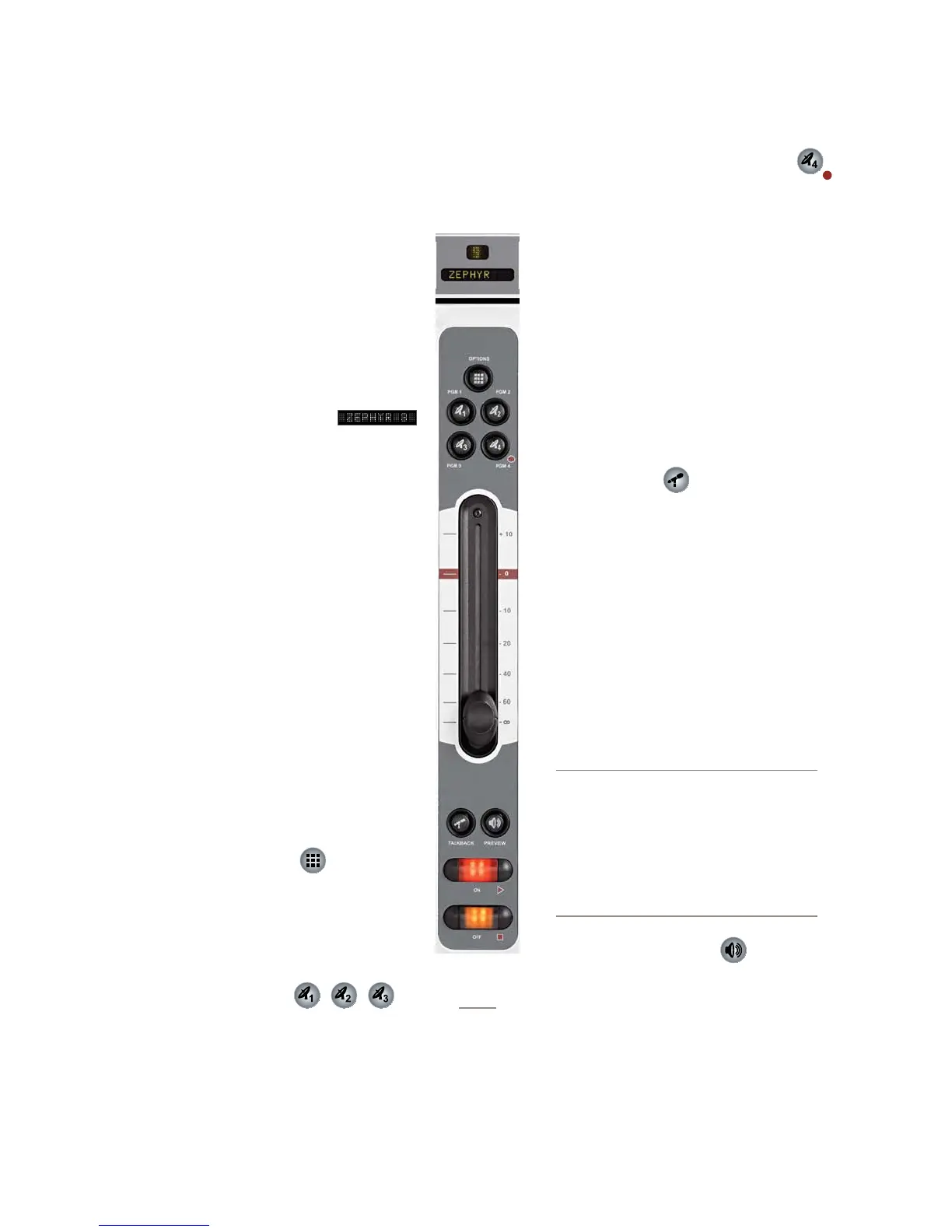
on the Element 4-Fader Line Module (Figure 4-1)
are common to all Element modules, so we’ll look
at these first.
Fader Assignment Display
PGM 1 PGM 2
PHONERECORD
OPTIONS PREVIEW
II
I
PREVIEW STUDIO
MONITORS HEADPHONES
EXTERNAL
STUDIO
PREVIEWED
SOURCE
TALK TO
TRANSPORT CONTROLS
RECORD
MODE
TIMER
MODE
MONITOR
OPTIONS
STUDIO
OPTION
S
CONTROL
OPTIONS
The 10 character alpha display shows the
source presently assigned to this channel. If the
fader’s Options button is pressed and the opera-
tor changes sources, this display changes too.
If a channel is ON and the operator changes
its source, the display will flash between the
source currently on-air and the newly selected
source. The fader will not “take” the new source
until the operator has turned the channel off, pre-
venting on-air errors. If a Show Profile is loaded
that specifies an unavailable source, the display
reads Requested source not found.
Just above the alpha display is a Status Symbol
display. This display indicates the fader’s channel
number or presents a Status Symbol to indicate
when backfeed or talkback is active.
Channel Options Key
Pressing this key activates the Channel Op-
tions keys located on Element’s Master Module.
Refer to the sections on Monitor Module controls
later in this chapter for detailed functions.
PGM-1, -2 & -3 Keys
Each channel is assigned to any of the three
main output buses by selecting any (or all) of these pro-
gram keys. Generally, PGM-1 is the main air bus and
other buses are used for production or other program-
ming requirements. All program outputs are post-fader
•
•
•
and post on-off function.
PGM-4 / Record Bus / Phone Bus Key
The fourth bus functions as a regular output bus, but
any sources feeding PGM-4 are also sent to a spe-
cial Record bus that feeds a dedicated recording
device, as well as to the Phone bus that sends
mix-minus audio to any phone callers. These
buses operate independently but simultaneously,
allowing jocks plenty of operational flexibility.
PGM-4 bus audio output is post-fader, post-
on/off; Record bus audio output is post-fader,
pre-on/off, and Phone bus audio is sent to callers
pre-fader, pre-on/off.
Talkback Key
Each fader is equipped with a Talkback key,
located between the bottom of the fader and the
channel ON/OFF keys. If the source assigned to
a fader is has an associated backfeed, pressing
this key will allow the board operator to com-
municate with the person at the other end of the
backfeed; the fader’s Status Symbol display will
change to show that Talkback is active.
Multiple Talkback keys can be selected to
talk to more than one source at a time.
Auto-Talkback: If a source’s Backfeed
mode is set to “Auto”, the caller or remote
talent will hear PGM-1 minus himself (mix-
minus) whenever the fader he’s assigned
to is ON, and will have his Talkback chan-
nel automatically activated when the
channel is turned OFF. See Chapter Two:
“Conguring Inputs” for more information
on conguring backfeeds.
Channel Preview Key
Preview (called “cue” in the analog days) al-
lows the operator to listen to sources before they
air. Element’s Preview bus allows auditioning of
content in full stereo.
The Preview key acts like a latching switch.
Momentarily pressing any channel’s Preview key as-
•
•
•
Figure 4-1:
Line Module
Fader Channel



 To Next Page