4: Element Operations • 57
©2008 Axia Audio — Rev. 3.0
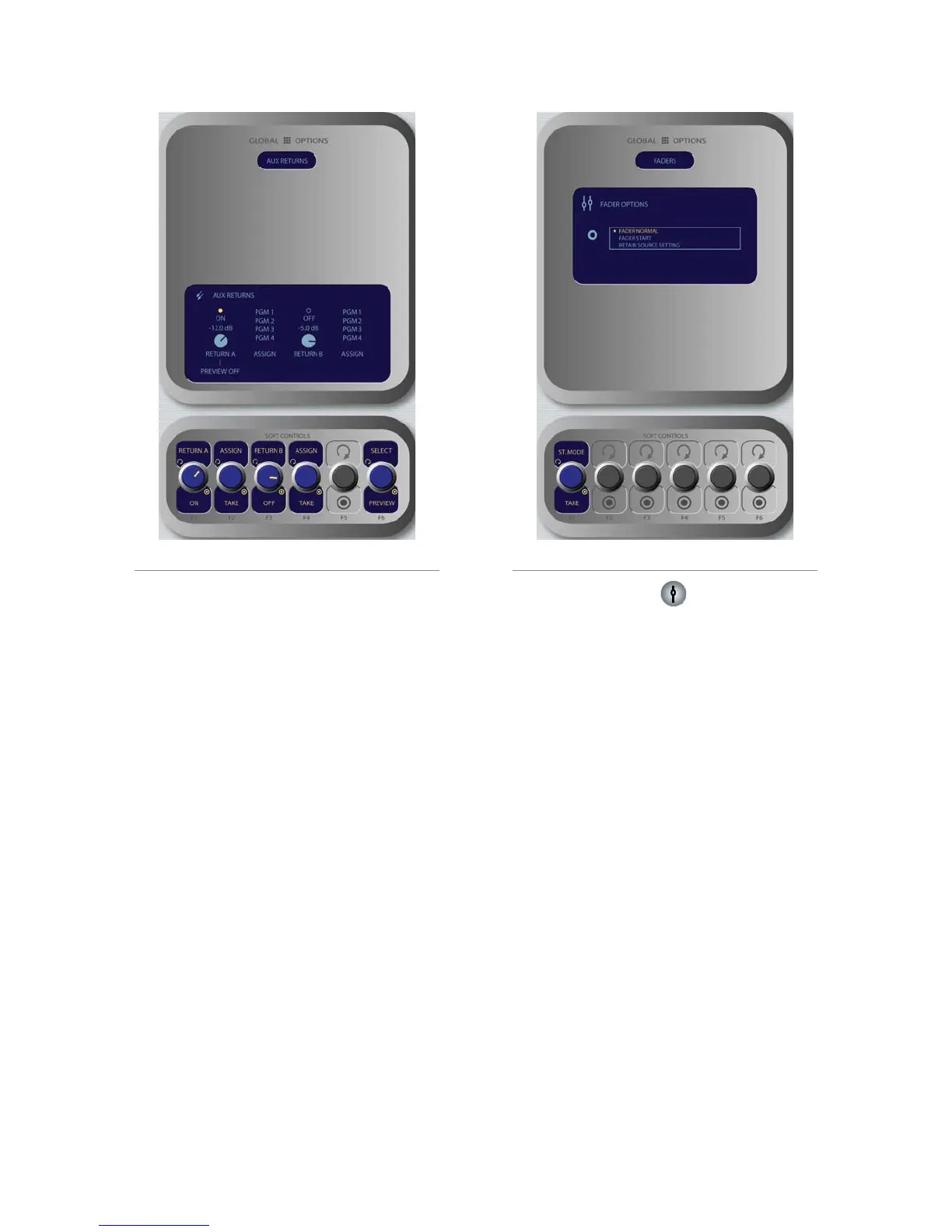
Aux Returns Master screen options:
Rotate the Return A/On/Off SoftKnob to set
the audio level of Aux Return A. Push the knob
to toggle Aux Return A On or Off.
Rotate the adjacent Assign/Take knob to choose
which of the four Program buses to assign the
output of Aux Return A. Push the knob to Take
the assginment.
Rotate the Return B/On/Off SoftKnob to set
the audio level of Aux Return B. Push the knob
to toggle Aux Return B On or Off.
Rotate the adjacent Assign/Take knob to choose
which of the four Program buses to assign the
output of Aux Return B. Push the knob to Take
the assginment.
Rotating the Select/Preview knob allows you
to select either of the Aux Return mixes for au-
ditioning in the Preview channel; the on-screen
menu indicates which Aux Send is selected.
Push the knob to preview; release it to end the
preview.
Press the Sends & Returns key one more time to
exit the menu.
»
»
»
»
»
Fader Options Key
Element supports fader-normal and European-style
fader-start channel activation methods. Fader style can
be set either globally, or on a per-fader basis.
Each input’s Source Profile contains a Fader Mode
choice, which lets you set the behavior of individual fad-
ers. The Global Fader Options menu allows you to set
the behavior of the entire console.
In default Normal operation, Element conforms to
the US method of requiring talent to manually turn the
channel on and off. Fader Start mode follows the Euro-
pean convention of activating the channel and associated
machine logic when the fader is raised from ∞.
Rotate the St. Mode/Take SoftKnob to choose fad-
er modes:
Fader Normal: Selects the US convention.
Fader Start: Selects the Euro convention.
Retain Source Setting: Each individual fader
uses the settings specified in its Source Profile.
Press the Fader Options key again to exit.
•
»
»
»
Figure 4-18: Fader Options menu screen.Figure 4-17: Aux Returns menu screen.



 To Next Page