112
Clinician's Guide
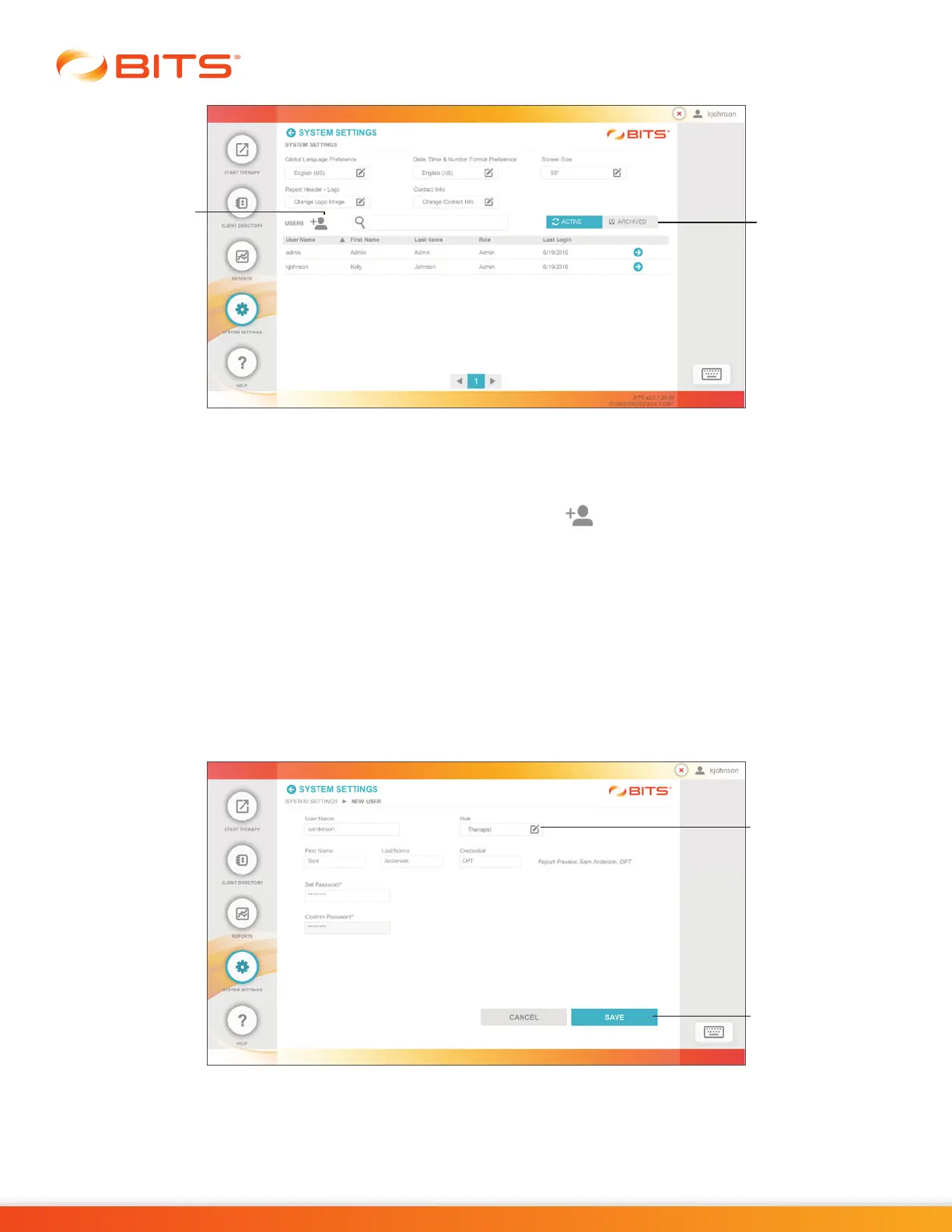
Figure 20-2: System Settings Screen
Adding a New User
1. From the System Settings Screen, press the Add User Icon , see Figure 20-2.
2. From the New User Screen, fill in all text fields (User Name, First Name, Last Name, Credential,
and Password). See Figure 20-3.
3. The default setting for the User Role setting is Therapist. If a new Admin Account is being created,
press the User Role Icon. See Figure 20-3. The Change User Role pop up window will open, select
Admin and press the Done Button. See Figure 20-4.
4. Confirm the information has been entered in correctly and press the Save Button. See
Figure 20-3.
Note: Give the assigned User Name and Password Log In information to the new user.
Figure 20-3: New User Screen
Add New
User Icon
Archived
Tab
Save
Button
user Role Icon



 To Next Page