15
Chapter 4 - Introduction to BITS Software Navigation
Chapter
4
Introduction to BITS Software Navigation
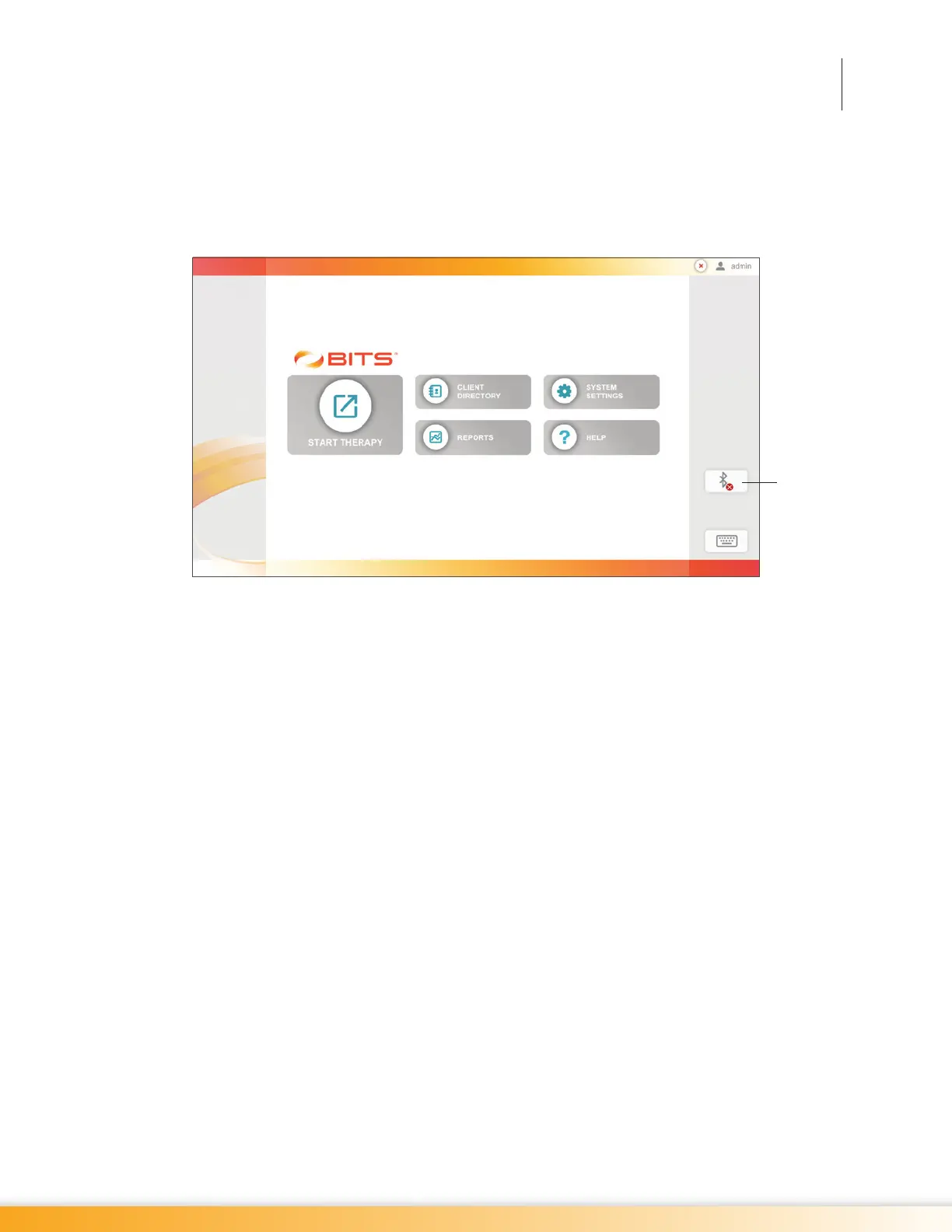
The Home Screen is the first screen that will appear when launching the BITS software application. The
Home Screen consists of five menu options, which appear as icon buttons.
Figure 4-1: Home Screen
Start Therapy
The Start Therapy Module allows the user to select a client and therapy program, and launch a therapy
session. See Figure 4-1. For more information see the "Start Therapy" section of this guide.
Client Directory
The Client Directory allows the user to access the client directory, view client information, add a new
client, select an existing client, and archive a client. See Figure 4-1. For more information see the "Client
Directory" section of this guide.
Reports
The Reports Module allows the user to view a client's therapy session results, graph session results
over a period of time, and print out PDF reports. See Figure 4-1. For more information see the "Reports"
section of this guide.
System Settings
The System Settings Module allows a user with administrator privileges to change language settings,
format settings, enter facility information, and to create, edit and archive user (clinician) accounts. See
Figure 4-1. For more information see the "System Settings" section of this guide.
Help
Pressing the Help Button opens a link to the BITS Clinician’s Guide. See Figure 4-1. For more information,
see the "Help" section of this guide.
Icon only displayed
if BITS Balance
has been activated



 To Next Page