42
Clinician's Guide
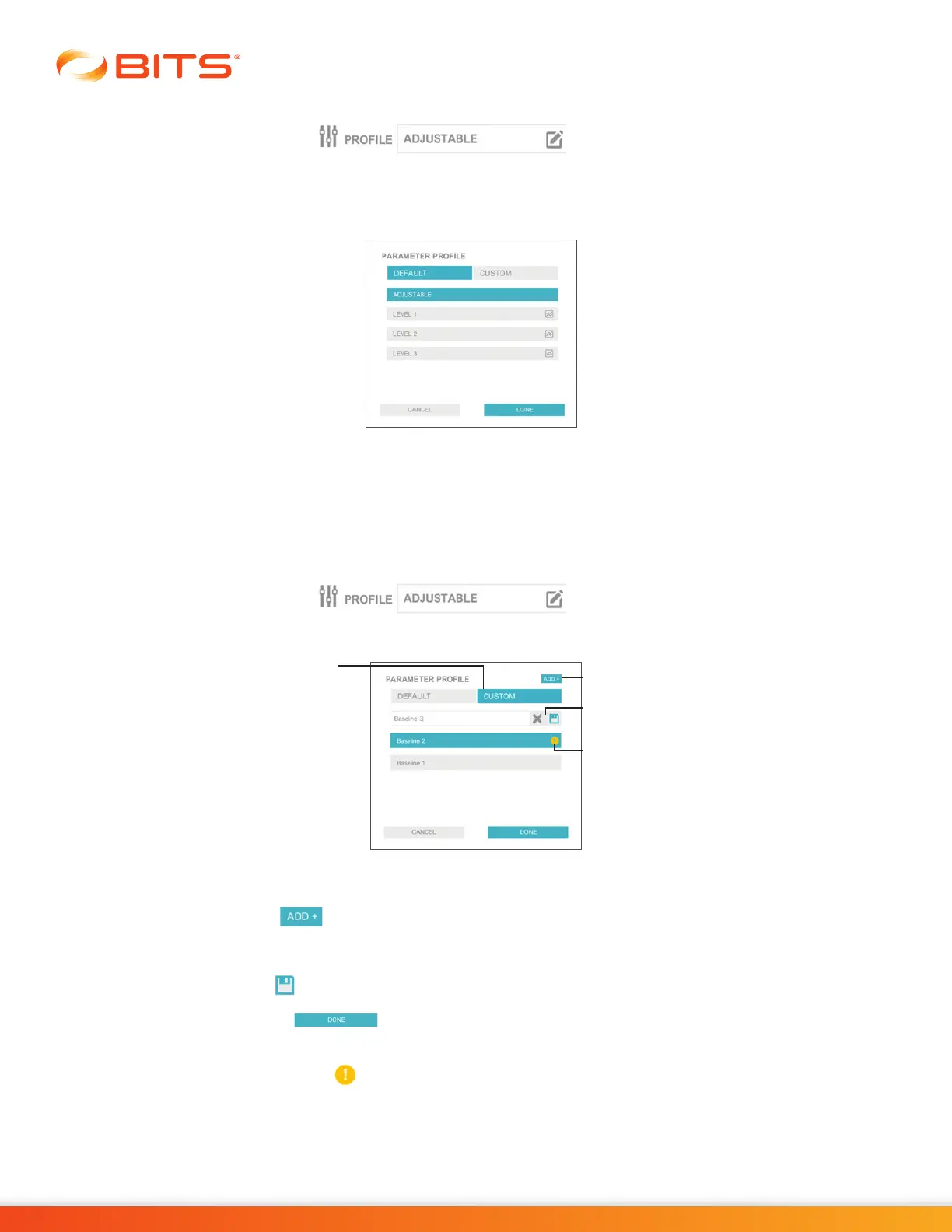
To adjust the Parameter Profile:
1. Press the Profile Icon Box
2. The Parameter Profile pop-up window will appear, see Figure 6-11.
3. Select the desired Parameter Profile and then press the Done Button to close the window. See
Figure 6-11.
Figure 6-11: Parameter Profile Pop-up Window
Custom Parameter Profiles
A Custom Parameter Profile can be created to facilitate the use of the Graphing and Baseline features.
To create a Custom Parameter Profile:
1. Press the Profile Icon Box
2. The Parameter Profile Pop-up Window will appear. Press the Custom Tab. See Figure 6-12.
Figure 6-12: Custom Parameter Profile Pop-up Window
3. Press the Add button.
4. A text field will appear. Enter the desired name of the Custom Parameter Profile.
5. Press the Save Icon.
6. Press the Done Button.
Note: A Custom Parameter Profile will not contain parameters until after it has been used to run a therapy
program. The Empty Profile Icon will indicate a Custom Profile without parameters.
Custom Tab
Add Button
Save & Cancel
Icons
Empty Profile
Icon



 To Next Page