114
Clinician's Guide
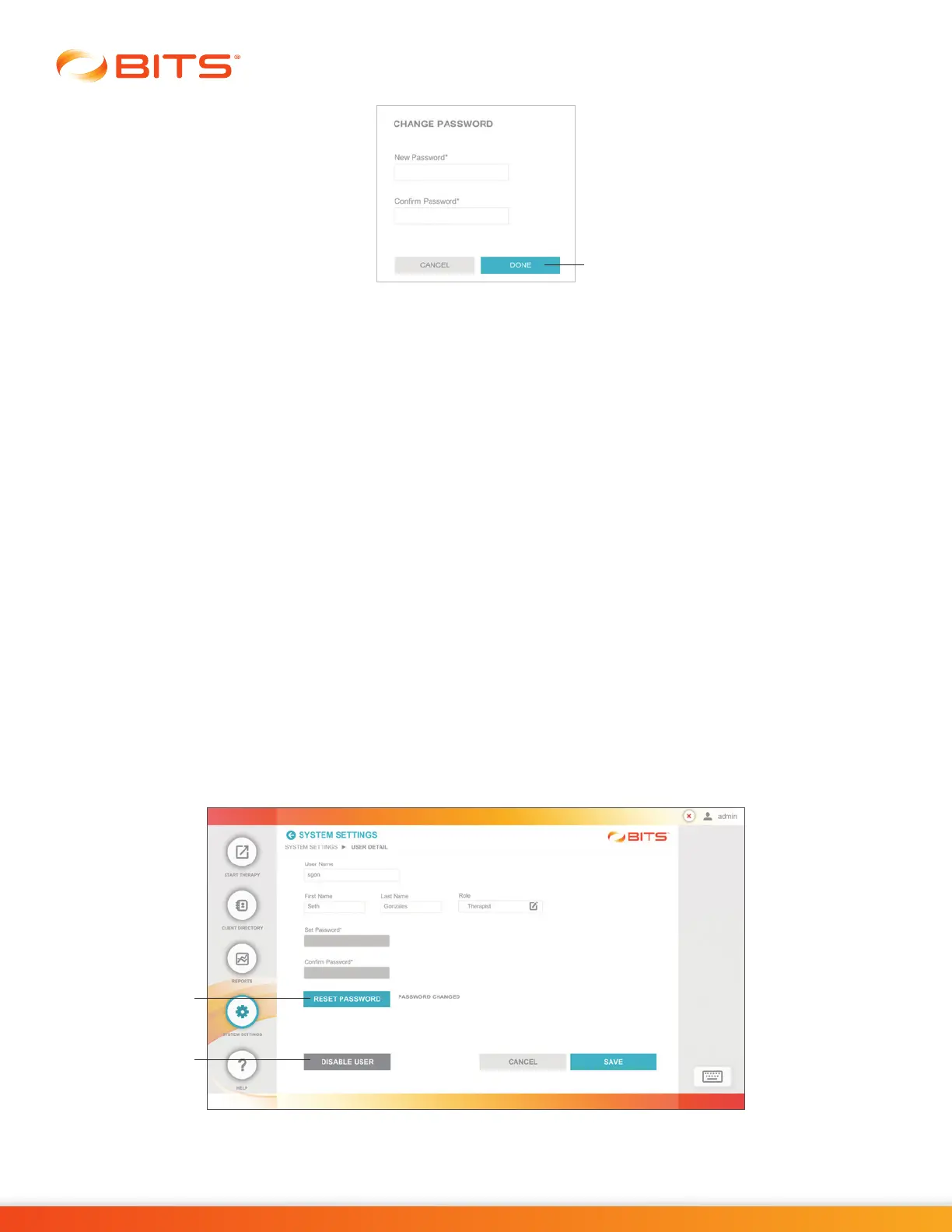
Figure 20-6: Change Password Pop Up Window
6. From the User Detail Screen, press the Save Button. See Figure 20-5.
Note: In the User Detail Screen, fields which are grayed out are not accessible. Depending on whether
one is logged in as therapist or administrator, there are differences in access privilege.
Administrator Resetting a User Password
1. From the System Settings Screen, select the desired user account from the User List by pressing
the row with their name.
2. The User Detail Screen will open. Press the Reset Password Button and the text "Password
Changed" will appear. See Figure 20-7. The password now is the same as the Admin password.
3. The Administrator now can exit BITS.
4. The Administrator will log back into the BITS software using the therapist's username and the Admin
Password.
5. From the System Setting Screen, press the appropriate user account.
6. The User Detail Screen will open, press the Change Password Button. See Figure 20-5.
7. The Change Password pop up window will open. Enter a new password, confirm the password, and
Press the Done Button. Figure 20-6.
Figure 20-7: Reset Password Button
Done Button
Reset
Password
Button
Disable User
Button



 To Next Page