117
Chapter 20 - System Settings
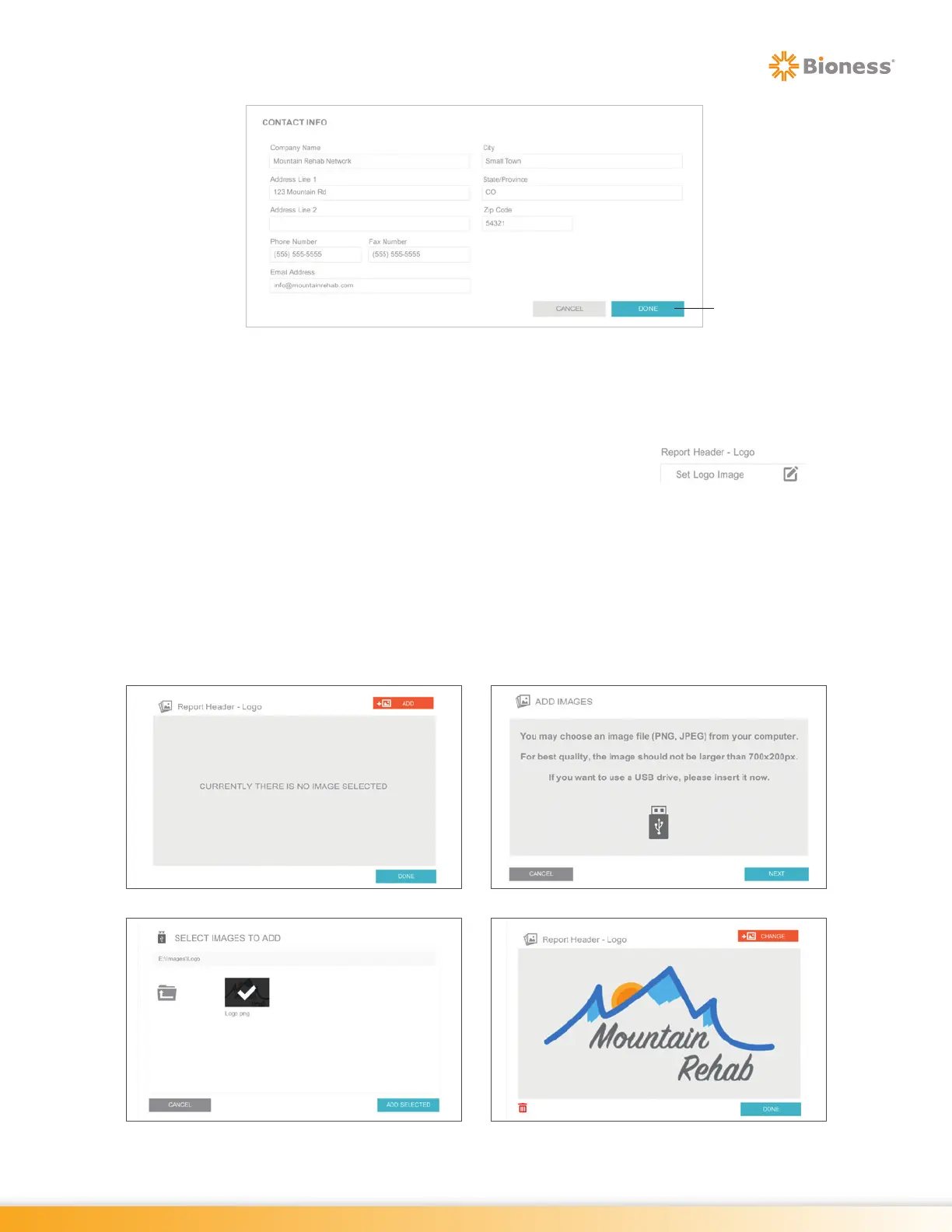
Figure 20-11: Contact Info Pop Up Window
Report Header Setting
The Report Header - Logo Setting adds the Clinic's logo to printed reports.
1. From the System Settings Screen, press the Report Header - Logo Icon
2. The Report Header - Logo Window will open. Press the Add Button. See Figure 20-12.
3. The Add Images Window will open. Press the Next Button, see Figure 20-12.
4. The Select Images to Add Window will open. Select the drive icon and corresponding folder that
contains the logo image. Select the desired file. A check mark will appear when selected. Press the
Add Selected Button. See Figure 20-12.
5. The Report Header - Logo Window will open, displaying the logo image. Press the Done Button.
See Figure 20-12.
Figure 20-12: Report Header Logo Windows
Done Button
Displayed Logo Image
Report Header - Logo Window
Select Image to Add Window
Add Images Window



 To Next Page