92
Clinician's Guide
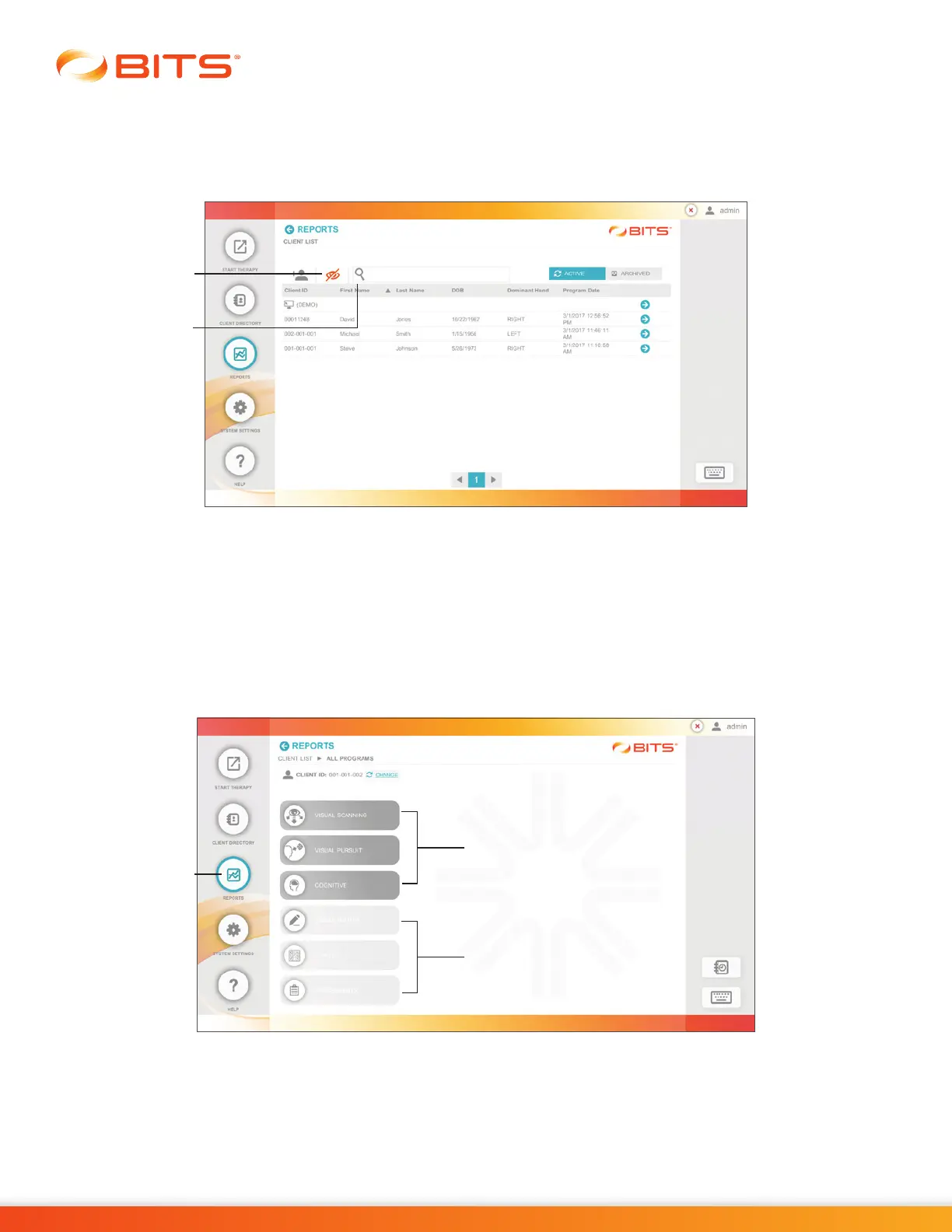
3. Select the desired client from the Client List by pressing the row with the client's name.
Figure 19-3.
Note: To search the Client List, type the client's first name, last name, date of birth, or client ID into the
text field next to the Search Icon. See Figure 19-3.
Figure 19-3: Client List Screen, Visibility Feature Turned On
Navigating in the Reports Module
Similar to Programs in the Therapy Module, Session Results in the Reports Module are organized by
Therapy Categories, similar to Discipline Menu. .
1. From the Navigation bar, press the Reports Button. See Figure 19-4.
Figure 19-4: Reports Screen, from Navigation Bar
2. The Therapy Category Menu will be displayed. Therapy Category buttons that are dark in color
contain results for sessions previously performed. Light colored buttons do not contain results and
are not active. See Figure 19-4.
Visibility
Icon
Search
Icon
Session Results Exist
(dark button example)
Session Results Do Not Exist
(light button example)
Reports
Button



 To Next Page