113
Chapter 20 - System Settings
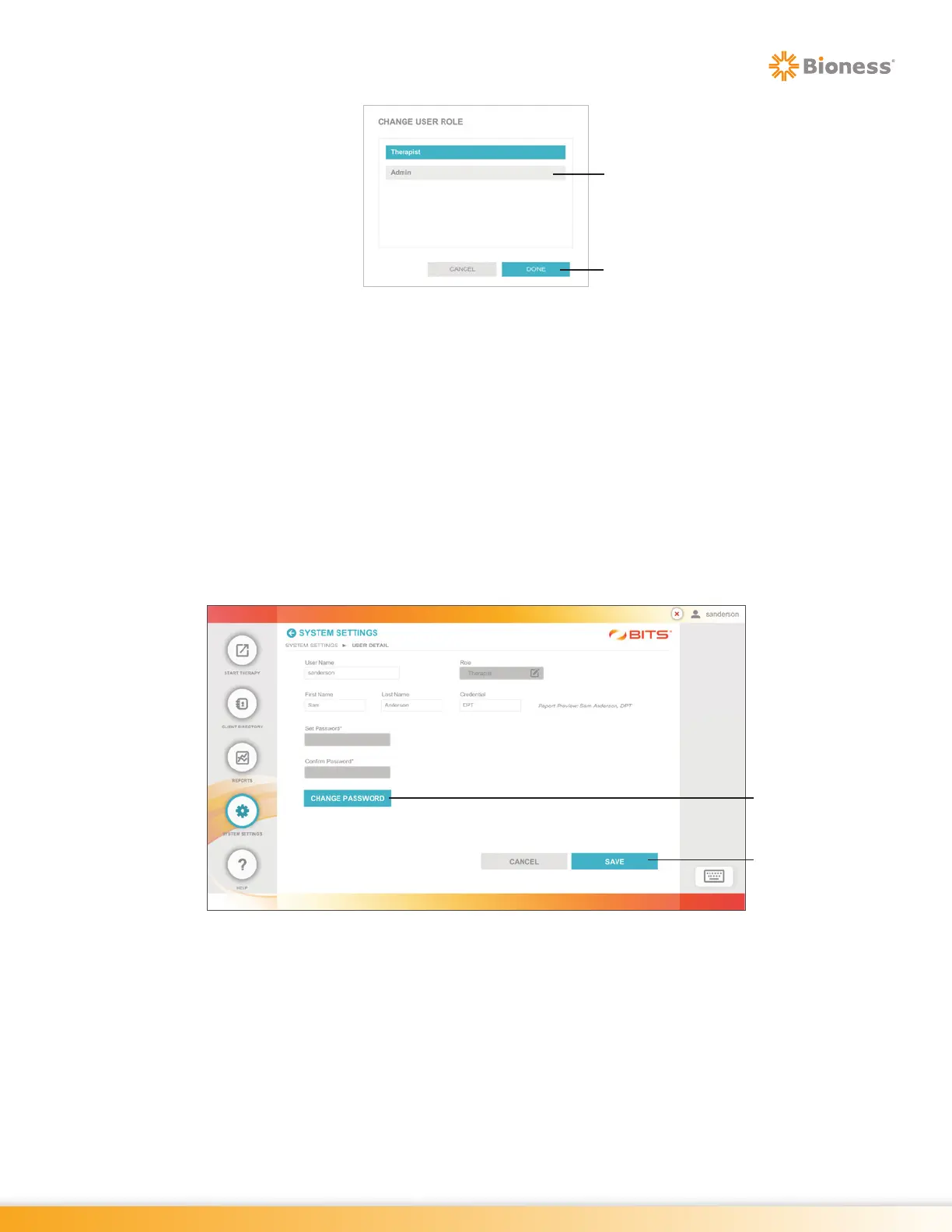
Figure 20-4: Change User Role Pop Up Window
Editing a User Account
A user may make changes to their User Name, First Name, Last Name, and Credential. Users may also
change their own password.
1. From the System Settings Screen, select the desired user account from the User List by pressing
the row with their name.
2. The User Detail Screen will open. See Figure 20-5.
3. Enter the desired revisions into the text fields.
4. To change a preassigned password, press the Change Password Button. See Figure 20-5.
Figure 20-5: User Detail Screen
5. The Change Password pop up window will open. Enter a new password, confirm the password, and
Press the Done Button. Figure 20-6.
Done Button
Admin
Save
Button
Change
Password
Button



 To Next Page