115
Chapter 20 - System Settings
8. From the User Detail window, press the Save Button. Figure 20-5.
9. Give the revised password to the therapist.
Disable a User Account
The disable a user account feature will prevent that user from accessing the BITS Software, while maintaining
the user’s history. This can only be performed by an Admin user.
1. From the System Settings Screen, select the user to be archived from the User List by pressing the
row with their name.
2. From the User Detail Screen, press the Disable User Button. Figure 20-7.
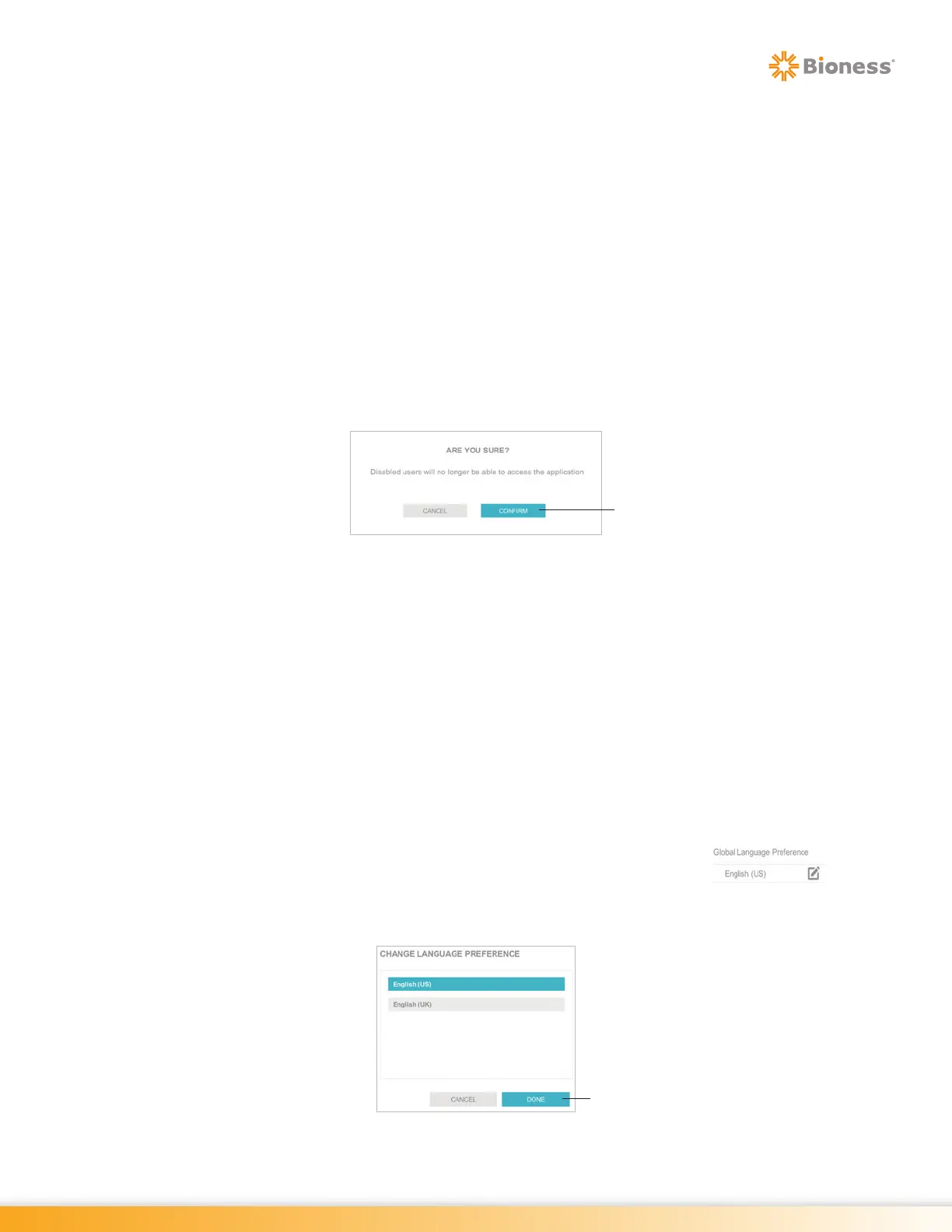
3. A confirmation dialog pop up window will open. Press the Confirm Button to disable the user's
account. See Figure 20-8. The user account is now archived in the BITS software application.
Figure 20-8: Disable User Account Pop Up Window
Reactivate a User Account
1. From the System Settings Screen, press the Archived Tab. See Figure 20-2.
2. Select the user account to reactivate by pressing the row with their name.
3. From the User Detail Screen, press the Reactivate User Button.
Language Settings
The Global Language Preference setting controls the language shown in the BITS software.
To change the Language Settings:
1. From the System Settings Screen, press the Global Language Preference Icon .
2. The Change Language Preference pop up window will open. Press the desired selection and then
press the Done Button. Figure 20-9.
Figure 20-9: Change Language Preference Window
Confirm Button
Done Button



 To Next Page