46
Clinician's Guide
Navigation Bar
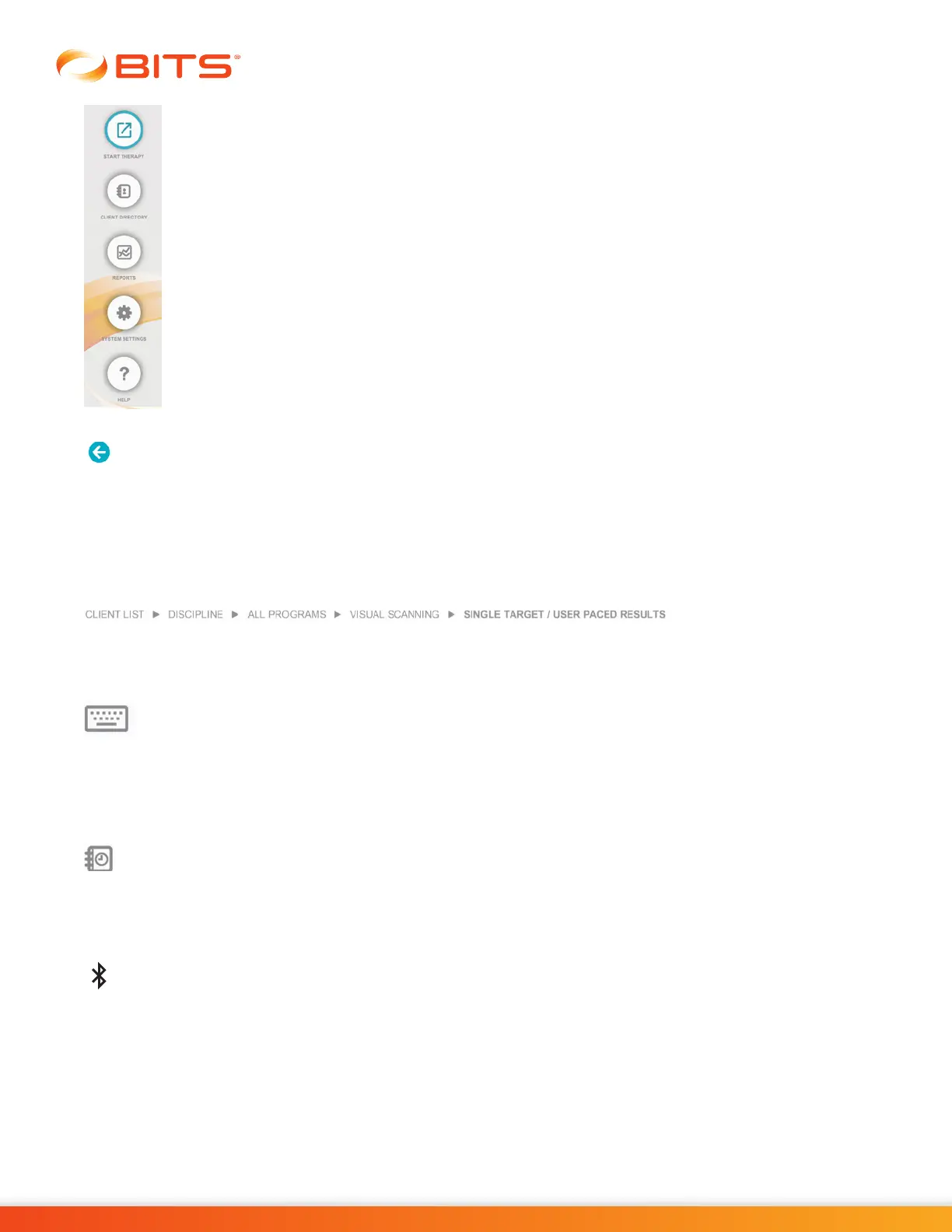
The five menu options that appear on the BITS software application Home Screen are also
found as icon buttons on the Navigation Bar. The Navigation Bar appears on the left side of
the screen throughout the BITS software application.
The Navigation Bar is used to navigate to the following BITS modules:
• Start Therapy
• Client Directory
• Reports
• System Settings
• Help
Back Arrow
When pressed, the Back Arrow Icon returns the user to the previous screen. See Figure 6-17.
Note: When the user presses the Back Arrow Icon from the therapy program Results Screen, the user
will be taken back to the Parameter Screen not back to the therapy program.
Breadcrumbs
The Breadcrumbs located in the top portion of the screen is a navigational aid to help users keep track of
their location in the software and the path to get to the current screen. To get back to a previous screen
quickly, touch the desired selection within the Breadcrumb. See Figure 6-17.
Keyboard Icon
The Keyboard Icon located in the bottom right section of the screen (see Figure 6-17) is used to open
the on-screen keyboard. Note: The on-screen keyboard and physical keyboard provided with the BITS
System can be used interchangeably.
Recent Sessions Icon
The Recent Sessions Icon located at the bottom right of the screen (see Figure 6-17) is used to open
the Recent Sessions list. This list displays the past ten most recently run sessions for the Active Client.
Bluetooth Icon
The Bluetooth Icon located in the bottom right section of the screen (see Figure 6-17) is used to open Sensor
Device Settings. This displays the paired Sensors and the active Sensor. It is also used to disconnect a
Sensor, delete a Sensor, pair a new Sensor (wearable or Platform) and rename a Sensor. This icon only
appears if Balance Module has been activated.



 To Next Page