44
Clinician's Guide
In-Therapy Screen Scale Feature
The Screen Scale Feature adjusts the size of the visual field of the therapy
program. This feature is available in most BITS Therapy Programs to
accommodate each client's physical abilities.
Press the gray arrows or drag the blue indicator to change the value.
Note: The Screen Scale Feature is not available in all programs. .
To adjust the In-Therapy Screen Scale Parameter:
1. In an active therapy program screen press the small starburst icon located at the bottom left
corner of the screen. See Figure 6-13.
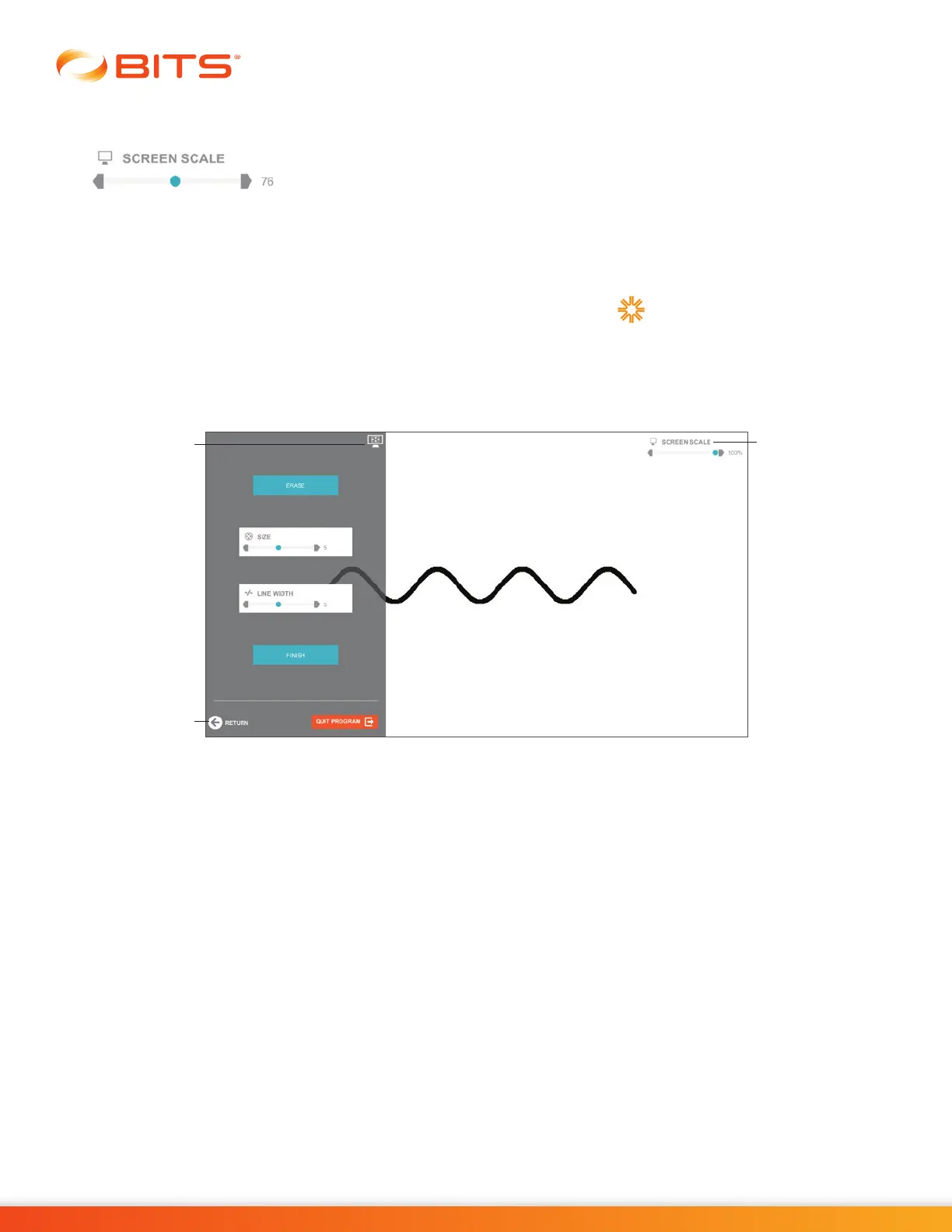
2. The In-Therapy Side Menu will open, see Figure 6-14. Press the Screen Scale Icon located at the
top right corner of the In-Therapy Side Menu. The Screen Scale Feature controls will be displayed
in the top right corner of the display screen. See Figure 6-15.
Figure 6-15: In-Therapy Side Menu and Screen Scale Feature Controls
3. Make the display screen adjustments using the Screen Scale Feature Controls. Press the Return
Arrow Icon to return to the launched therapy program. See Figure 6-15.
Return
Arrow Icon
Screen
Scale Icon
Screen Scale
Parameter



 To Next Page