22
Clinician's Guide
Sensor Settings
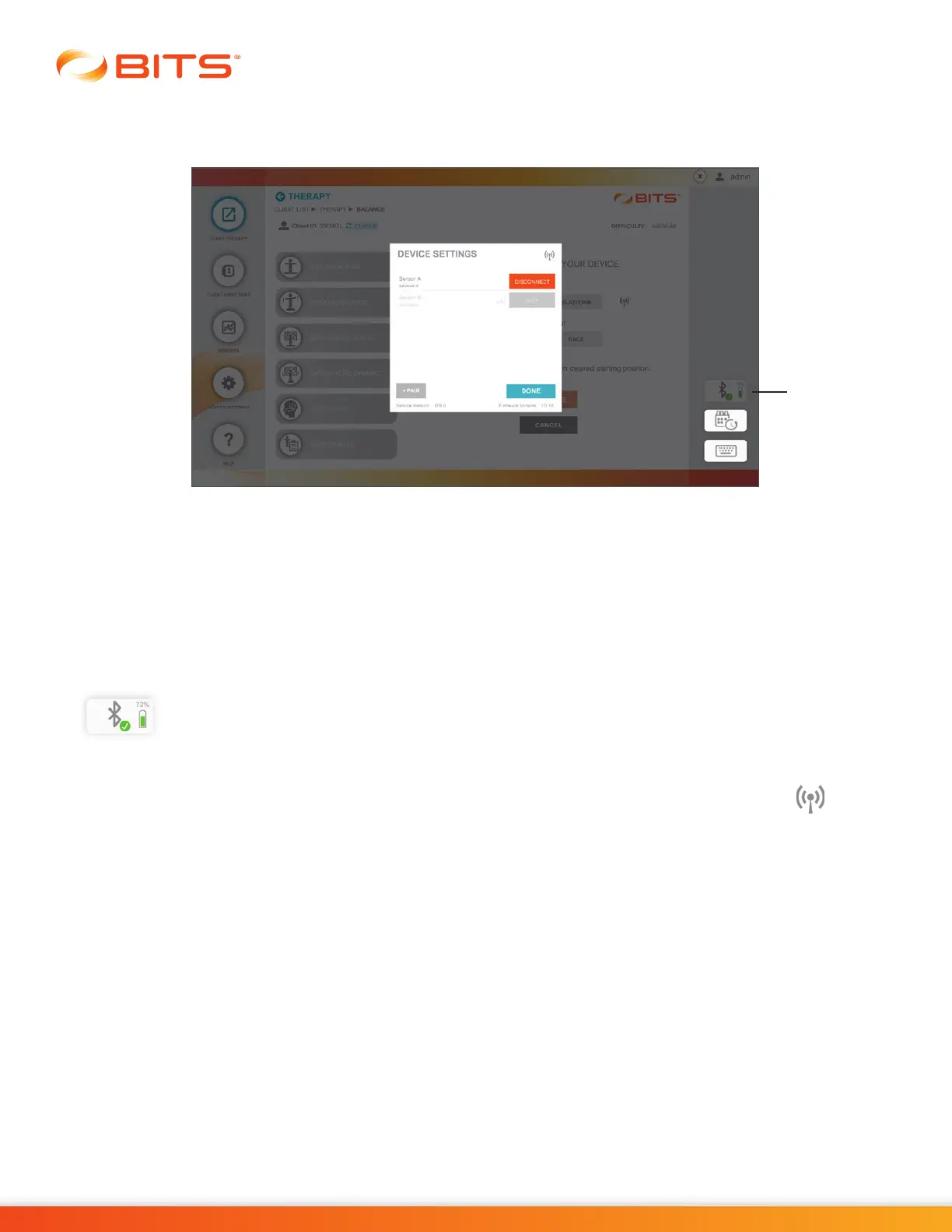
To quickly view all Sensors paired with BITS, press the Bluetooth icon. See Figure 4-7.
Figure 4-7: Sensor Device Settings
The Sensor Device Setting Menu displays the paired Sensors, the active Sensor and the signal strength.
user can also disconnect a Sensor, delete a Sensor, pair a new Sensor (wearable or Platform) and rename
a Sensor in this menu. To update Balance Therapy Difficulty Level for a client refer to the "Client Directory"
section of this guide.
Sensor Battery Level
The battery level for the active, in use Sensor is indicated on the Bluetooth Icon. Battery level above 25%
is indicated in green, battery level between 25% - 1% is indicated in yellow, and battery level
below 1% is indicated in red and considered critically low battery.
Identify Active Sensor
To identify which Sensor is currently active, open the Sensor Device Setting Menu and click the icon.
The system will generate an audible sound for the Sensor that is currently active.
Bluetooth
Icon



 To Next Page