32
Clinician's Guide
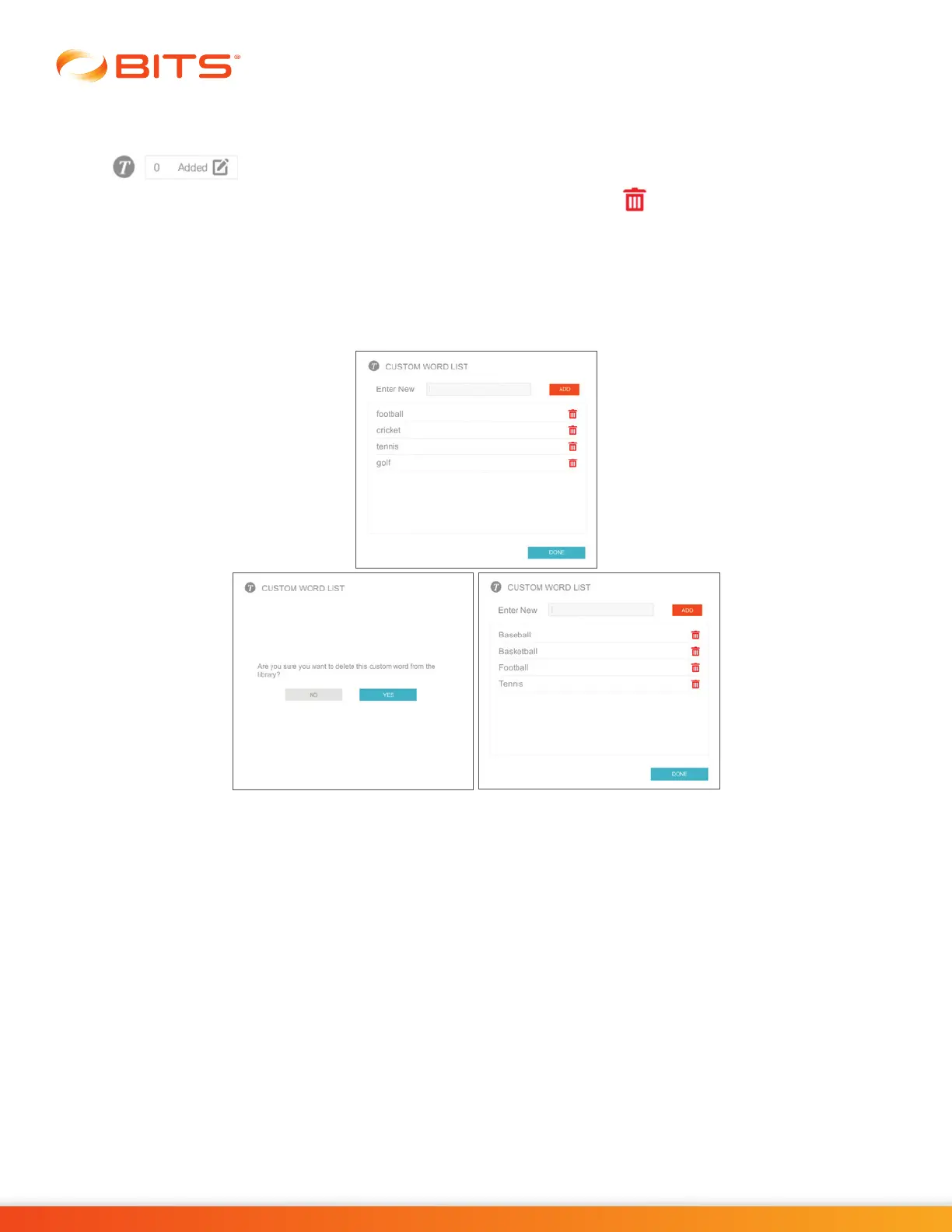
Removing Custom Words
1. From the Client Detail Screen, press the Custom Word Icon Box next to the Custom Word Icon
to remove words. See Figure 5-6.
2. The Custom Word List Window will open. Press the red Trash Icon next to the word you want to
remove from the word list. See Figure 5-10.
3. A dialog window will open to confirm that the user wants to delete the image from the Custom Image
Library. Press the Yes Button, see Figure 5-10.
4.
The Custom Word List Window will open, reflecting the change to the word list. Press the Done Button.
See Figure 5-10.
Figure 5-10: Removing Custom Words, Windows
5. The Client Detail Screen will open. Press the Save or Save & Start Button to save changes to the
client record.



 To Next Page