31
Chapter 5 - Client Directory
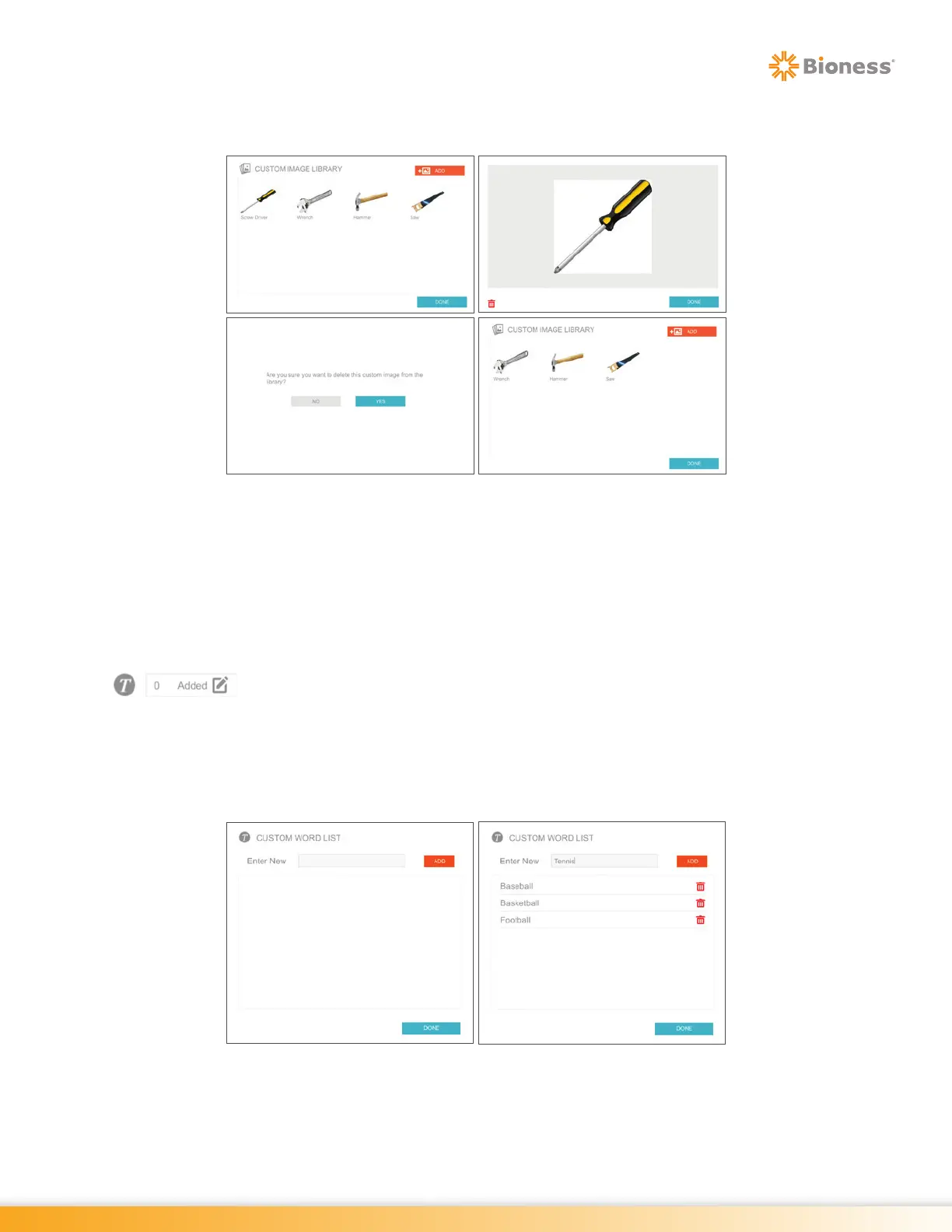
5. The Custom Image Library Window will open, reflecting the change to the library. Press the Done
Button to close the window. See Figure 5-8.
Figure 5-8: Removing Custom Images, Windows
6. The Client Detail Screen will open. Press the Save or Save & Start Button to save changes to the
client record.
Adding Custom Words
1. From the Client Detail Screen, press the Custom Word Icon Box next to the Custom Word Icon
to add words. See Figure 5-6.
2. The Custom Word List Window will open. Use the on-screen keyboard to type the custom word into
the "Enter New" text box and then press the Add Button. See Figure 5-9.
3. The custom word will now appear in the word list. Press the Done Button when the list is complete.
See Figure 5-9.
Figure 5-9: Adding Custom Words, Windows
4. The Client Detail Screen will open. Press the Save or Save & Start Button to save changes to the
client record.



 To Next Page