IQC 5000B Operation Manual
41
Installing the PCIe Driver
With all of the equipment powered down, ensure the Ethernet and PCIe connections are made as described in
Chapter 2 "Setup" on page 8.
To install or update the PCIe driver:
1. Power on the control computer or real time spectrum analyzer wher
e IQC Control is or will be installed, but
leave the IQC and MEM(s) powered off.
Note: IQC and MEM(s) units should remain power
ed off until IQC_PCIe installer is completed.
2. Install the driver with the IQC_PCIe_setup.exe installer.
This will first uninstall the old PLDA PCIe driver and any previous v
ersion of the existing driver on the machine
and then install the new PCIe driver.
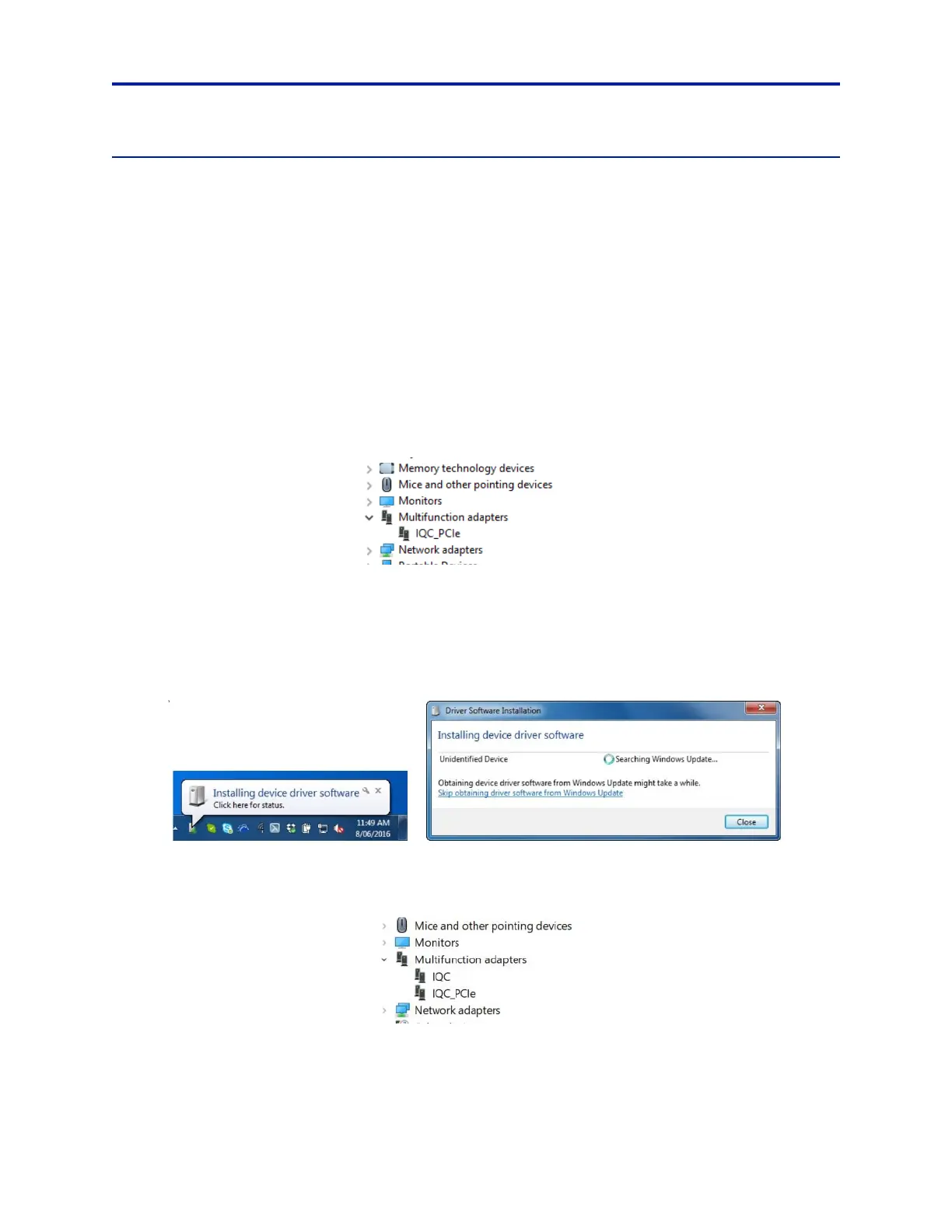
3. After the installer is complete, IQC_PCIe
should be shown in the Windows Device Manager, device tree, see
Figure 27.
Figure 27 Windows Device Manager — Multifunction Adapters
4. Apply power to the complete IQC System and other attached equipment in the recommended order. See step 7.
“Power on the Units:” on page 14.
5. When the IQC System powers up, Windows will most likely popup
t
he "Installing device driver software" bubble
(see Figure 28). When this opens, Windows is searching "Windows Update" for the most
recent driver for the
IQC PCIe link. If you click on the
bubble, Windows will open the Driver Software Installation dialog.
Figure 28 Windows Driver Installation
6. When Driver Software Installation is complete, a second IQC device can be found in the Windows Device Man-
ger Tree under Multifunction adapte
rs to verify successful installation and device detection. See Figure 29.
Figure 29 Windows Device Manager — Multifunction Adapters


 To Next Page