IQC 5000B Operation Manual
61
File Management
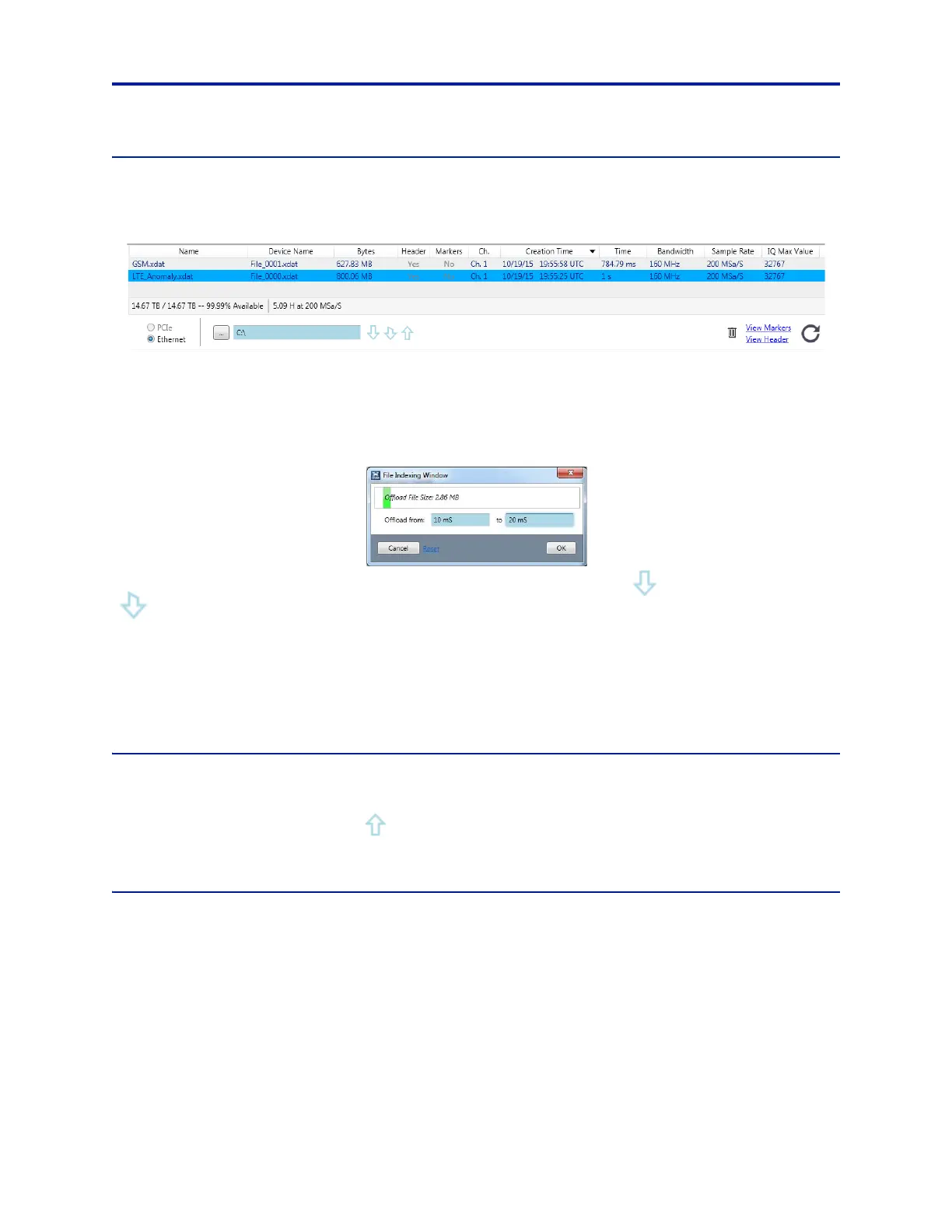
Managing files on the IQC5000 storage is done in the File System pane on the bottom of the IQC5000 tab.
Figure 50 IQC Control File List
A list of the files currently on the device is displayed, sortable by clicking on the column headers.
Offloading Files
Offloading (downloading) is the transfer of files from the IQC-MEM
storage to the Computer Workstation.
Figure 51 File Offload
Focusing on one or many files (via Ctrl+A or Ctrl+Mouse) enables the Offload icon ( ) and the Partial Offload icon
(
). With a partial offload, it is possible to specify a section of a file by start and end points in time or samples.
After the offload starts, the progre
ss bar will update with the progress.
Set the Offload Directory on the Computer Workstation to the left
of the offload icons.
For Microsoft® Windows 7™ users, the maximum supported operating sy
stem file size is 16TB. Because of this, IQC
Control will automatically split files above16000000458752 bytes, to prevent operating system errors when
offloading. Microsoft® Windows 8™ does not have this limitation.
Uploading Files
Uploading is the transfer of files from the Computer Workstation to the IQC-MEM storage. Uploading works much
the same as offloading, except that the file transfer is in the opposite direction, and partial upload is not supported.
To upload a file, select the Upload icon (
) and browse to the file to be uploaded. After the upload starts, the
progress bar will update with the progress.
File Transfer Methods
The preferred method of file transfer is via the PCIe cable. Using the PCIe offload method is much faster than using
Ethernet offload; so whenever it possible, it is advisable to use PCIe transfer. The option to use PCIe transfer will not
be available unless a valid PCIe connection has been established with the IQC5000, thus Ethernet transfer will be
selected by default if no PCIe connection detected.
As an alternative to offloading/uploading files with an IQC5000,
the
IQC5000B-MEM and external storage units can
be attached directly to a workstation for very fast transfer speeds. To do so:
1. Connect the hardware as shown in Figure 6 on page 10 (the connection from the IQC5000B-MEM to the
IQC5000 is not necessary).


 To Next Page