Using IQC5000 with IQC Control
56
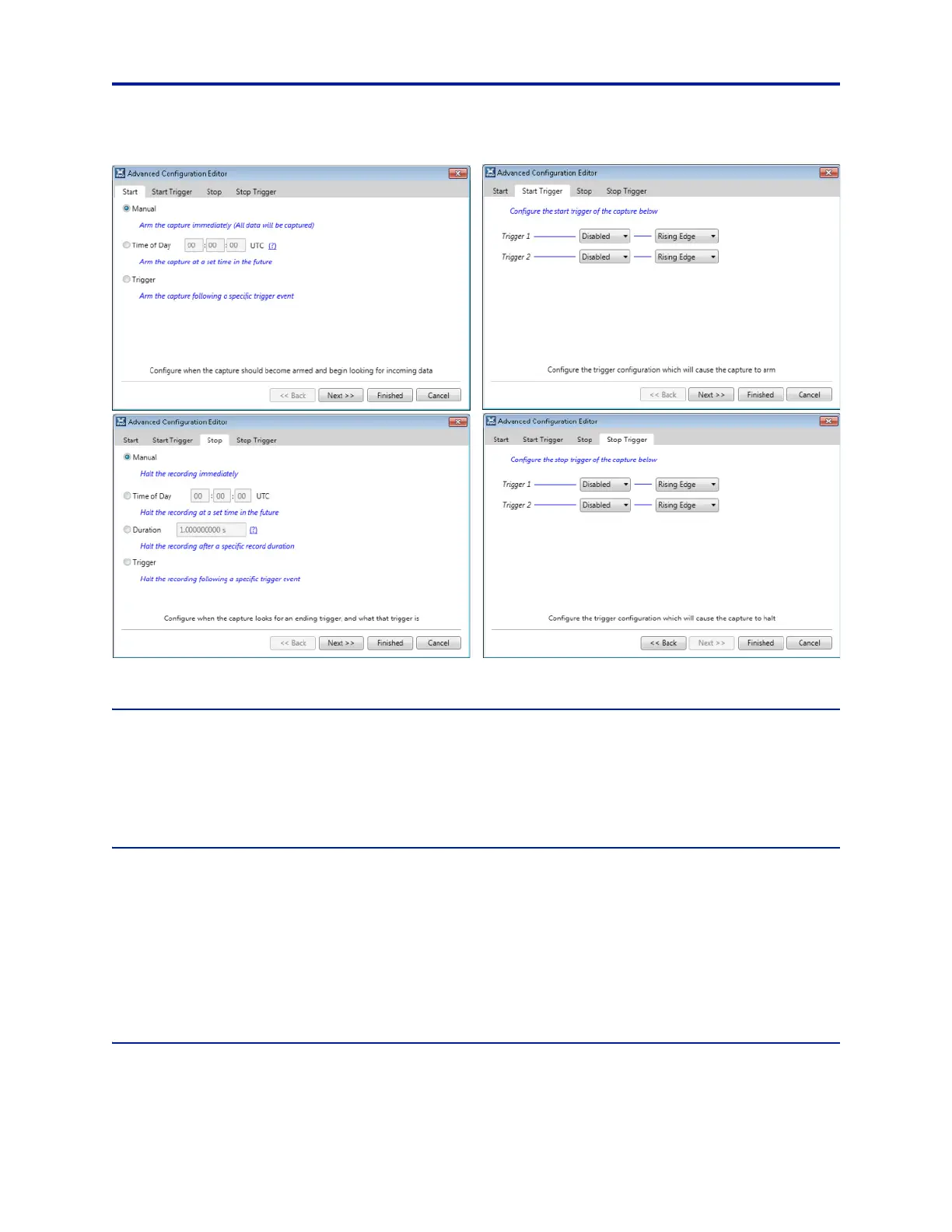
Figure 47 Advanced Recording Configuration Dialog Boxes
Setting up Markers
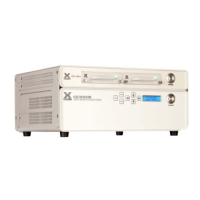
Markers can be manually generated by pressing the Mark button on the front panel of the IQC5000.
For precision markers, TTL-level marker source(s) can be attached
to Marker 1 and/or Marker 2 on the rear of the
IQC5000. A marker will be inserted into the .xmrk marker file of the recording when there is a rising, falling, or both
rising and falling edge signal. Set the edge detection under Marker Input.
Naming and Describing the Recording
To the right of the Record/Playback drop down is the File Name text box.
If you wish to provide a description about the rec
ording, enter up to 512 characters into the Recording Comments
box. Information such as RF modulation type, spectral behavior, or recording location (if a GPS signal is not
connected) may be worth entering for future notice.
The option Auto-Increment File Name will append a number to the e
n
d of the File Name when a recording has been
completed, and increment it, readying the next file name for the next recording. This makes multiple recordings
within a short period of time a smoother process.
Starting/Stopping Record
To start a recording, the spectrum analyzer must first be armed by clicking Arm.


 To Next Page