Using IQC5000 with IQC Control
54
The following sections outline the necessary steps to set up the IQC Control software to record with the IQC5000.
Setting the IQC5000 into Record Mode
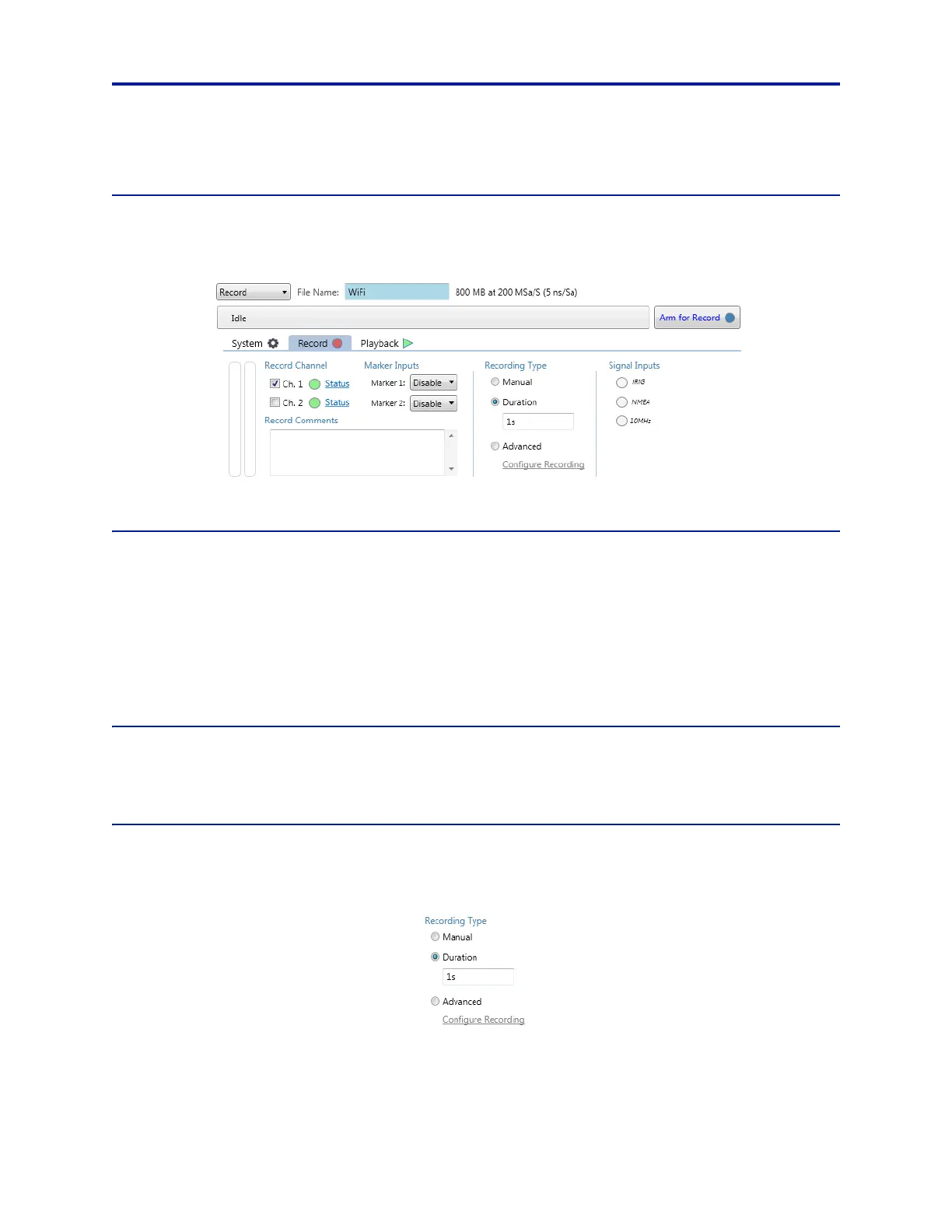
Press the drop-down Mode button and select Record to set the IQC into record mode.
Figure 45
IQC Control Recording Setup
Channel Selection
The IQC5000 is capable of recording 2 streams of LVDS data from similar spectrum analyzers outputting data at the
same sample rate. Select to use Channel 1, Channel 2, or both for recording.
The Channel Status Indicators will show the IQC5000 channel is re
ceiving a valid data signal when the circle inside
area is green. When the IQC5000 is connected to a spectrum analyzer, the line around the circle will be grey; if a
spectrum analyzer is not connected correctly, the line will be red.
Clicking on the Status link to the righ
t
of the channel checkbox will run a diagnostic for that channel and display
action required to record using that channel.
Signal Inputs
External input signals can be monitored with these indicators. When green, a signal is detected; when grey, no
signal is detected.
Record Modes
The Recording Configuration pane is where the start/stop methods of the recording are set and displayed.
Figure 46
Record Mode Selection


 To Next Page