Using IQC5000 with IQC Control
42
Starting IQC Control
Shortcuts on the desktop and Start menu are created when IQC Control is installed.
To access the Start menu shortcut, navigate to Start > All Progra
ms > X-COM > X-COM Control > X-COM Control.
Adding an IQC5000 to IQC Control
The IQC5000 is added as a device in IQC Control and can be accessed as a tab on the main user interface or in a
separate window.
1. Start IQC Control.
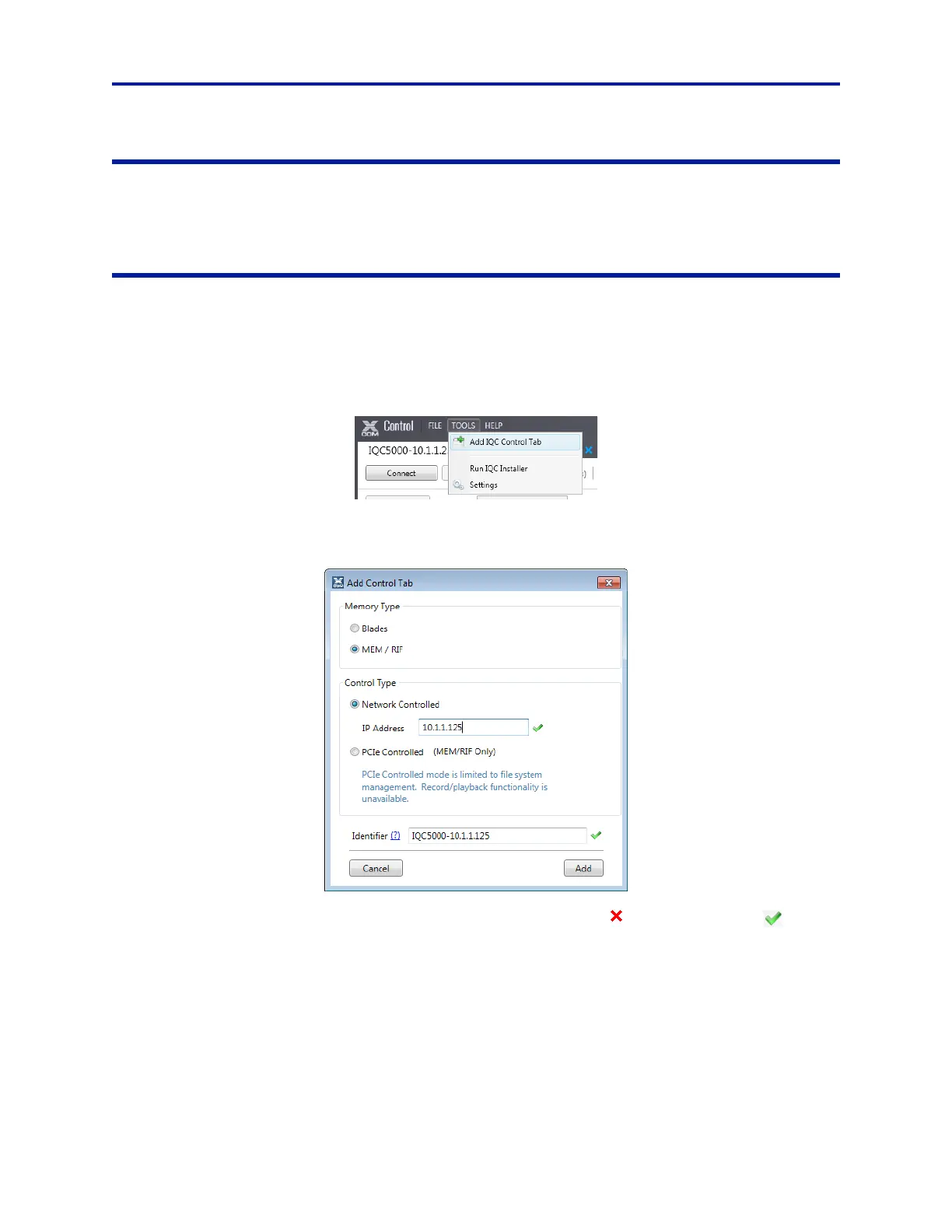
2. Select Tools > Add Control Tab. The Add Control Tab menu appear
s.
Figure 30 Adding an IQC5000 to IQC Control
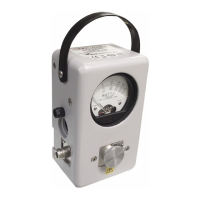
3. Select the device type from the supported device list. For IQC-MEM, select MEM/RIF.
Figure 31 Add Control Tab Dialog Box
4. Select Network Controlled and enter the IP address of the device. A red X or green check mark shows
whether the IP address is of acceptable format. (For information
on PCI Controlled mode, see "File Transfer
Methods" on page 61.)
5. (Optional) Enter a descriptive id
e
ntifier for the device by de-selecting the Generate Identifier check box and
entering your own text. If the check box is left checked, an identifier string will be created from the device type
and IP address.
6. Press Add.


 To Next Page