IQC 5000B Operation Manual
79
Sanitization Procedure for IQC5000B & IQC5000B-MEM
When installing the IQC Control software for the first time on the control computer, it is necessary to perform a full
firmware update of the IQC5000B system components. This will result in the creation of a configuration file
containing the factory default configuration settings and calibration values. This file will be named
flash_config_[Datetime].xcfg, where [Datetime] is the date and time the firmware upgrade takes place. the
configuration file will be stored in the directory
%APPDATA%\XCOM\XCOMControl\config\flash_configs\[IPv4Address], where [IPv4Address] is the IPv4 address of
the IQC5000B unit. Take care to save this file in a safe location as it will be required for use with the sanitization
utility.
Note: Bird recommends that this file be permanently saved to nonvolati
le
medium such as a CD-R. The
factory default flash configuration file is located in the \FlashConfig on the CD shipped with the IQC5000 sys-
tem.
A backup of the IQC5000B configur
a
tion settings is made every time the firmware installer is run, and every time the
unit is sanitized.
Sanitization Procedure
1. Prior to sanitizing the IQC5000B and
the IQC5000B-MEM, make sure that the IQC5000B-MEM is sleeping as
described in "Sleeping/Waking the IQC5000B-MEM" on page 48.
2. Power down any and all external storage (i.e., IQC5000B-S08 or IQC5000B-S15)
and
physically disconnect them
from the IQC5000B-MEM.
3. Start IQC Control.
4. Select T
ools > Run IQC Installer. The
software will exit and launch the firmware installer/sanitizer process.
5. Enter the IP address of the IQC5000B
unit to be sanitized, or select the device from the list of previously con-
nected devices.
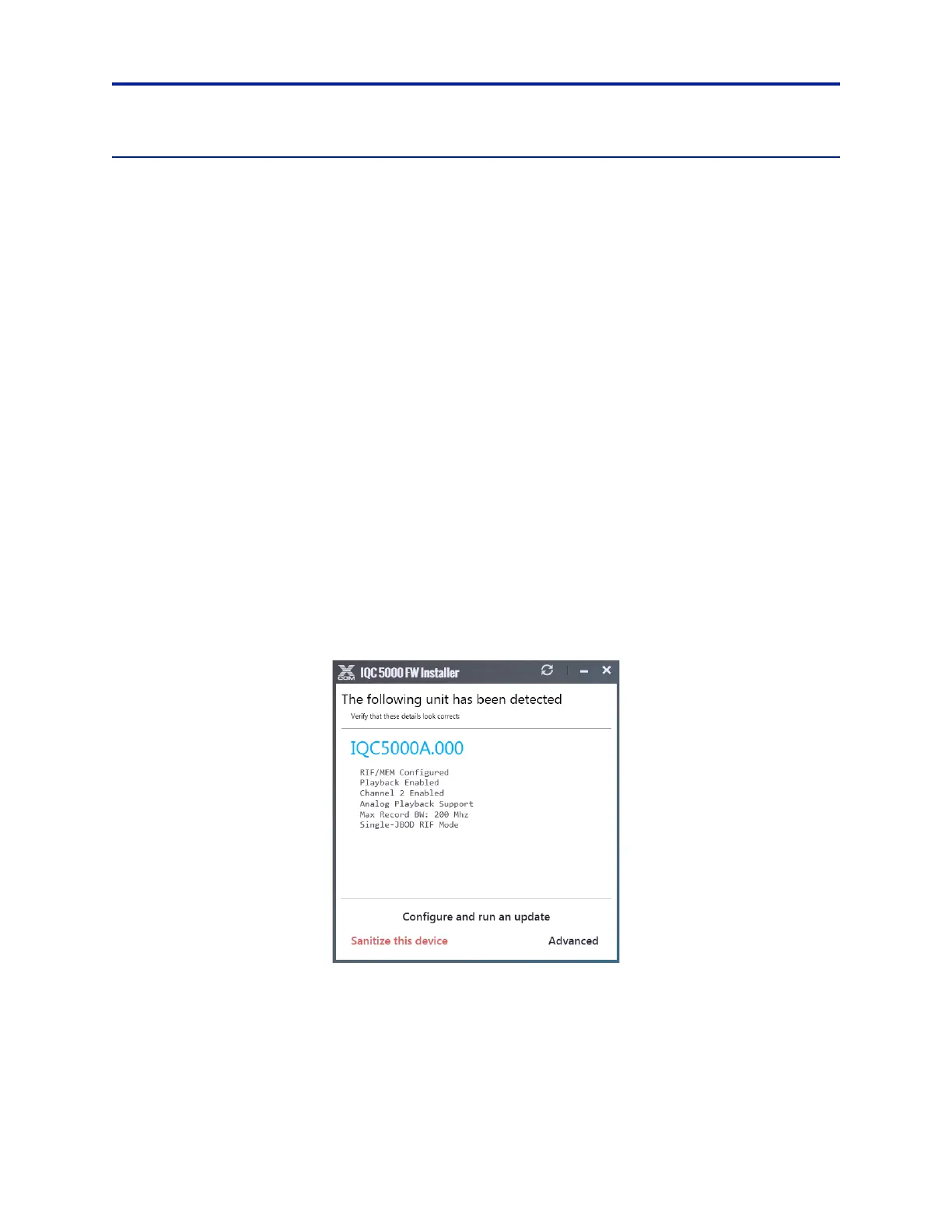
6. Once connected to the IQC5000B, click Sanit
iz
e this device (see Figure 64).
Figure 64 IQC Firmware Update Window
7. Read the warning and acknowledge the sanitization procedure by selecting Understood – Start Sanitization.
Note: The sanitization process is lengthy and may take as long as an hour
to complete. Progress will be dis-
played in real time.
8. After Sanitization is successfully c
ompleted, a dialog box will appear prompting for the system to be powered
down.


 To Next Page