Using IQC5000 with IQC Control
62
2. Add a control tab as outlined in "Adding an IQC5000 to IQC Control" on page 42, selecting PCI Controlled as the
control method.
3. Connect to IQC-MEM and offload/upload files.
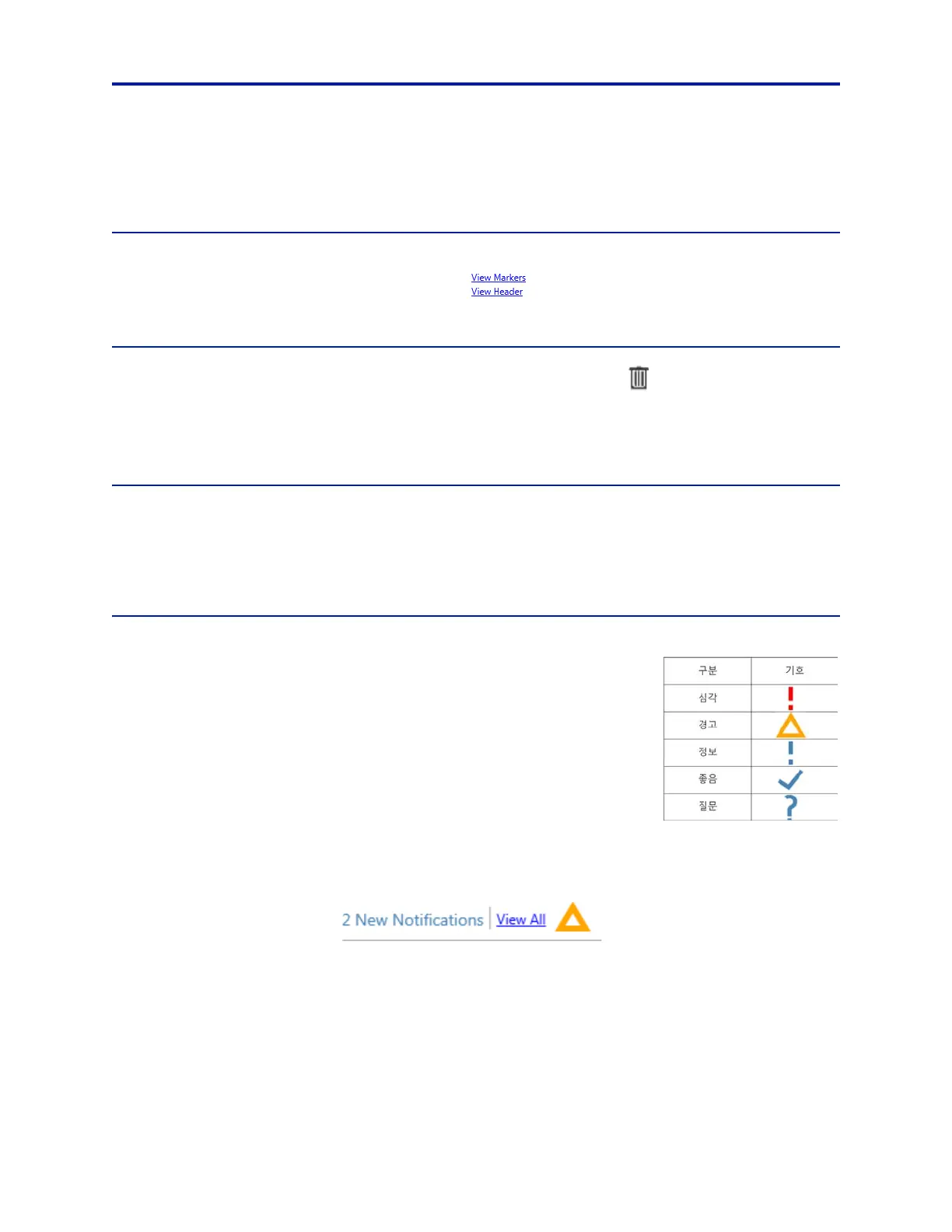
Viewing File Information
Vital statistics and marker information for a recorded file can be viewed within the UI. Select the desired file in the
file list, then click either View Markers or View Header (
) in the lower right of the file list to view the
Information.
Erasing the IQC5000 Memory
Focusing on one or many files (via Ctrl+A or Ctrl+Mouse) enables the Delete icon ( ). Clicking this icon will
confirm the file names to be deleted, and carry out the deletion opera
tion of each selected file.
During the erasure the progress bar
in IQC Control will show the progress of the deletion, and the IQC5000 front
panel will display the status.
Session Logs
The session log is an aggregation of environment variables, error messages, and server communications. Generate a
session log when an error is encountered by navigating to Help > Create Session Log. The session log is key to helping
Bird support identify the cause of the error. Session logs are saved in the directory
%APPDATA%\XCOM\XCOMControl\logs.
Notifications
IQC Control incorporates a scale of user notifications to alert the user during operation
of the IQC5000. Notifications range in severity from Good to Criti
cal. Questions (user
prompts) are also included.
Notifications typically appear as a
dialog box to the user after an event trigger. These
notifications may be hidden from showing again by selecting the check box Don’t show
this message again in the lower-left corner of the dialog box.
The Notification Queue
After a notification has been select
ed for hiding, the notification does not appear as a
dialog box, but instead appears in the Notification Queue in the upper-right corner of
the device window. Note that some lower-priority notifications only appear in the
Notification Queue.
Figure 52 Notification Queue
The Notification Queue shows the number of new notifications and the symbol of the highest severity item
currently in the queue. Click View All to see a list of all the unviewed notifications, clear the queue, or view the
notifications as they would normally appear in a dialog box.
Managing Hidden No
tifica
tions
Notifications that have been hidde
n will remain hidden until reset by navigating to Tools > Settings > Disabled
Dialogs. Here, all notifications can be reset by clicking Reset All Dialogs. Click View Disabled Dialogs to view the
currently disabled notifications and to choose which single notifications to re-enable.


 To Next Page