shutter information as ‘shutter speed’ or ‘shutter angle’. See the ‘setup menu’ section in this
manual for more information.
Shutter speed defines the level of motion blur in your video, and can be used to compensate
for varying light conditions. The shutter speed setting for natural motion blur, and the settings
available, depend on the frame rate you are using. For example, when shooting at 30p, a 1/60
of a second shutter speed is the equivalent of a 180 degree shutter angle, a very common
setting for film projects. However, if you are shooting at 25p, you will need to set the shutter to
1/50 for the same look. As lighting conditions change, or the amount of movement in your scene
increases, you may decide to adjust accordingly.
For natural motion blur you can calculate the shutter speed by doubling your frame rate. So at
30p, set your shutter speed to 1/60 of a second for natural motion blur.
If you need more light on the sensor, you can set the shutter at the slowest setting
corresponding with your frame rate. For example, 1/25 for 25p, or 1/30 for 30p. At the slowest
shutter speed, your motion blur will appear slightly exaggerated.
If you want to reduce the motion blur so action appears sharper and more defined, set the
shutter to a faster speed, such as 1/120 of a second for 30p, or 1/100 of a second for 25p. If you
are familiar with shutter angles, this equates to a shutter angle of 90 degrees.
NOTE When shooting under lights, your shutter can affect the visibility of flicker. Your
camera will automatically calculate a flicker free shutter value for your current frame
rate. Suggested flicker free shutter options will appear at the bottom of the HDMI
display when adjusting your shutter. These shutter values are affected by mains power
frequency in your region. You can set your local power frequency to 50Hz or 60Hz
in the camera’s setup menu. See the ‘setup menu’ section in this manual for more
information.
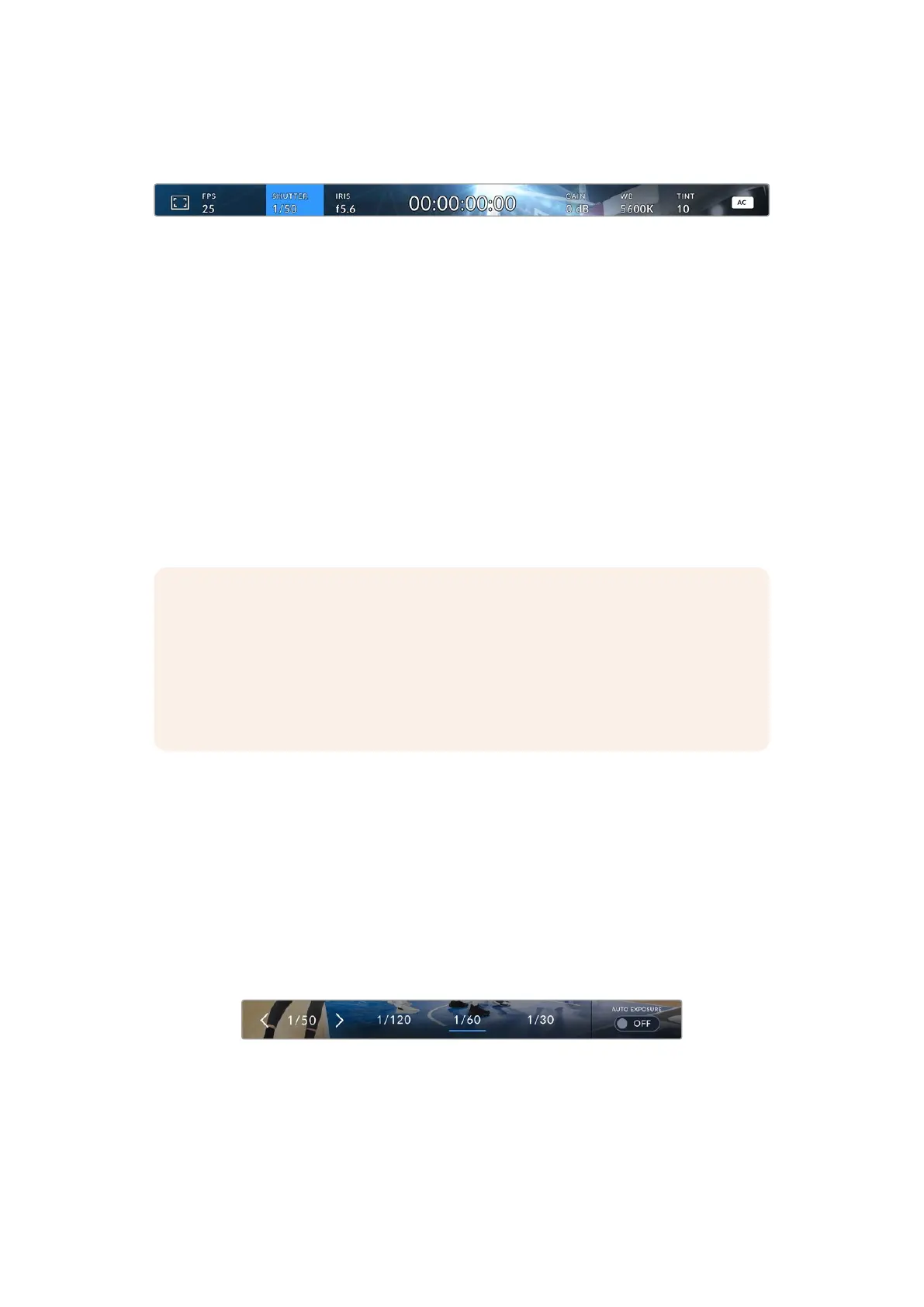
Select the ‘shutter’ icon and press ‘set’ to bring up the suggested shutter values along the
bottom of the HDMI display. If you have auto exposure set to ‘off,’ this screen will show you your
currently selected shutter value, as well as the available flicker free shutter values, based on
the mains power frequency you have selected in your camera’s setup menu. The characteristics
of individual light sources may still cause flicker even when using flicker free values. We
recommend always performing a test shoot when not using continuous lights. For more
information, see the ‘setup menu’ section in this manual.
To select a new shutter speed use the arrow buttons to select the current shutter value
indicator at the bottom left of the screen and press ‘set’. Change the shutter speed by pressing
the arrow buttons, when your selected shutter speed matches one of the available flicker free
shutter values, a blue line will be displayed under the matched value.
Your camera will suggest flicker free shutter values based on the
mains power frequency you choose in the ‘setup’ menu
Your Blackmagic Micro Studio Camera 4K G2 has three shutter based auto exposure modes. To
select one of these use the ‘set’ button to toggle the ‘auto exposure’ button to ‘on’, then use the
arrow buttons to choose an auto exposure option.
18Using the HUD Controls


 To Next Page
 Loading...
