Your Blackmagic Micro Studio Camera 4K G2 comes with white balance presets for a variety of
color temperature conditions. These are:
Bright sunlight (5600K)
Incandescent bulbs (3200K)
Fluorescent bulbs (4000K)
Mixed light (4500K)
Cloud (6500K)
To select a preset, use the arrow buttons and press the ‘set’ button. To customize the preset,
select the temperature indicator and use the arrow buttons to make adjustments. Each button
press moves the temperature up or down 50K.
To further dial in your image, you can adjust the ‘tint.’ This adjusts the mix of green and magenta
in your image. For example, adding some magenta can compensate for the green cast of many
fluorescent lights. Many of your camera’s white balance presets include some tint.
While in the ‘white balance’ menu, your camera’s current tint setting is shown at the bottom
right of the screen. To adjust the tint, select the tint indicator use the arrow buttons to make
adjustments. The available range is -50 to +50 in one unit increments.
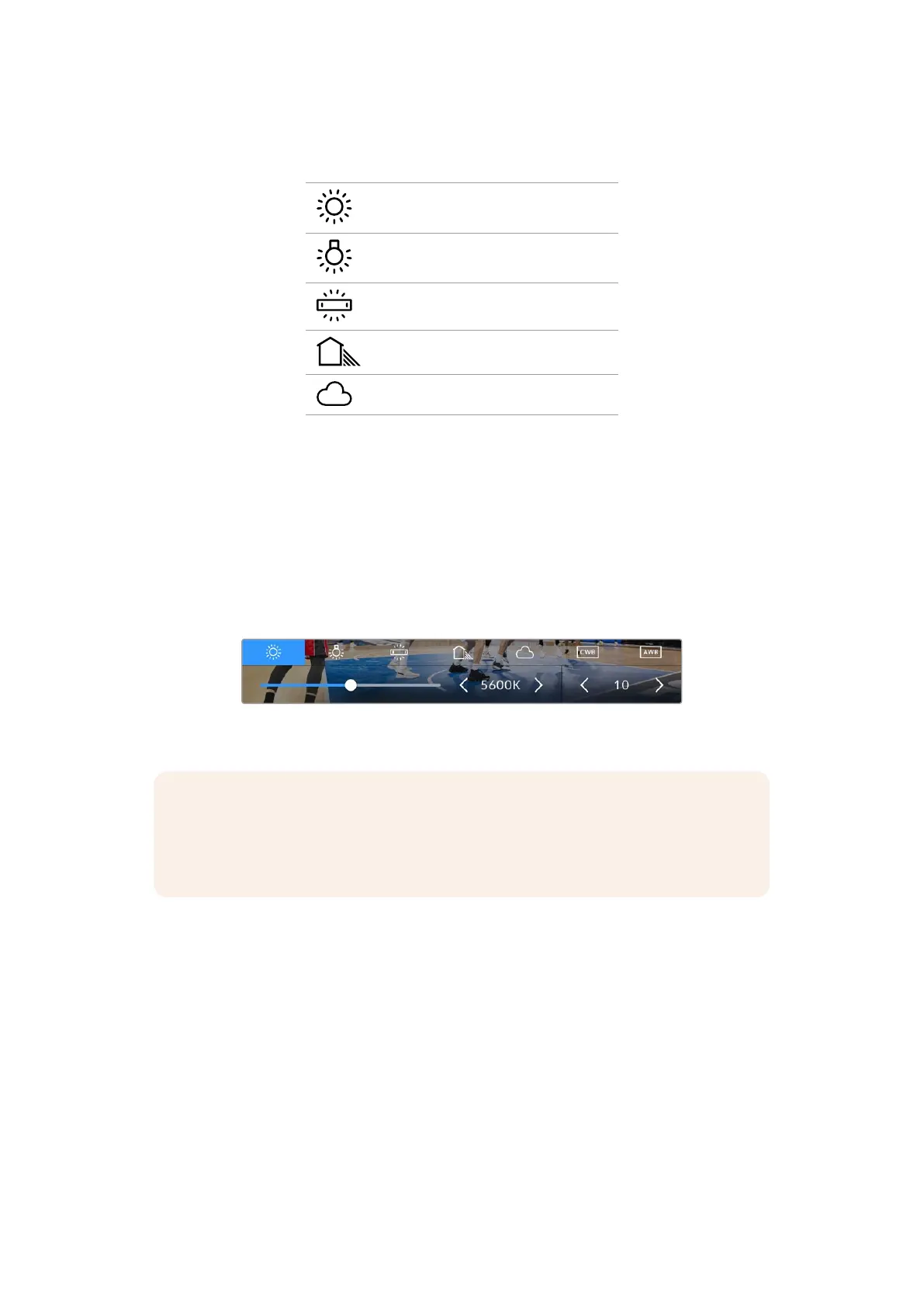
The white balance and tint indicator on your Micro Studio Camera 4K G2 gives you
access to five presets
NOTE Customizing the white balance or tint will change your preset to ‘CWB,’ or
custom white balance. Custom white balances are persistent; your CWB settings will
stay configured between power cycles, and when switching to a preset and back to
CWB. This makes it easy to compare a custom white balance to the last preset used.
Auto White Balance
Your Micro Studio Camera 4K G2 can set white balance automatically. Selecting ‘AWB’ will bring
up the white balance screen.
When setting white balance automatically, a square will be overlaid on the center of your image.
Fill this square with a neutral surface such as a white or gray card, use the arrow buttons to
select ’update’ and press ‘set’.
Your camera will automatically adjust its white balance and tint values to ensure that the
average of the white or gray within the white balance square is as neutral as possible. Once
updated, this will be set as your camera’s custom white balance.
23Using the HUD Controls


 To Next Page
 Loading...
