Off Speed Recording
By default, the project and sensor frame rates are matched for a natural playback speed.
However, switching ‘off speed recording’ to ‘on’ lets you set your sensor frame rate
independently.
Off Speed Frame Rate
When ‘off speed recording’ is enabled, select ‘off speed frame rate’ from the menu and press
‘set’. You can then use your camera’s arrow buttons to set the sensor frame rate.
The sensor frame rate sets how many actual frames from the sensor are recorded every
second, and frame rate will affect how fast or slow your video will play back at your set project
frame rate.
For more information about off speed frame rates, see the ‘frames per second’ section in the
‘HUD controls’ section of this manual.
Timelapse
Timelapse
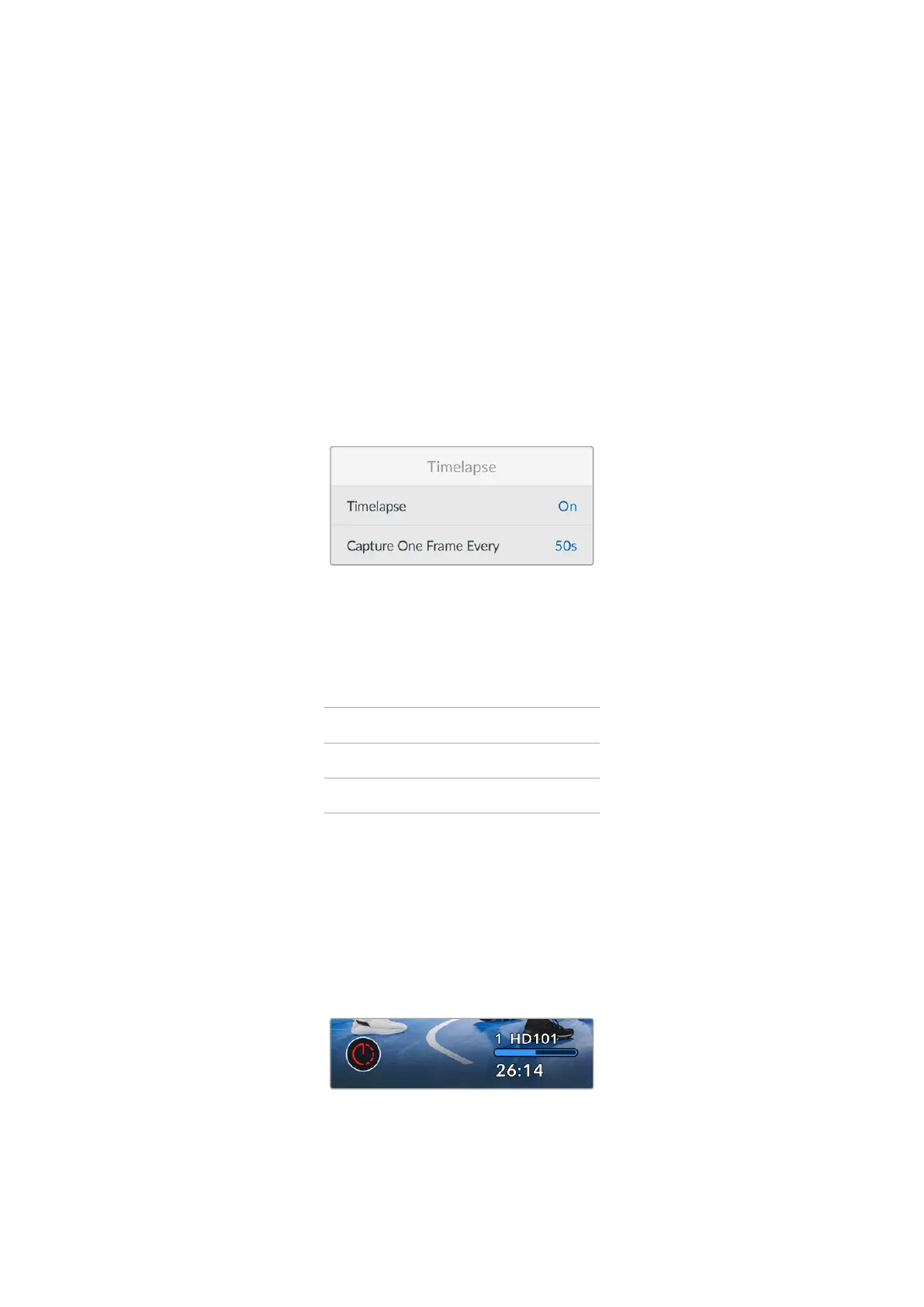
This setting activates the Timelapse feature.
Capture One Frame Every
When the Timelapse feature is enabled, use this setting to automatically record a still frame at
the following intervals:
Frames 2 – 10
Seconds 1 – 10, 20, 30, 40, 50
Minutes 1 – 10
For example, you can set the camera to record a still frame every 10 frames, five seconds,
30 seconds, five minutes etc.
The timelapse feature offers many creative options. For example, setting a two frame timelapse
interval gives your recorded video a high speed effect when played back.
Start recording by pressing your camera’s record button. When you press the button again to
stop recording, the timelapse sequence is saved as one single clip, matching the codec and
frame rate set in your camera. This means you can drop the timelapse sequence into your post
production timeline just like any other clip you have recorded.
Timelapse mode is indicated by an
icon over the ‘record’ button
41Settings


 To Next Page
 Loading...
