DHCP Your camera is set to DHCP by default. The dynamic host configuration protocol, or DHCP,
is a service on network servers that automatically finds your camera and assigns an IP
address. The DHCP is a great service that makes it easy to connect equipment via Ethernet
and ensure their IP addresses do not conflict with each other. Most computers and network
switchers support DHCP.
Static IP When ‘static ip’ is selected, you can enter your network details manually. When setting
IP addresses manually so all units can communicate, they must share the same subnet
mask and gateway settings. If there are other devices on the network that have the same
identifying number in their IP address, there will be a conflict and the units won’t connect.
Ifyou encounter a conflict, simply change the identifying number in the unit’s IP address.
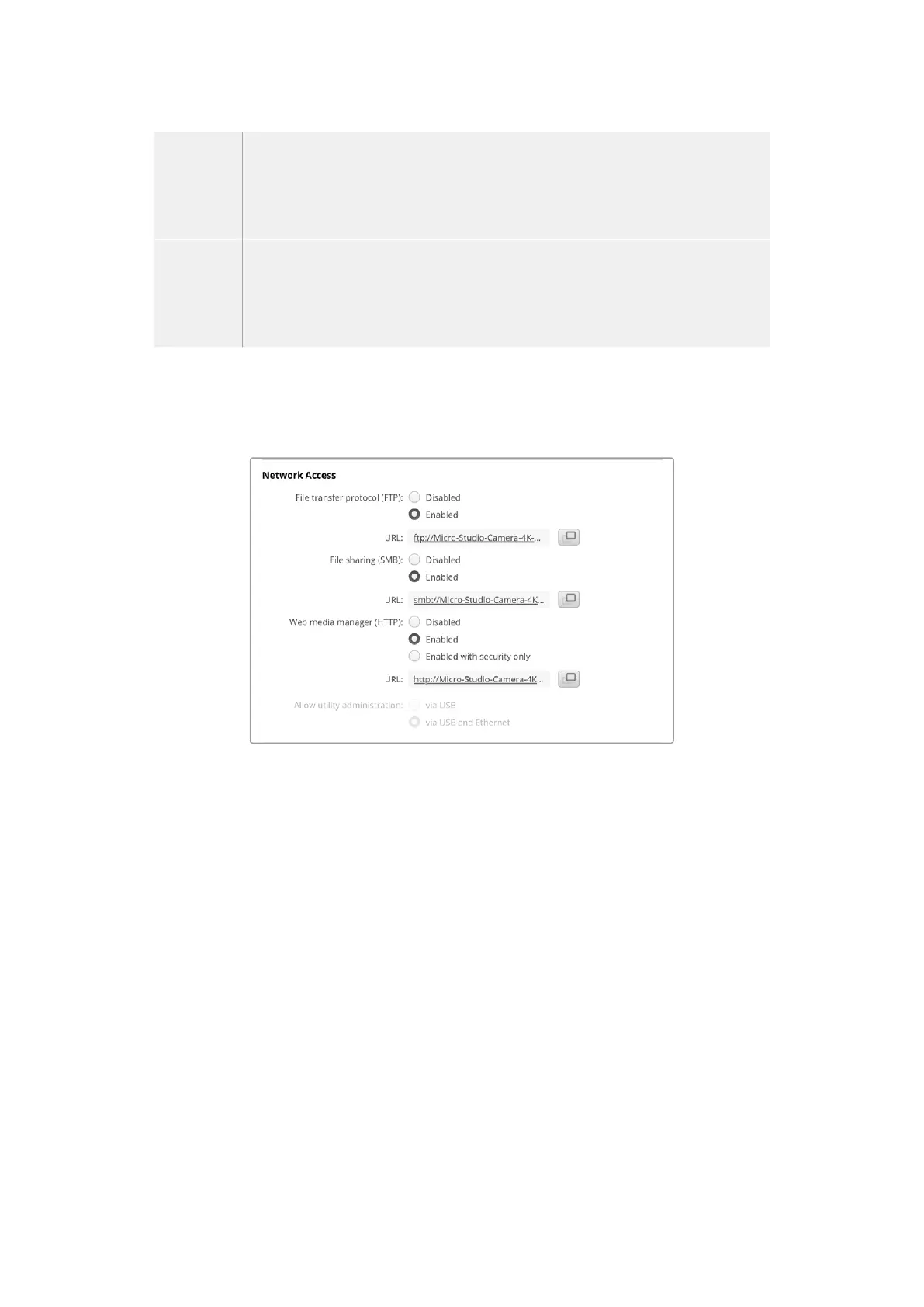
Network Access
Your Micro Studio Camera 4K G2 can be accessed via a network for transferring files. Access
will be disabled by default, but you can choose to enable individually or via a username and
password for added security when using the web manager.
File Transfer Protocol
Enable or disable access via FTP using the checkbox. If you are supplying access via an FTP
client such as CyberDuck, click the icon to copy the FTP address. For more information, refer to
the section ‘transferring files over a network’.
File Sharing
At the bottom left corner you will notice a button named ‘Show in Finder’ on a Mac or ‘Show in
Explorer’ on Windows. This button lets you access your media files using your computer’s file
browser. All you need to do is enable ‘file sharing’ and then click on the ‘show in Finder’ button.
You can also copy the URL and paste the file path into your browser.
Your operating system may prompt you to allow access to the drive.
Web Media Manager
Enabling web media manager lets you download clips from USB disks over your network, or
even delete unwanted clips if you need to free up disk space. When you click on the link or
copy and paste it into your web browser a simple interface will open where you can access
the media.
Enable access via HTTP by selecting the ‘enabled’ checkbox. You can also set up a secure
certificate using the ‘enabled with security only’ option. When using a digital certificate,
connections to web media manager are encrypted via HTTPS. More information on digital
certificates is available in the ‘secure certificate’ section.
77Blackmagic Camera Setup


 To Next Page
 Loading...
