Upgrading The Computer
Removing the Battery 6 - 5
6
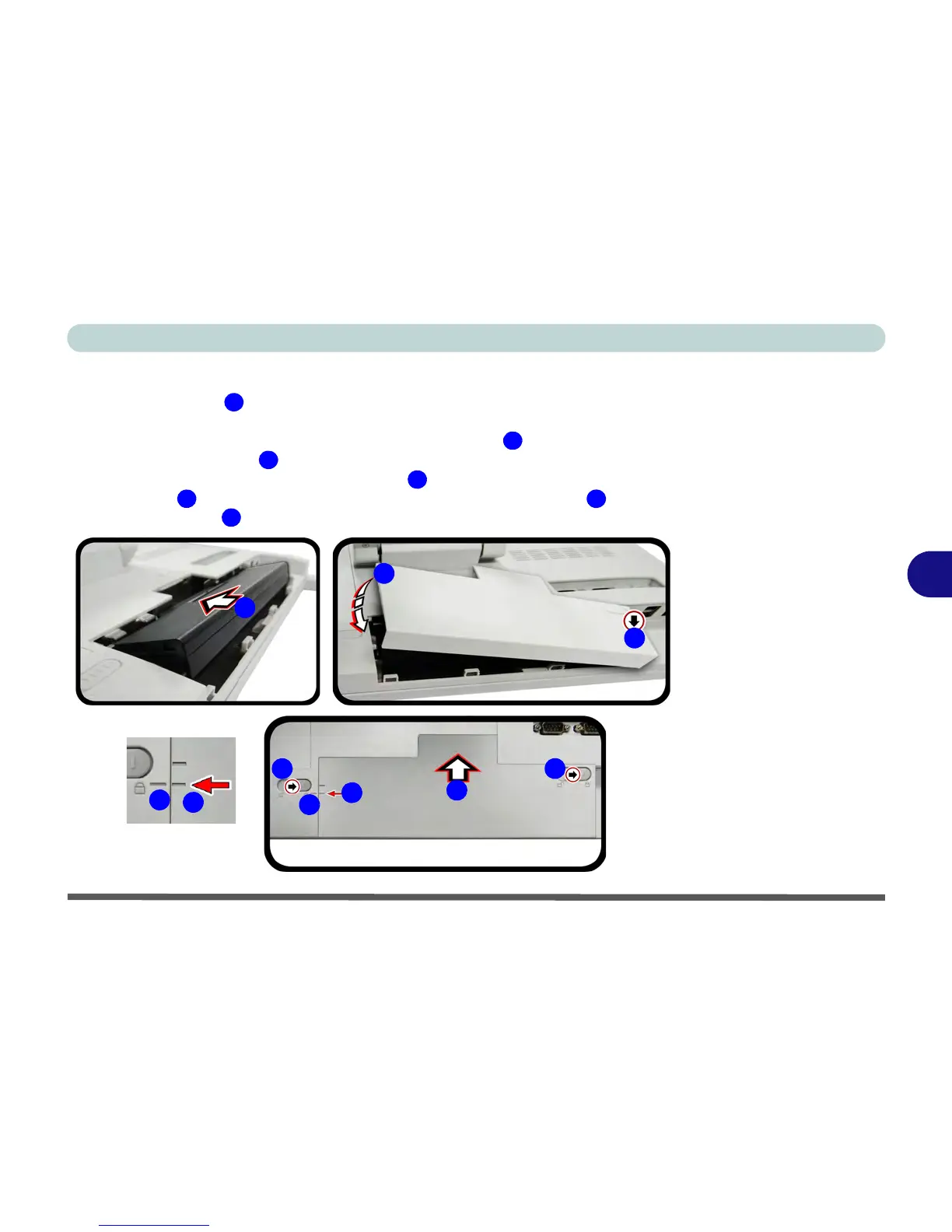
Inserting the Battery
1. Insert the battery at an angle and slide it firmly into the battery bay until con-
nected.
2. Insert the battery bay cover by angling it to fit on the right at first, and then click
the left side into place .
3. Slide the cover in the direction of the arrow until the top marker of the battery
cover icon is aligned with the marker on the side of the computer .
4. Slide the latches towards the lock symbols to lock the cover in place.



 To Next Page