1 - 28 Windows 8 Start Screen & Desktop
Quick Start Guide
1
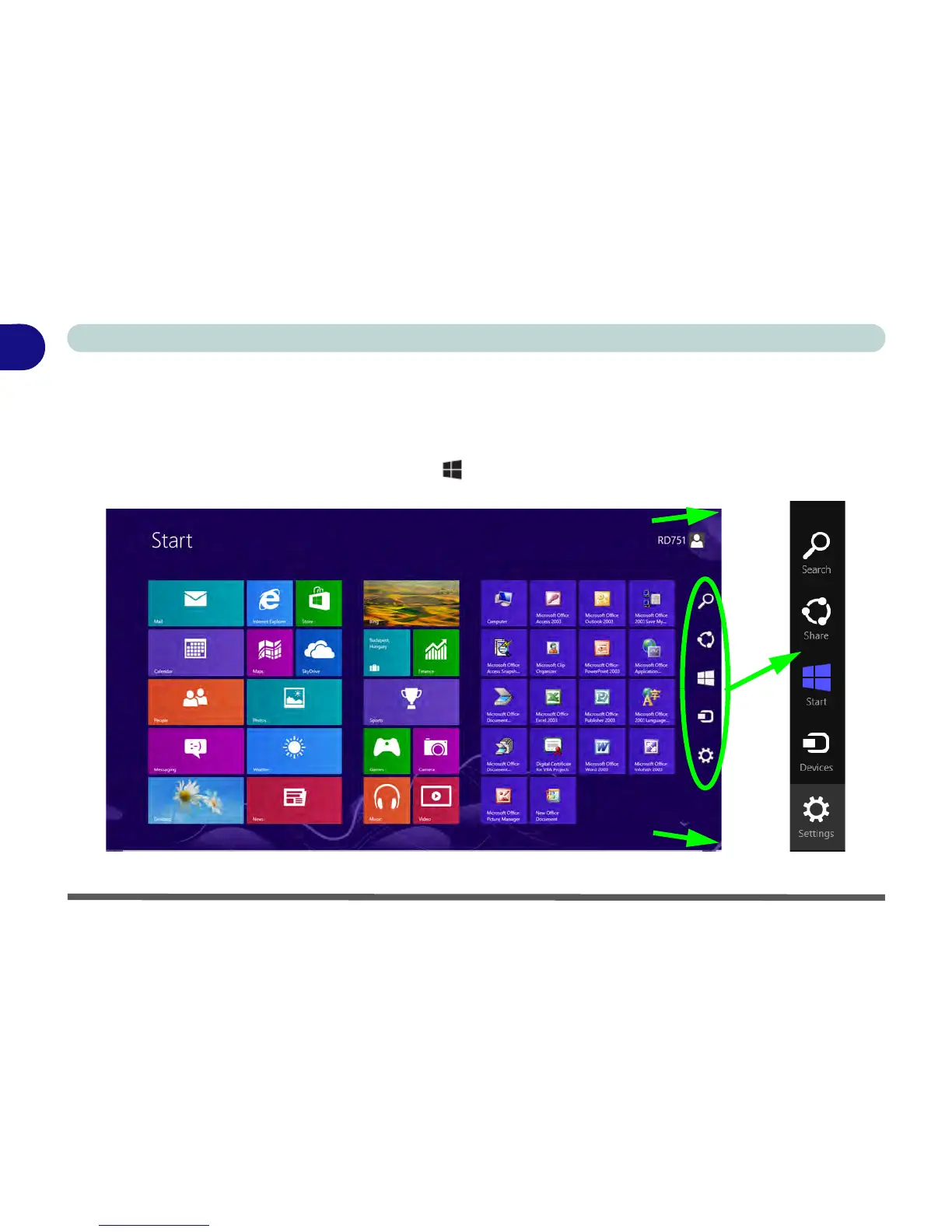
Windows 8 Charms Bar
The right side of the screen displays the Windows 8 Charms Bar. The Charms Bar contains the Search, Share,
Start, Devices and Settings menus. To access up the Charms Bar move the cursor to the upper or lower right
corners of the screen, and then hover over one of the items in the Charms Bar to activate it (the bar will be black
when it is active), or use the Windows Logo Key + C key combination (swipe a finger from the right to
access the Charms Bar using the touch screen - see over).
Figure 1 - 21 - Start Screen with Charms Bar
Move the mouse over a Charms Bar icon to activate the menu
Move the mouse to the top/lower right icons to activate the Charms Bar
Move the mouse to the top/lower right icons to activate the Charms Bar



 To Next Page